0:{"root":[["$","meta","1",{"property":"csp-nonce","nonce":"d1b2954e-808a-48c9-bbef-17f42b706305"}],"$L1"],"formState":"$undefined","returnValue":"$undefined"}
2:"$Sreact.fragment"
3:I["7ada5cab5be8",[],"Header",1]
4:"$Sreact.suspense"
:HL["/assets/_layout-BzYdn0f6.css","stylesheet"]
1:["$","$2","2",{"children":[[["$","link","css:/assets/_layout-BzYdn0f6.css",{"rel":"stylesheet","precedence":"vite-rsc/importer-resources","href":"/assets/_layout-BzYdn0f6.css","data-rsc-css-href":"/assets/_layout-BzYdn0f6.css"}],"$undefined"],["$","html",null,{"lang":"en","className":"$undefined","children":[["$","head",null,{"children":[["$","meta",null,{"charSet":"UTF-8"}],["$","meta",null,{"name":"viewport","content":"width=device-width, initial-scale=1.0"}],["$","link",null,{"rel":"icon","type":"image/png","href":"/static/icons/apple-icon.png"}],["$","link",null,{"rel":"icon","type":"image/png","sizes":"32x32","href":"/static/icons/favicon-32x32.png"}],["$","link",null,{"rel":"apple-touch-icon","href":"/static/icons/apple-icon.png"}],["$","meta",null,{"name":"theme-color","content":"#1e40af"}],["$","meta",null,{"name":"language","content":"en_US"}],["$","meta",null,{"httpEquiv":"content-language","content":"en_US"}]]}],["$","body",null,{"className":"min-h-screen flex flex-col","children":[["$","$L3",null,{}],["$","main",null,{"className":"main-content grow bg-gray-100","children":["$","$4",null,{"fallback":[[["$","link","css:/assets/_layout-BzYdn0f6.css",{"rel":"stylesheet","precedence":"vite-rsc/importer-resources","href":"/assets/_layout-BzYdn0f6.css","data-rsc-css-href":"/assets/_layout-BzYdn0f6.css"}],"$undefined"],["$","div",null,{"className":"flex justify-center items-center p-8","children":["$","div",null,{"className":"animate-spin rounded-full h-8 w-8 border-b-2 border-indigo-600"}]}]],"children":[[["$","title",null,{"children":"How to make iphone ringtone freely on windows and mac | Gleez"}],["$","meta",null,{"name":"description","content":"As an iphone user, we all know that Apple is selling iPhone ringtones for $2 apiece through its iTunes store. We had to pay Apple $1 for a song, plus an…"}],["$","meta",null,{"name":"keywords","content":"how, make, iphone, ringtone, freely, windows, mac, Gleez, privacy, secure productivity"}],["$","meta",null,{"name":"author","content":"forever ipod"}],["$","meta",null,{"property":"og:title","content":"How to make iphone ringtone freely on windows and mac | Gleez"}],["$","meta",null,{"property":"og:description","content":"As an iphone user, we all know that Apple is selling iPhone ringtones for $2 apiece through its iTunes store. We had to pay Apple $1 for a song, plus an…"}],["$","meta",null,{"property":"og:type","content":"article"}],["$","meta",null,{"property":"og:url","content":"https://gleez.com/s/how-to-make-iphone-ringtone-freely-on-windows-and-mac"}],["$","meta",null,{"property":"og:image","content":"/static/og.png"}],["$","meta",null,{"property":"og:image:alt","content":"How to make iphone ringtone freely on windows and mac"}],["$","meta",null,{"property":"og:site_name","content":"Gleez"}],["$","meta",null,{"property":"og:locale","content":"en_US"}],["$","meta",null,{"property":"article:published_time","content":"2009-08-31T11:22:24.000Z"}],["$","meta",null,{"property":"article:modified_time","content":"2018-12-31T17:59:06.000Z"}],["$","meta",null,{"property":"article:author","content":"https://gleez.com/author/73524119077270"}],[],["$","meta",null,{"name":"twitter:card","content":"summary_large_image"}],["$","meta",null,{"name":"twitter:title","content":"How to make iphone ringtone freely on windows and mac | Gleez"}],["$","meta",null,{"name":"twitter:description","content":"As an iphone user, we all know that Apple is selling iPhone ringtones for $2 apiece through its iTunes store. We had to pay Apple $1 for a song, plus an…"}],["$","meta",null,{"name":"twitter:image","content":"/static/og.png"}],["$","meta",null,{"name":"twitter:image:alt","content":"How to make iphone ringtone freely on windows and mac"}],["$","meta",null,{"name":"twitter:site","content":"@gleeztech"}],["$","meta",null,{"name":"twitter:creator","content":"@gleeztech"}],["$","link",null,{"rel":"canonical","href":"https://gleez.com/s/how-to-make-iphone-ringtone-freely-on-windows-and-mac"}],["$","meta",null,{"name":"robots","content":"index, follow"}],["$","meta",null,{"name":"googlebot","content":"index, follow, max-snippet:-1, max-image-preview:large"}],["$","script",null,{"type":"application/ld+json","dangerouslySetInnerHTML":{"__html":"{\"@context\":\"https://schema.org\",\"@type\":\"BlogPosting\",\"headline\":\"How to make iphone ringtone freely on windows and mac\",\"description\":\"As an iphone user, we all know that Apple is selling iPhone ringtones for $2 apiece through its iTunes store. We had to pay Apple $1 for a song, plus an…\",\"image\":\"/static/og.png\",\"author\":{\"@type\":\"Person\",\"name\":\"forever ipod\"},\"publisher\":{\"@type\":\"Organization\",\"name\":\"Gleez\",\"logo\":{\"@type\":\"ImageObject\",\"url\":\"https://gleez.tech/static/logo-512.png\"}},\"datePublished\":\"2009-08-31T11:22:24.000Z\",\"dateModified\":\"2018-12-31T17:59:06.000Z\",\"mainEntityOfPage\":{\"@type\":\"WebPage\",\"@id\":\"https://gleez.com/s/how-to-make-iphone-ringtone-freely-on-windows-and-mac\"}}"}}]],"$L5"]}]}],"$L6"]}]]}]]}]
7:T419,data:image/svg+xml;utf8,%3Csvg%20width%3D%2232%22%20height%3D%2232%22%20viewBox%3D%220%200%2032%2032%22%20%0A%20%20%20%20%20%20%20%20%20xmlns%3D%22http%3A%2F%2Fwww.w3.org%2F2000%2Fsvg%22%20role%3D%22img%22%20aria-label%3D%22Avatar%20for%20forever%20ipod%22%3E%0A%20%20%20%20%20%20%3Crect%20width%3D%22100%25%22%20height%3D%22100%25%22%20fill%3D%22hsl(203%2C%2062%25%2C%2047%25)%22%20rx%3D%223.2%22%20%2F%3E%0A%20%20%20%20%20%20%3Ctext%20x%3D%2250%25%22%20y%3D%2250%25%22%20%0A%20%20%20%20%20%20%20%20%20%20%20%20font-family%3D%22sans-serif%22%20%0A%20%20%20%20%20%20%20%20%20%20%20%20font-size%3D%2212.8%22%20%0A%20%20%20%20%20%20%20%20%20%20%20%20font-weight%3D%22bold%22%20%0A%20%20%20%20%20%20%20%20%20%20%20%20fill%3D%22%23FFFFFF%22%20%0A%20%20%20%20%20%20%20%20%20%20%20%20text-anchor%3D%22middle%22%20%0A%20%20%20%20%20%20%20%20%20%20%20%20dominant-baseline%3D%22central%22%0A%20%20%20%20%20%20%20%20%20%20%20%20style%3D%22user-select%3A%20none%3B%22%3E%0A%20%20%20%20%20%20%20%20FI%0A%20%20%20%20%20%20%3C%2Ftext%3E%0A%20%20%20%20%3C%2Fsvg%3E8:T12a7,As an iphone user, we all know that Apple is selling iPhone ringtones for $2 apiece through its iTunes store. We had to pay Apple $1 for a song, plus an extra $1 to convert that song into a ringtone. In my opinion, it is too expensive for iphone users to change the ringtone. Are there some methods which can make ringtone by ourselves and inexpensive? Through a few days survey, I find a way to make a ringtone freely. Here I will show everyone how to make iphone ringtone ourselves.
I divided this text into two parts:
Part 1: How to Make iPhone Ringtone on Windows
Part 2: How to Make iPhone Ringtone on Mac
Part 1: How to Make iPhone Ringtone with 4Videosoft iPhone Ringtone Maker
Step 0 : Download 4Videosoft iPhone Ringtone Maker
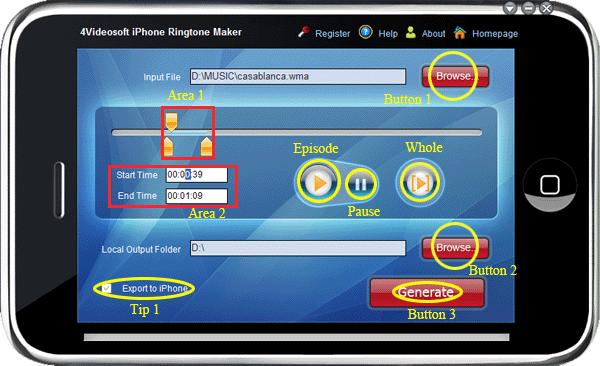
Step 1: Click “Browse…”(Button 1) to import the file(audio or video file) that you want to make ringtone from it.
Step 2: Click Episode button to listen the music to find what you want as ringtone.
Area 1: Drag the start & end slider to set your wanted episode
Area 2: Type the start & end time in the corresponding text box directly to get the exact episode.
Step 3: Click Whole Button to pre-listen the converted audio before generate.
Step 4: Click “Browse…”( Button 2) to choose the output destination.
**Tip 1: Check "Export to iPhone" option, the converted ringtone will be loaded to your iPhone directly.
Step 5:** After all the settings are finished, click “Generate”( Button 3) to begin making your own iPhone ringtone.
Part 2: How to Make iPhone Ringtones with 4Videosoft iPhone Ringtone Maker for Mac
Step 0: Download and install iPhone Ringtone Maker for Mac
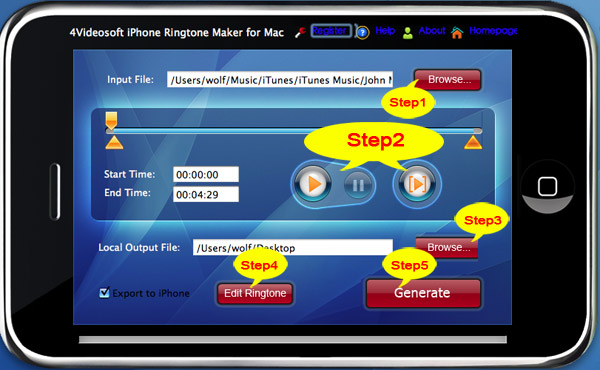
Step 1: Click “Browse…” button on the right side of "Input File" to import the file(audio or video file) that you want to make ringtone from it.
Step 2: Click  button to listen the music to find the segment that you want to use it as ringtone.
Then drag and click the start & end slider to set your wanted segment, or type the start & end time in the corresponding text box directly to get the exact segment. Click
 button to pre-listen the converted audio before generate.
Step 3: Click “Browse…” button on the right side of "Local Output Folder" to choose the output destination.
Step 4: Check "Edit Ringtone" option, you can choose your favorite setting.
By the way, if you want to load the ringtone to your iphone directly, click the “Export to iPhone”.
Step 5: After all the settings are finished, click “Generate” button to begin making your own iPhone ringtone.
Now no matter you are Windows or Mac users, making your own free iPhone Ringtone is so easy, so what are you waiting for? Have a try now and get your wonderful experience!
PS:
I also share two tools for iphone users to put video on their player:
For mac user:
4Videosoft iPhone Video Converter for Mac
It can convert MPG, MPEG, MPEG2, MTS, M2TS, TS, VOB, MP4, M4V, RM, RMVB, WMV, ASF, etc to iPhone video MP4, H.264/MPEG-4 AVC(.mp4), MOV for you to enjoy on iPhone.
For windows user:
4Videosoft iPhone Video Converter
It can convert all the popular video formats like MPG, MPEG, MPEG2, MTS, M2TS, TS, VOB, MP4, M4V, RM, RMVB, WMV, ASF, etc to iPhone video MP4, H.264/MPEG-4 AVC(.mp4), MOV format.
5:["$","$4",null,{"fallback":[[["$","link","css:/assets/_layout-BzYdn0f6.css",{"rel":"stylesheet","precedence":"vite-rsc/importer-resources","href":"/assets/_layout-BzYdn0f6.css","data-rsc-css-href":"/assets/_layout-BzYdn0f6.css"}],"$undefined"],["$","div",null,{"className":"flex justify-center items-center p-8","children":["$","div",null,{"className":"animate-spin rounded-full h-8 w-8 border-b-2 border-indigo-600"}]}]],"children":["$","div",null,{"className":"bg-white/95 mt-0.5 py-6 sm:py-12","children":["$","article",null,{"className":"mx-auto w-full max-w-2xl format format-sm sm:format-base lg:format-lg format-blue dark:format-invert","children":[["$","header",null,{"className":"mb-4 lg:mb-6 not-format","children":[["$","h1",null,{"className":"mb-4 text-3xl font-extrabold leading-tight text-gray-900 lg:mb-6 lg:text-4xl dark:text-white","children":"How to make iphone ringtone freely on windows and mac"}],["$","address",null,{"className":"flex items-center mb-6 not-italic","children":["$","div",null,{"className":"inline-flex items-center text-sm text-gray-900 dark:text-white","children":[["$","img",null,{"className":"mr-3 w-8 h-8 rounded-full","src":"$7","alt":"forever ipod"}],["$","a",null,{"href":"/author/forever_ipod_73524119077270","rel":"author","className":"font-bold capitalize hover:underline dark:text-white","children":"forever ipod"}],["$","span",null,{"className":"mx-1 text-md text-gray-400 dark:text-gray-500","children":"·"}],["$","span",null,{"className":"inline-flex items-center ml-1 text-gray-500 dark:text-gray-400","children":"3 min read"}],["$","span",null,{"className":"mx-1 text-md text-gray-400 dark:text-gray-500","children":"·"}],["$","time",null,{"dateTime":"Mon Aug 31 2009","className":"text-gray-500 dark:text-gray-400","children":"Aug 31, 2009"}],[["$","span",null,{"className":"mx-1 text-md text-gray-400 dark:text-gray-500","children":"·"}],["$","a","general-discussion",{"href":"/t/general-discussion","className":"capitalize text-sm text-gray-500 dark:text-gray-400 hover:text-gray-600","children":"general discussion"}]]]}]}]]}],["$","div",null,{"className":"lead prose mt-4 text-lg leading-8 text-gray-600","children":["$","div",null,{"dangerouslySetInnerHTML":{"__html":"$8"}}]}],"$L9","$La"]}]}]}]
b:T63b,M12.315 2c2.43 0 2.784.013 3.808.06 1.064.049 1.791.218 2.427.465a4.902 4.902 0 011.772 1.153 4.902 4.902 0 011.153 1.772c.247.636.416 1.363.465 2.427.048 1.067.06 1.407.06 4.123v.08c0 2.643-.012 2.987-.06 4.043-.049 1.064-.218 1.791-.465 2.427a4.902 4.902 0 01-1.153 1.772 4.902 4.902 0 01-1.772 1.153c-.636.247-1.363.416-2.427.465-1.067.048-1.407.06-4.123.06h-.08c-2.643 0-2.987-.012-4.043-.06-1.064-.049-1.791-.218-2.427-.465a4.902 4.902 0 01-1.772-1.153 4.902 4.902 0 01-1.153-1.772c-.247-.636-.416-1.363-.465-2.427-.047-1.024-.06-1.379-.06-3.808v-.63c0-2.43.013-2.784.06-3.808.049-1.064.218-1.791.465-2.427a4.902 4.902 0 011.153-1.772A4.902 4.902 0 015.45 2.525c.636-.247 1.363-.416 2.427-.465C8.901 2.013 9.256 2 11.685 2h.63zm-.081 1.802h-.468c-2.456 0-2.784.011-3.807.058-.975.045-1.504.207-1.857.344-.467.182-.8.398-1.15.748-.35.35-.566.683-.748 1.15-.137.353-.3.882-.344 1.857-.047 1.023-.058 1.351-.058 3.807v.468c0 2.456.011 2.784.058 3.807.045.975.207 1.504.344 1.857.182.466.399.8.748 1.15.35.35.683.566 1.15.748.353.137.882.3 1.857.344 1.054.048 1.37.058 4.041.058h.08c2.597 0 2.917-.01 3.96-.058.976-.045 1.505-.207 1.858-.344.466-.182.8-.398 1.15-.748.35-.35.566-.683.748-1.15.137-.353.3-.882.344-1.857.048-1.055.058-1.37.058-4.041v-.08c0-2.597-.01-2.917-.058-3.96-.045-.976-.207-1.505-.344-1.858a3.097 3.097 0 00-.748-1.15 3.098 3.098 0 00-1.15-.748c-.353-.137-.882-.3-1.857-.344-1.023-.047-1.351-.058-3.807-.058zM12 6.865a5.135 5.135 0 110 10.27 5.135 5.135 0 010-10.27zm0 1.802a3.333 3.333 0 100 6.666 3.333 3.333 0 000-6.666zm5.338-3.205a1.2 1.2 0 110 2.4 1.2 1.2 0 010-2.4z6:["$","footer",null,{"className":"bg-gray-900 dark:bg-gray-900","children":["$","div",null,{"className":"mx-auto max-w-7xl px-6 py-4.5 md:flex md:items-center md:justify-between lg:px-8","children":[["$","div",null,{"className":"flex justify-center space-x-6 md:order-2","children":[["$","a","Facebook",{"href":"https://facebook.com/gleeztech","target":"_blank","rel":"noopener noreferrer","className":"text-gray-400 hover:text-gray-500","children":[["$","span",null,{"className":"sr-only","children":"Facebook"}],["$","svg",null,{"className":"h-6 w-6","fill":"currentColor","viewBox":"0 0 24 24","aria-hidden":"true","children":["$","path",null,{"fillRule":"evenodd","d":"M22 12c0-5.523-4.477-10-10-10S2 6.477 2 12c0 4.991 3.657 9.128 8.438 9.878v-6.987h-2.54V12h2.54V9.797c0-2.506 1.492-3.89 3.777-3.89 1.094 0 2.238.195 2.238.195v2.46h-1.26c-1.243 0-1.63.771-1.63 1.562V12h2.773l-.443 2.89h-2.33v6.988C18.343 21.128 22 16.991 22 12z","clipRule":"evenodd"}]}]]}],["$","a","Instagram",{"href":"https://instagram.com/gleeztech","target":"_blank","rel":"noopener noreferrer","className":"text-gray-400 hover:text-gray-500","children":[["$","span",null,{"className":"sr-only","children":"Instagram"}],["$","svg",null,{"className":"h-6 w-6","fill":"currentColor","viewBox":"0 0 24 24","aria-hidden":"true","children":["$","path",null,{"fillRule":"evenodd","d":"$b","clipRule":"evenodd"}]}]]}],["$","a","X",{"href":"https://x.com/gleeztech","target":"_blank","rel":"noopener noreferrer","className":"text-gray-400 hover:text-gray-500","children":[["$","span",null,{"className":"sr-only","children":"X"}],["$","svg",null,{"className":"h-6 w-6","fill":"currentColor","viewBox":"0 0 24 24","aria-hidden":"true","children":["$","path",null,{"d":"M13.6823 10.6218L20.2391 3H18.6854L12.9921 9.61788L8.44486 3H3.2002L10.0765 13.0074L3.2002 21H4.75404L10.7663 14.0113L15.5685 21H20.8131L13.6819 10.6218H13.6823ZM11.5541 13.0956L10.8574 12.0991L5.31391 4.16971H7.70053L12.1742 10.5689L12.8709 11.5655L18.6861 19.8835H16.2995L11.5541 13.096V13.0956Z"}]}]]}],"$Lc"]}],"$Ld"]}]}]
9:null
a:["$","$4",null,{"fallback":["$","div",null,{"className":"comments-skeleton","children":[["$","div",null,{"className":"h-6 bg-gray-200 rounded w-32 mb-4 animate-pulse"}],["$","div",null,{"className":"space-y-3","children":[["$","div","1",{"className":"h-16 bg-gray-100 rounded animate-pulse"}],["$","div","2",{"className":"h-16 bg-gray-100 rounded animate-pulse"}],["$","div","3",{"className":"h-16 bg-gray-100 rounded animate-pulse"}]]}]]}],"children":"$Le"}]
c:["$","a","GitHub",{"href":"https://github.com/gleez","target":"_blank","rel":"noopener noreferrer","className":"text-gray-400 hover:text-gray-500","children":[["$","span",null,{"className":"sr-only","children":"GitHub"}],["$","svg",null,{"className":"h-6 w-6","fill":"currentColor","viewBox":"0 0 24 24","aria-hidden":"true","children":["$","path",null,{"fillRule":"evenodd","d":"M12 2C6.477 2 2 6.484 2 12.017c0 4.425 2.865 8.18 6.839 9.504.5.092.682-.217.682-.483 0-.237-.008-.868-.013-1.703-2.782.605-3.369-1.343-3.369-1.343-.454-1.158-1.11-1.466-1.11-1.466-.908-.62.069-.608.069-.608 1.003.07 1.531 1.032 1.531 1.032.892 1.53 2.341 1.088 2.91.832.092-.647.35-1.088.636-1.338-2.22-.253-4.555-1.113-4.555-4.951 0-1.093.39-1.988 1.029-2.688-.103-.253-.446-1.272.098-2.65 0 0 .84-.27 2.75 1.026A9.564 9.564 0 0112 6.844c.85.004 1.705.115 2.504.337 1.909-1.296 2.747-1.027 2.747-1.027.546 1.379.202 2.398.1 2.651.64.7 1.028 1.595 1.028 2.688 0 3.848-2.339 4.695-4.566 4.943.359.309.678.92.678 1.855 0 1.338-.012 2.419-.012 2.747 0 .268.18.58.688.482A10.019 10.019 0 0022 12.017C22 6.484 17.522 2 12 2z","clipRule":"evenodd"}]}]]}]
d:["$","div",null,{"className":"mt-8 md:order-1 md:mt-0","children":["$","p",null,{"className":"text-sm leading-5 text-gray-400","children":["© 2005 - ",2026," Gleez Inc. All rights reserved."]}]}]
f:T40f,data:image/svg+xml;utf8,%3Csvg%20width%3D%2232%22%20height%3D%2232%22%20viewBox%3D%220%200%2032%2032%22%20%0A%20%20%20%20%20%20%20%20%20xmlns%3D%22http%3A%2F%2Fwww.w3.org%2F2000%2Fsvg%22%20role%3D%22img%22%20aria-label%3D%22Avatar%20for%20Guest%22%3E%0A%20%20%20%20%20%20%3Crect%20width%3D%22100%25%22%20height%3D%22100%25%22%20fill%3D%22hsl(280%2C%2080%25%2C%2050%25)%22%20rx%3D%223.2%22%20%2F%3E%0A%20%20%20%20%20%20%3Ctext%20x%3D%2250%25%22%20y%3D%2250%25%22%20%0A%20%20%20%20%20%20%20%20%20%20%20%20font-family%3D%22sans-serif%22%20%0A%20%20%20%20%20%20%20%20%20%20%20%20font-size%3D%2212.8%22%20%0A%20%20%20%20%20%20%20%20%20%20%20%20font-weight%3D%22bold%22%20%0A%20%20%20%20%20%20%20%20%20%20%20%20fill%3D%22%23FFFFFF%22%20%0A%20%20%20%20%20%20%20%20%20%20%20%20text-anchor%3D%22middle%22%20%0A%20%20%20%20%20%20%20%20%20%20%20%20dominant-baseline%3D%22central%22%0A%20%20%20%20%20%20%20%20%20%20%20%20style%3D%22user-select%3A%20none%3B%22%3E%0A%20%20%20%20%20%20%20%20G%0A%20%20%20%20%20%20%3C%2Ftext%3E%0A%20%20%20%20%3C%2Fsvg%3E10:T40f,data:image/svg+xml;utf8,%3Csvg%20width%3D%2232%22%20height%3D%2232%22%20viewBox%3D%220%200%2032%2032%22%20%0A%20%20%20%20%20%20%20%20%20xmlns%3D%22http%3A%2F%2Fwww.w3.org%2F2000%2Fsvg%22%20role%3D%22img%22%20aria-label%3D%22Avatar%20for%20Guest%22%3E%0A%20%20%20%20%20%20%3Crect%20width%3D%22100%25%22%20height%3D%22100%25%22%20fill%3D%22hsl(280%2C%2080%25%2C%2050%25)%22%20rx%3D%223.2%22%20%2F%3E%0A%20%20%20%20%20%20%3Ctext%20x%3D%2250%25%22%20y%3D%2250%25%22%20%0A%20%20%20%20%20%20%20%20%20%20%20%20font-family%3D%22sans-serif%22%20%0A%20%20%20%20%20%20%20%20%20%20%20%20font-size%3D%2212.8%22%20%0A%20%20%20%20%20%20%20%20%20%20%20%20font-weight%3D%22bold%22%20%0A%20%20%20%20%20%20%20%20%20%20%20%20fill%3D%22%23FFFFFF%22%20%0A%20%20%20%20%20%20%20%20%20%20%20%20text-anchor%3D%22middle%22%20%0A%20%20%20%20%20%20%20%20%20%20%20%20dominant-baseline%3D%22central%22%0A%20%20%20%20%20%20%20%20%20%20%20%20style%3D%22user-select%3A%20none%3B%22%3E%0A%20%20%20%20%20%20%20%20G%0A%20%20%20%20%20%20%3C%2Ftext%3E%0A%20%20%20%20%3C%2Fsvg%3Ee:["$","div",null,{"className":"mt-8","children":[["$","h3",null,{"className":"text-xl font-semibold mb-4","children":["Voices (",10,")"]}],["$","div",null,{"className":"space-y-6","children":[[["$","div","79144536768918",{"className":"border-l-4 border-gray-200 pl-4","children":[["$","div",null,{"className":"flex items-center gap-2 mb-2","children":["$","address",null,{"className":"flex items-center mb-6 not-italic","children":["$","div",null,{"className":"inline-flex items-center text-sm text-gray-900 dark:text-white","children":[["$","img",null,{"className":"mr-3 w-8 h-8 rounded-full","src":"$f","alt":"Guest"}],["$","a",null,{"href":"/author/guest_73325980156310","rel":"author","className":"font-bold capitalize hover:underline dark:text-white","children":"Guest"}],["$","span",null,{"className":"mx-1 text-md text-gray-400 dark:text-gray-500","children":"·"}],"$undefined",["$","span",null,{"className":"mx-1 text-md text-gray-400 dark:text-gray-500","children":"·"}],["$","time",null,{"dateTime":"Tue Nov 30 2010","className":"text-gray-500 dark:text-gray-400","children":"Nov 30, 2010"}],"$undefined"]}]}]}],["$","p",null,{"className":"text-gray-700","children":"This is a nice share. I: This is a nice share. I found it weird that Apple ringtones cost $2 while great apps cost less than a dollar. At least with this, I can enjoy custom ringtones on my [unlocked iphone 4](http://www.puremobile.com/). Many thanks for the post."}],["$","div",null,{"className":"flex items-center mt-4 space-x-4","children":["$","button",null,{"type":"button","className":"flex items-center font-medium text-sm text-gray-500 hover:underline dark:text-gray-400","children":[["$","svg",null,{"className":"mr-1.5 w-3 h-3","aria-hidden":"true","xmlns":"http://www.w3.org/2000/svg","fill":"currentColor","viewBox":"0 0 20 18","children":["$","path",null,{"d":"M18 0H2a2 2 0 0 0-2 2v9a2 2 0 0 0 2 2h2v4a1 1 0 0 0 1.707.707L10.414 13H18a2 2 0 0 0 2-2V2a2 2 0 0 0-2-2Zm-5 4h2a1 1 0 1 1 0 2h-2a1 1 0 1 1 0-2ZM5 4h5a1 1 0 1 1 0 2H5a1 1 0 0 1 0-2Zm2 5H5a1 1 0 0 1 0-2h2a1 1 0 0 1 0 2Zm9 0h-6a1 1 0 0 1 0-2h6a1 1 0 1 1 0 2Z"}]}],"Reply"]}]}]]}],["$","div","79038236328342",{"className":"border-l-4 border-gray-200 pl-4","children":[["$","div",null,{"className":"flex items-center gap-2 mb-2","children":["$","address",null,{"className":"flex items-center mb-6 not-italic","children":["$","div",null,{"className":"inline-flex items-center text-sm text-gray-900 dark:text-white","children":[["$","img",null,{"className":"mr-3 w-8 h-8 rounded-full","src":"$10","alt":"Guest"}],"$L11","$L12","$undefined","$L13","$L14","$undefined"]}]}]}],"$L15","$L16"]}],"$L17","$L18","$L19"],"$L1a"]}]]}]
1f:I["1715fab9d5d1",[],"default",1]
11:["$","a",null,{"href":"/author/guest_73325980156310","rel":"author","className":"font-bold capitalize hover:underline dark:text-white","children":"Guest"}]
12:["$","span",null,{"className":"mx-1 text-md text-gray-400 dark:text-gray-500","children":"·"}]
13:["$","span",null,{"className":"mx-1 text-md text-gray-400 dark:text-gray-500","children":"·"}]
14:["$","time",null,{"dateTime":"Tue Jun 22 2010","className":"text-gray-500 dark:text-gray-400","children":"Jun 22, 2010"}]
1b:T8b7,How to Convert 1080p/1080i MTS Videos to 720p for iPhone 4?: How to Convert 1080p/1080i MTS Videos to 720p for iPhone 4?

With the AVCHD cameras supporting 1920x1080 pixels, more and more mts/m2ts videos are recorded in high definition and high quality. iPhone 4 is available with attractive functions like multitasking and high resolution up to 1280x720 for video playback and video recording, even though the display is 960x640-pixel resolution at 326 ppi. The services provider AT&T also provides low cost new plans for iPhone 4 users. How do you enjoy 1080i or 1080p HD videos on iPhone 4 with the Retina display?
If you are shooting video with AVCHD cameras like Sony HDR-TG3 or Sony Cybershot HX5V at 1920x1080 with .mts extension, you may find that the videos are not recognized by iTunes, thus it could not be synced to iPhone 4. Here I would like to recommend you **Aunsoft [MTS/M2TS Converter](http://www.aunsoft.com/mts-converter/)** to downscale 1080p video to 720p for iPhone 4 within three simple steps.
Step 1. Load 1080p/1080i camera videos to Aunsoft MTS/M2TS Converter.
Transfer .mts videos from camera with the Picture Motion Browser software, which is available on the CD in the box. Run the MTS to iPhone 4 converter and click the Add button to load .mts videos.
Step 2. Choose iPhone 720p MP4 output.
The MTS to iPhone 4 converter includes the quick profile for 720p. Just click the Format option and choose **iPhone** > **iPhone 4 H.264 720P(*.mp4)** for output.

Step 3. Convert 1080p/1080i to 720p for iPhone.
Click the convert button under the preview window and the conversion from 1080i/1080p mts to 720p mp4 for iPhone 4 starts.
Wait for a while, and the .mp4 videos will be ready on the output folder. Add the 720p mp4 videos to iTunes library and connect iPhone 4 to computer. Then sync 720p videos to iPhone via iTunes. It is that easy. Your camera videos could be put to iPhone for playback and sharing too with the **[MTS to iPhone 4 converter](http://www.aunsoft.com/mts-converter/)**.15:["$","p",null,{"className":"text-gray-700","children":"$1b"}]
16:["$","div",null,{"className":"flex items-center mt-4 space-x-4","children":["$","button",null,{"type":"button","className":"flex items-center font-medium text-sm text-gray-500 hover:underline dark:text-gray-400","children":[["$","svg",null,{"className":"mr-1.5 w-3 h-3","aria-hidden":"true","xmlns":"http://www.w3.org/2000/svg","fill":"currentColor","viewBox":"0 0 20 18","children":["$","path",null,{"d":"M18 0H2a2 2 0 0 0-2 2v9a2 2 0 0 0 2 2h2v4a1 1 0 0 0 1.707.707L10.414 13H18a2 2 0 0 0 2-2V2a2 2 0 0 0-2-2Zm-5 4h2a1 1 0 1 1 0 2h-2a1 1 0 1 1 0-2ZM5 4h5a1 1 0 1 1 0 2H5a1 1 0 0 1 0-2Zm2 5H5a1 1 0 0 1 0-2h2a1 1 0 0 1 0 2Zm9 0h-6a1 1 0 0 1 0-2h6a1 1 0 1 1 0 2Z"}]}],"Reply"]}]}]
1c:T40e,data:image/svg+xml;utf8,%3Csvg%20width%3D%2232%22%20height%3D%2232%22%20viewBox%3D%220%200%2032%2032%22%20%0A%20%20%20%20%20%20%20%20%20xmlns%3D%22http%3A%2F%2Fwww.w3.org%2F2000%2Fsvg%22%20role%3D%22img%22%20aria-label%3D%22Avatar%20for%20Will%22%3E%0A%20%20%20%20%20%20%3Crect%20width%3D%22100%25%22%20height%3D%22100%25%22%20fill%3D%22hsl(138%2C%2073%25%2C%2058%25)%22%20rx%3D%223.2%22%20%2F%3E%0A%20%20%20%20%20%20%3Ctext%20x%3D%2250%25%22%20y%3D%2250%25%22%20%0A%20%20%20%20%20%20%20%20%20%20%20%20font-family%3D%22sans-serif%22%20%0A%20%20%20%20%20%20%20%20%20%20%20%20font-size%3D%2212.8%22%20%0A%20%20%20%20%20%20%20%20%20%20%20%20font-weight%3D%22bold%22%20%0A%20%20%20%20%20%20%20%20%20%20%20%20fill%3D%22%23FFFFFF%22%20%0A%20%20%20%20%20%20%20%20%20%20%20%20text-anchor%3D%22middle%22%20%0A%20%20%20%20%20%20%20%20%20%20%20%20dominant-baseline%3D%22central%22%0A%20%20%20%20%20%20%20%20%20%20%20%20style%3D%22user-select%3A%20none%3B%22%3E%0A%20%20%20%20%20%20%20%20W%0A%20%20%20%20%20%20%3C%2Ftext%3E%0A%20%20%20%20%3C%2Fsvg%3E17:["$","div","78913531281814",{"className":"border-l-4 border-gray-200 pl-4","children":[["$","div",null,{"className":"flex items-center gap-2 mb-2","children":["$","address",null,{"className":"flex items-center mb-6 not-italic","children":["$","div",null,{"className":"inline-flex items-center text-sm text-gray-900 dark:text-white","children":[["$","img",null,{"className":"mr-3 w-8 h-8 rounded-full","src":"$1c","alt":"Will"}],["$","a",null,{"href":"/author/will_73562606010774","rel":"author","className":"font-bold capitalize hover:underline dark:text-white","children":"Will"}],["$","span",null,{"className":"mx-1 text-md text-gray-400 dark:text-gray-500","children":"·"}],"$undefined",["$","span",null,{"className":"mx-1 text-md text-gray-400 dark:text-gray-500","children":"·"}],["$","time",null,{"dateTime":"Sun Dec 13 2009","className":"text-gray-500 dark:text-gray-400","children":"Dec 13, 2009"}],"$undefined"]}]}]}],["$","p",null,{"className":"text-gray-700","children":"iPhone favor? Do you want to: iPhone favor? Do you want to make the special ringtones for your iPhone? Try this powerful [iPhone ringtone maker](http://www.4videosoft.com/iphone-ringtone-maker.html) to satisfy your need. Also Mac user can use this [iPhone ringtone maker for mac] (http://www.4videosoft.com/iphone-ringtone-maker-for-mac.html)."}],["$","div",null,{"className":"flex items-center mt-4 space-x-4","children":["$","button",null,{"type":"button","className":"flex items-center font-medium text-sm text-gray-500 hover:underline dark:text-gray-400","children":[["$","svg",null,{"className":"mr-1.5 w-3 h-3","aria-hidden":"true","xmlns":"http://www.w3.org/2000/svg","fill":"currentColor","viewBox":"0 0 20 18","children":["$","path",null,{"d":"M18 0H2a2 2 0 0 0-2 2v9a2 2 0 0 0 2 2h2v4a1 1 0 0 0 1.707.707L10.414 13H18a2 2 0 0 0 2-2V2a2 2 0 0 0-2-2Zm-5 4h2a1 1 0 1 1 0 2h-2a1 1 0 1 1 0-2ZM5 4h5a1 1 0 1 1 0 2H5a1 1 0 0 1 0-2Zm2 5H5a1 1 0 0 1 0-2h2a1 1 0 0 1 0 2Zm9 0h-6a1 1 0 0 1 0-2h6a1 1 0 1 1 0 2Z"}]}],"Reply"]}]}]]}]
1d:T415,data:image/svg+xml;utf8,%3Csvg%20width%3D%2232%22%20height%3D%2232%22%20viewBox%3D%220%200%2032%2032%22%20%0A%20%20%20%20%20%20%20%20%20xmlns%3D%22http%3A%2F%2Fwww.w3.org%2F2000%2Fsvg%22%20role%3D%22img%22%20aria-label%3D%22Avatar%20for%20dvdsmith428%22%3E%0A%20%20%20%20%20%20%3Crect%20width%3D%22100%25%22%20height%3D%22100%25%22%20fill%3D%22hsl(337%2C%2077%25%2C%2057%25)%22%20rx%3D%223.2%22%20%2F%3E%0A%20%20%20%20%20%20%3Ctext%20x%3D%2250%25%22%20y%3D%2250%25%22%20%0A%20%20%20%20%20%20%20%20%20%20%20%20font-family%3D%22sans-serif%22%20%0A%20%20%20%20%20%20%20%20%20%20%20%20font-size%3D%2212.8%22%20%0A%20%20%20%20%20%20%20%20%20%20%20%20font-weight%3D%22bold%22%20%0A%20%20%20%20%20%20%20%20%20%20%20%20fill%3D%22%23FFFFFF%22%20%0A%20%20%20%20%20%20%20%20%20%20%20%20text-anchor%3D%22middle%22%20%0A%20%20%20%20%20%20%20%20%20%20%20%20dominant-baseline%3D%22central%22%0A%20%20%20%20%20%20%20%20%20%20%20%20style%3D%22user-select%3A%20none%3B%22%3E%0A%20%20%20%20%20%20%20%20D%0A%20%20%20%20%20%20%3C%2Ftext%3E%0A%20%20%20%20%3C%2Fsvg%3E18:["$","div","78892224217494",{"className":"border-l-4 border-gray-200 pl-4","children":[["$","div",null,{"className":"flex items-center gap-2 mb-2","children":["$","address",null,{"className":"flex items-center mb-6 not-italic","children":["$","div",null,{"className":"inline-flex items-center text-sm text-gray-900 dark:text-white","children":[["$","img",null,{"className":"mr-3 w-8 h-8 rounded-full","src":"$1d","alt":"dvdsmith428"}],["$","a",null,{"href":"/author/dvdsmith428_73541785485718","rel":"author","className":"font-bold capitalize hover:underline dark:text-white","children":"dvdsmith428"}],["$","span",null,{"className":"mx-1 text-md text-gray-400 dark:text-gray-500","children":"·"}],"$undefined",["$","span",null,{"className":"mx-1 text-md text-gray-400 dark:text-gray-500","children":"·"}],["$","time",null,{"dateTime":"Sat Nov 14 2009","className":"text-gray-500 dark:text-gray-400","children":"Nov 14, 2009"}],"$undefined"]}]}]}],["$","p",null,{"className":"text-gray-700","children":"Best Video Converter\nMTS: Best [Video Converter](http://www.4videosoft.com/video-converter-platinum.html)\n[MTS Converter for Mac](http://www.4videosoft.com/mts-converter-for-mac.html)\n[HD Converter](http://www.4videosoft.com/hd-converter.html)"}],["$","div",null,{"className":"flex items-center mt-4 space-x-4","children":["$","button",null,{"type":"button","className":"flex items-center font-medium text-sm text-gray-500 hover:underline dark:text-gray-400","children":[["$","svg",null,{"className":"mr-1.5 w-3 h-3","aria-hidden":"true","xmlns":"http://www.w3.org/2000/svg","fill":"currentColor","viewBox":"0 0 20 18","children":["$","path",null,{"d":"M18 0H2a2 2 0 0 0-2 2v9a2 2 0 0 0 2 2h2v4a1 1 0 0 0 1.707.707L10.414 13H18a2 2 0 0 0 2-2V2a2 2 0 0 0-2-2Zm-5 4h2a1 1 0 1 1 0 2h-2a1 1 0 1 1 0-2ZM5 4h5a1 1 0 1 1 0 2H5a1 1 0 0 1 0-2Zm2 5H5a1 1 0 0 1 0-2h2a1 1 0 0 1 0 2Zm9 0h-6a1 1 0 0 1 0-2h6a1 1 0 1 1 0 2Z"}]}],"Reply"]}]}]]}]
1e:T415,data:image/svg+xml;utf8,%3Csvg%20width%3D%2232%22%20height%3D%2232%22%20viewBox%3D%220%200%2032%2032%22%20%0A%20%20%20%20%20%20%20%20%20xmlns%3D%22http%3A%2F%2Fwww.w3.org%2F2000%2Fsvg%22%20role%3D%22img%22%20aria-label%3D%22Avatar%20for%20dvdsmith428%22%3E%0A%20%20%20%20%20%20%3Crect%20width%3D%22100%25%22%20height%3D%22100%25%22%20fill%3D%22hsl(337%2C%2077%25%2C%2057%25)%22%20rx%3D%223.2%22%20%2F%3E%0A%20%20%20%20%20%20%3Ctext%20x%3D%2250%25%22%20y%3D%2250%25%22%20%0A%20%20%20%20%20%20%20%20%20%20%20%20font-family%3D%22sans-serif%22%20%0A%20%20%20%20%20%20%20%20%20%20%20%20font-size%3D%2212.8%22%20%0A%20%20%20%20%20%20%20%20%20%20%20%20font-weight%3D%22bold%22%20%0A%20%20%20%20%20%20%20%20%20%20%20%20fill%3D%22%23FFFFFF%22%20%0A%20%20%20%20%20%20%20%20%20%20%20%20text-anchor%3D%22middle%22%20%0A%20%20%20%20%20%20%20%20%20%20%20%20dominant-baseline%3D%22central%22%0A%20%20%20%20%20%20%20%20%20%20%20%20style%3D%22user-select%3A%20none%3B%22%3E%0A%20%20%20%20%20%20%20%20D%0A%20%20%20%20%20%20%3C%2Ftext%3E%0A%20%20%20%20%3C%2Fsvg%3E19:["$","div","78891351802262",{"className":"border-l-4 border-gray-200 pl-4","children":[["$","div",null,{"className":"flex items-center gap-2 mb-2","children":["$","address",null,{"className":"flex items-center mb-6 not-italic","children":["$","div",null,{"className":"inline-flex items-center text-sm text-gray-900 dark:text-white","children":[["$","img",null,{"className":"mr-3 w-8 h-8 rounded-full","src":"$1e","alt":"dvdsmith428"}],["$","a",null,{"href":"/author/dvdsmith428_73541785485718","rel":"author","className":"font-bold capitalize hover:underline dark:text-white","children":"dvdsmith428"}],["$","span",null,{"className":"mx-1 text-md text-gray-400 dark:text-gray-500","children":"·"}],"$undefined",["$","span",null,{"className":"mx-1 text-md text-gray-400 dark:text-gray-500","children":"·"}],["$","time",null,{"dateTime":"Thu Nov 12 2009","className":"text-gray-500 dark:text-gray-400","children":"Nov 12, 2009"}],"$undefined"]}]}]}],["$","p",null,{"className":"text-gray-700","children":"Main function of 4Videosoft : Main function of 4Videosoft [iPod Video Converter](http://www.4videosoft.com/ipod-video-converter.html) \n* Convert all the video formats to iPod MP4\n* Convert all the audio formats and extract audio from video to MP3, AAC, WAV, M4A, AIFF\n* All-round editing functions\n* Supports all the iPod versions: iPod touch, iPod nano, iPod classic, iPod shuffle "}],["$","div",null,{"className":"flex items-center mt-4 space-x-4","children":["$","button",null,{"type":"button","className":"flex items-center font-medium text-sm text-gray-500 hover:underline dark:text-gray-400","children":[["$","svg",null,{"className":"mr-1.5 w-3 h-3","aria-hidden":"true","xmlns":"http://www.w3.org/2000/svg","fill":"currentColor","viewBox":"0 0 20 18","children":["$","path",null,{"d":"M18 0H2a2 2 0 0 0-2 2v9a2 2 0 0 0 2 2h2v4a1 1 0 0 0 1.707.707L10.414 13H18a2 2 0 0 0 2-2V2a2 2 0 0 0-2-2Zm-5 4h2a1 1 0 1 1 0 2h-2a1 1 0 1 1 0-2ZM5 4h5a1 1 0 1 1 0 2H5a1 1 0 0 1 0-2Zm2 5H5a1 1 0 0 1 0-2h2a1 1 0 0 1 0 2Zm9 0h-6a1 1 0 0 1 0-2h6a1 1 0 1 1 0 2Z"}]}],"Reply"]}]}]]}]
20:T8b7,How to Convert 1080p/1080i MTS Videos to 720p for iPhone 4?: How to Convert 1080p/1080i MTS Videos to 720p for iPhone 4?

With the AVCHD cameras supporting 1920x1080 pixels, more and more mts/m2ts videos are recorded in high definition and high quality. iPhone 4 is available with attractive functions like multitasking and high resolution up to 1280x720 for video playback and video recording, even though the display is 960x640-pixel resolution at 326 ppi. The services provider AT&T also provides low cost new plans for iPhone 4 users. How do you enjoy 1080i or 1080p HD videos on iPhone 4 with the Retina display?
If you are shooting video with AVCHD cameras like Sony HDR-TG3 or Sony Cybershot HX5V at 1920x1080 with .mts extension, you may find that the videos are not recognized by iTunes, thus it could not be synced to iPhone 4. Here I would like to recommend you **Aunsoft [MTS/M2TS Converter](http://www.aunsoft.com/mts-converter/)** to downscale 1080p video to 720p for iPhone 4 within three simple steps.
Step 1. Load 1080p/1080i camera videos to Aunsoft MTS/M2TS Converter.
Transfer .mts videos from camera with the Picture Motion Browser software, which is available on the CD in the box. Run the MTS to iPhone 4 converter and click the Add button to load .mts videos.
Step 2. Choose iPhone 720p MP4 output.
The MTS to iPhone 4 converter includes the quick profile for 720p. Just click the Format option and choose **iPhone** > **iPhone 4 H.264 720P(*.mp4)** for output.

Step 3. Convert 1080p/1080i to 720p for iPhone.
Click the convert button under the preview window and the conversion from 1080i/1080p mts to 720p mp4 for iPhone 4 starts.
Wait for a while, and the .mp4 videos will be ready on the output folder. Add the 720p mp4 videos to iTunes library and connect iPhone 4 to computer. Then sync 720p videos to iPhone via iTunes. It is that easy. Your camera videos could be put to iPhone for playback and sharing too with the **[MTS to iPhone 4 converter](http://www.aunsoft.com/mts-converter/)**.21:T8b7,How to Convert 1080p/1080i MTS Videos to 720p for iPhone 4?: How to Convert 1080p/1080i MTS Videos to 720p for iPhone 4?

With the AVCHD cameras supporting 1920x1080 pixels, more and more mts/m2ts videos are recorded in high definition and high quality. iPhone 4 is available with attractive functions like multitasking and high resolution up to 1280x720 for video playback and video recording, even though the display is 960x640-pixel resolution at 326 ppi. The services provider AT&T also provides low cost new plans for iPhone 4 users. How do you enjoy 1080i or 1080p HD videos on iPhone 4 with the Retina display?
If you are shooting video with AVCHD cameras like Sony HDR-TG3 or Sony Cybershot HX5V at 1920x1080 with .mts extension, you may find that the videos are not recognized by iTunes, thus it could not be synced to iPhone 4. Here I would like to recommend you **Aunsoft [MTS/M2TS Converter](http://www.aunsoft.com/mts-converter/)** to downscale 1080p video to 720p for iPhone 4 within three simple steps.
Step 1. Load 1080p/1080i camera videos to Aunsoft MTS/M2TS Converter.
Transfer .mts videos from camera with the Picture Motion Browser software, which is available on the CD in the box. Run the MTS to iPhone 4 converter and click the Add button to load .mts videos.
Step 2. Choose iPhone 720p MP4 output.
The MTS to iPhone 4 converter includes the quick profile for 720p. Just click the Format option and choose **iPhone** > **iPhone 4 H.264 720P(*.mp4)** for output.

Step 3. Convert 1080p/1080i to 720p for iPhone.
Click the convert button under the preview window and the conversion from 1080i/1080p mts to 720p mp4 for iPhone 4 starts.
Wait for a while, and the .mp4 videos will be ready on the output folder. Add the 720p mp4 videos to iTunes library and connect iPhone 4 to computer. Then sync 720p videos to iPhone via iTunes. It is that easy. Your camera videos could be put to iPhone for playback and sharing too with the **[MTS to iPhone 4 converter](http://www.aunsoft.com/mts-converter/)**.1a:["$","$L1f",null,{"postId":"76348764717462","endCursor":"78891351802262","initialComments":[{"id":"79144536768918","content":"This is a nice share. I: This is a nice share. I found it weird that Apple ringtones cost $2 while great apps cost less than a dollar. At least with this, I can enjoy custom ringtones on my [unlocked iphone 4](http://www.puremobile.com/). Many thanks for the post.","contentHtml":"This is a nice share. I: This is a nice share. I found it weird that Apple ringtones cost $2 while great apps cost less than a dollar. At least with this, I can enjoy custom ringtones on my [unlocked iphone 4](http://www.puremobile.com/). Many thanks for the post.","metadata":null,"isApproved":true,"createdAt":"$D2010-11-30T07:31:34.000Z","updatedAt":"$D2010-11-30T07:31:34.000Z","authorId":"73325980156310","postId":"76348764717462","parentId":null,"author":{"id":"73325980156310","nickName":"Guest","username":"guest_73325980156310","email":"guest@example.com","role":"USER","isAdmin":false,"image":null,"metadata":null,"salt":null,"publicKey":null,"lastLogin":null,"failedAttempts":0,"lockedUntil":null,"recoveryPhraseHash":null,"recoveryCreatedAt":null,"createdAt":"$D2005-01-01T00:00:00.000Z","updatedAt":"$D2005-01-01T00:00:00.000Z"}},{"id":"79038236328342","content":"$20","contentHtml":"$21","metadata":null,"isApproved":true,"createdAt":"$D2010-06-22T04:49:09.000Z","updatedAt":"$D2010-06-22T04:49:09.000Z","authorId":"73325980156310","postId":"76348764717462","parentId":null,"author":{"id":"73325980156310","nickName":"Guest","username":"guest_73325980156310","email":"guest@example.com","role":"USER","isAdmin":false,"image":null,"metadata":null,"salt":null,"publicKey":null,"lastLogin":null,"failedAttempts":0,"lockedUntil":null,"recoveryPhraseHash":null,"recoveryCreatedAt":null,"createdAt":"$D2005-01-01T00:00:00.000Z","updatedAt":"$D2005-01-01T00:00:00.000Z"}},{"id":"78913531281814","content":"iPhone favor? Do you want to: iPhone favor? Do you want to make the special ringtones for your iPhone? Try this powerful [iPhone ringtone maker](http://www.4videosoft.com/iphone-ringtone-maker.html) to satisfy your need. Also Mac user can use this [iPhone ringtone maker for mac] (http://www.4videosoft.com/iphone-ringtone-maker-for-mac.html).","contentHtml":"iPhone favor? Do you want to: iPhone favor? Do you want to make the special ringtones for your iPhone? Try this powerful [iPhone ringtone maker](http://www.4videosoft.com/iphone-ringtone-maker.html) to satisfy your need. Also Mac user can use this [iPhone ringtone maker for mac] (http://www.4videosoft.com/iphone-ringtone-maker-for-mac.html).","metadata":null,"isApproved":true,"createdAt":"$D2009-12-13T10:52:39.000Z","updatedAt":"$D2009-12-13T10:52:39.000Z","authorId":"73562606010774","postId":"76348764717462","parentId":null,"author":{"id":"73562606010774","nickName":"Will","username":"will_73562606010774","email":"mattcutts85@gmail.com","role":"USER","isAdmin":false,"image":null,"metadata":null,"salt":null,"publicKey":null,"lastLogin":null,"failedAttempts":0,"lockedUntil":null,"recoveryPhraseHash":null,"recoveryCreatedAt":null,"createdAt":"$D2009-12-09T12:28:32.000Z","updatedAt":"$D2009-12-13T10:51:25.000Z"}},{"id":"78892224217494","content":"Best Video Converter\nMTS: Best [Video Converter](http://www.4videosoft.com/video-converter-platinum.html)\n[MTS Converter for Mac](http://www.4videosoft.com/mts-converter-for-mac.html)\n[HD Converter](http://www.4videosoft.com/hd-converter.html)","contentHtml":"Best Video Converter\nMTS: Best [Video Converter](http://www.4videosoft.com/video-converter-platinum.html)\n[MTS Converter for Mac](http://www.4videosoft.com/mts-converter-for-mac.html)\n[HD Converter](http://www.4videosoft.com/hd-converter.html)","metadata":null,"isApproved":true,"createdAt":"$D2009-11-14T03:38:35.000Z","updatedAt":"$D2009-11-14T03:38:35.000Z","authorId":"73541785485718","postId":"76348764717462","parentId":null,"author":{"id":"73541785485718","nickName":"dvdsmith428","username":"dvdsmith428_73541785485718","email":"dvdsmith428@gmail.com","role":"USER","isAdmin":false,"image":null,"metadata":null,"salt":null,"publicKey":null,"lastLogin":null,"failedAttempts":0,"lockedUntil":null,"recoveryPhraseHash":null,"recoveryCreatedAt":null,"createdAt":"$D2009-11-05T03:53:32.000Z","updatedAt":"$D2009-11-19T12:00:15.000Z"}},{"id":"78891351802262","content":"Main function of 4Videosoft : Main function of 4Videosoft [iPod Video Converter](http://www.4videosoft.com/ipod-video-converter.html) \n* Convert all the video formats to iPod MP4\n* Convert all the audio formats and extract audio from video to MP3, AAC, WAV, M4A, AIFF\n* All-round editing functions\n* Supports all the iPod versions: iPod touch, iPod nano, iPod classic, iPod shuffle ","contentHtml":"Main function of 4Videosoft : Main function of 4Videosoft [iPod Video Converter](http://www.4videosoft.com/ipod-video-converter.html) \n* Convert all the video formats to iPod MP4\n* Convert all the audio formats and extract audio from video to MP3, AAC, WAV, M4A, AIFF\n* All-round editing functions\n* Supports all the iPod versions: iPod touch, iPod nano, iPod classic, iPod shuffle ","metadata":null,"isApproved":true,"createdAt":"$D2009-11-12T11:58:45.000Z","updatedAt":"$D2009-11-12T11:58:45.000Z","authorId":"73541785485718","postId":"76348764717462","parentId":null,"author":{"id":"73541785485718","nickName":"dvdsmith428","username":"dvdsmith428_73541785485718","email":"dvdsmith428@gmail.com","role":"USER","isAdmin":false,"image":null,"metadata":null,"salt":null,"publicKey":null,"lastLogin":null,"failedAttempts":0,"lockedUntil":null,"recoveryPhraseHash":null,"recoveryCreatedAt":null,"createdAt":"$D2009-11-05T03:53:32.000Z","updatedAt":"$D2009-11-19T12:00:15.000Z"}}]}]