0:{"root":[["$","meta","1",{"property":"csp-nonce","nonce":"dce7411e-d1f8-476a-9e39-185b845f0b9c"}],"$L1"],"formState":"$undefined","returnValue":"$undefined"}
2:"$Sreact.fragment"
3:I["7ada5cab5be8",[],"Header",1]
4:"$Sreact.suspense"
:HL["/assets/_layout-BzYdn0f6.css","stylesheet"]
1:["$","$2","2",{"children":[[["$","link","css:/assets/_layout-BzYdn0f6.css",{"rel":"stylesheet","precedence":"vite-rsc/importer-resources","href":"/assets/_layout-BzYdn0f6.css","data-rsc-css-href":"/assets/_layout-BzYdn0f6.css"}],"$undefined"],["$","html",null,{"lang":"en","className":"$undefined","children":[["$","head",null,{"children":[["$","meta",null,{"charSet":"UTF-8"}],["$","meta",null,{"name":"viewport","content":"width=device-width, initial-scale=1.0"}],["$","link",null,{"rel":"icon","type":"image/png","href":"/static/icons/apple-icon.png"}],["$","link",null,{"rel":"icon","type":"image/png","sizes":"32x32","href":"/static/icons/favicon-32x32.png"}],["$","link",null,{"rel":"apple-touch-icon","href":"/static/icons/apple-icon.png"}],["$","meta",null,{"name":"theme-color","content":"#1e40af"}],["$","meta",null,{"name":"language","content":"en_US"}],["$","meta",null,{"httpEquiv":"content-language","content":"en_US"}]]}],["$","body",null,{"className":"min-h-screen flex flex-col","children":[["$","$L3",null,{}],["$","main",null,{"className":"main-content grow bg-gray-100","children":["$","$4",null,{"fallback":[[["$","link","css:/assets/_layout-BzYdn0f6.css",{"rel":"stylesheet","precedence":"vite-rsc/importer-resources","href":"/assets/_layout-BzYdn0f6.css","data-rsc-css-href":"/assets/_layout-BzYdn0f6.css"}],"$undefined"],["$","div",null,{"className":"flex justify-center items-center p-8","children":["$","div",null,{"className":"animate-spin rounded-full h-8 w-8 border-b-2 border-indigo-600"}]}]],"children":[[["$","title",null,{"children":"How to put dvd and video on PSP | Gleez"}],["$","meta",null,{"name":"description","content":"PSP is the abbreviated version of PlayStation Portable, which is a handheld game console manufactured and marketed by Sony Computer Entertainment."}],["$","meta",null,{"name":"keywords","content":"how, put, dvd, video, psp, Gleez, privacy, secure productivity"}],["$","meta",null,{"name":"author","content":"converter pspvideo"}],["$","meta",null,{"property":"og:title","content":"How to put dvd and video on PSP | Gleez"}],["$","meta",null,{"property":"og:description","content":"PSP is the abbreviated version of PlayStation Portable, which is a handheld game console manufactured and marketed by Sony Computer Entertainment."}],["$","meta",null,{"property":"og:type","content":"article"}],["$","meta",null,{"property":"og:url","content":"https://gleez.com/s/how-to-put-dvd-and-video-on-psp"}],["$","meta",null,{"property":"og:image","content":"/static/og.png"}],["$","meta",null,{"property":"og:image:alt","content":"How to put dvd and video on PSP"}],["$","meta",null,{"property":"og:site_name","content":"Gleez"}],["$","meta",null,{"property":"og:locale","content":"en_US"}],["$","meta",null,{"property":"article:published_time","content":"2009-07-06T05:56:35.000Z"}],["$","meta",null,{"property":"article:modified_time","content":"2018-12-31T17:59:24.000Z"}],["$","meta",null,{"property":"article:author","content":"https://gleez.com/author/73511200620950"}],[],["$","meta",null,{"name":"twitter:card","content":"summary_large_image"}],["$","meta",null,{"name":"twitter:title","content":"How to put dvd and video on PSP | Gleez"}],["$","meta",null,{"name":"twitter:description","content":"PSP is the abbreviated version of PlayStation Portable, which is a handheld game console manufactured and marketed by Sony Computer Entertainment."}],["$","meta",null,{"name":"twitter:image","content":"/static/og.png"}],["$","meta",null,{"name":"twitter:image:alt","content":"How to put dvd and video on PSP"}],["$","meta",null,{"name":"twitter:site","content":"@gleeztech"}],["$","meta",null,{"name":"twitter:creator","content":"@gleeztech"}],["$","link",null,{"rel":"canonical","href":"https://gleez.com/s/how-to-put-dvd-and-video-on-psp"}],["$","meta",null,{"name":"robots","content":"index, follow"}],["$","meta",null,{"name":"googlebot","content":"index, follow, max-snippet:-1, max-image-preview:large"}],["$","script",null,{"type":"application/ld+json","dangerouslySetInnerHTML":{"__html":"{\"@context\":\"https://schema.org\",\"@type\":\"BlogPosting\",\"headline\":\"How to put dvd and video on PSP\",\"description\":\"PSP is the abbreviated version of PlayStation Portable, which is a handheld game console manufactured and marketed by Sony Computer Entertainment.\",\"image\":\"/static/og.png\",\"author\":{\"@type\":\"Person\",\"name\":\"converter pspvideo\"},\"publisher\":{\"@type\":\"Organization\",\"name\":\"Gleez\",\"logo\":{\"@type\":\"ImageObject\",\"url\":\"https://gleez.tech/static/logo-512.png\"}},\"datePublished\":\"2009-07-06T05:56:35.000Z\",\"dateModified\":\"2018-12-31T17:59:24.000Z\",\"mainEntityOfPage\":{\"@type\":\"WebPage\",\"@id\":\"https://gleez.com/s/how-to-put-dvd-and-video-on-psp\"}}"}}]],"$L5"]}]}],"$L6"]}]]}]]}]
7:T41f,data:image/svg+xml;utf8,%3Csvg%20width%3D%2232%22%20height%3D%2232%22%20viewBox%3D%220%200%2032%2032%22%20%0A%20%20%20%20%20%20%20%20%20xmlns%3D%22http%3A%2F%2Fwww.w3.org%2F2000%2Fsvg%22%20role%3D%22img%22%20aria-label%3D%22Avatar%20for%20converter%20pspvideo%22%3E%0A%20%20%20%20%20%20%3Crect%20width%3D%22100%25%22%20height%3D%22100%25%22%20fill%3D%22hsl(342%2C%2082%25%2C%2052%25)%22%20rx%3D%223.2%22%20%2F%3E%0A%20%20%20%20%20%20%3Ctext%20x%3D%2250%25%22%20y%3D%2250%25%22%20%0A%20%20%20%20%20%20%20%20%20%20%20%20font-family%3D%22sans-serif%22%20%0A%20%20%20%20%20%20%20%20%20%20%20%20font-size%3D%2212.8%22%20%0A%20%20%20%20%20%20%20%20%20%20%20%20font-weight%3D%22bold%22%20%0A%20%20%20%20%20%20%20%20%20%20%20%20fill%3D%22%23FFFFFF%22%20%0A%20%20%20%20%20%20%20%20%20%20%20%20text-anchor%3D%22middle%22%20%0A%20%20%20%20%20%20%20%20%20%20%20%20dominant-baseline%3D%22central%22%0A%20%20%20%20%20%20%20%20%20%20%20%20style%3D%22user-select%3A%20none%3B%22%3E%0A%20%20%20%20%20%20%20%20CP%0A%20%20%20%20%20%20%3C%2Ftext%3E%0A%20%20%20%20%3C%2Fsvg%3E8:T1606,PSP is the abbreviated version of PlayStation Portable, which is a handheld game console manufactured and marketed by Sony Computer Entertainment.
Game fans regard it as their best companies. PSP make users’ spare time amused. PSP users all know that their player provide they a chance to enjoy videos on it. Some people know how to put videos on it, some not. In the following text, I will share my experience to PSP fans to enjoy videos on PSP.
Before I share my article, I should tell you something about PSP video parameters.
Sony PSP can't play MPEG-4 video encoded with bit rate higher than 768kbps that is why high quality MPEG-4 files need to be converted to a lower bit rate. The PSP will not recognize MPEG-4 video file unless it has a name in the format of M4V10001.MP4. The file needs to start with M4V followed by five numbers, and then it must end in .MP4.
For an MPEG-4 file that have been specially formatted for the Sony PSP, there will usually be the .THM file alongside it. If your movie file has a name of M4V10001.MP4, then there should be the file with the name M4V10001.THM alongside it. The THM file is a simple 160x120 thumbnail saved in JPEG format at 72dpi that is associated with the video file. As long as the name of the THM file is the same as the MP4 file, this picture will be displayed alongside the video file in the Video interface of your Sony PSP .
Version 2.0 of the Sony PSP firmware added support for another video file format: MPEG-4 AVC. These files follow a similar naming convention to the regular .MP4 files, as they are named MAQxxxxx.MP4, where xxxxx is five numbers. AVC video files offer better image quality then regular MPEG-4 files.
Now, I begin to explain my article step by step. I divide this article into two parts:
1. How to put DVD on PSP
2. How to put video on PSP
To complete this process, I need a tool called 4Videosoft DVD to PSP Suite
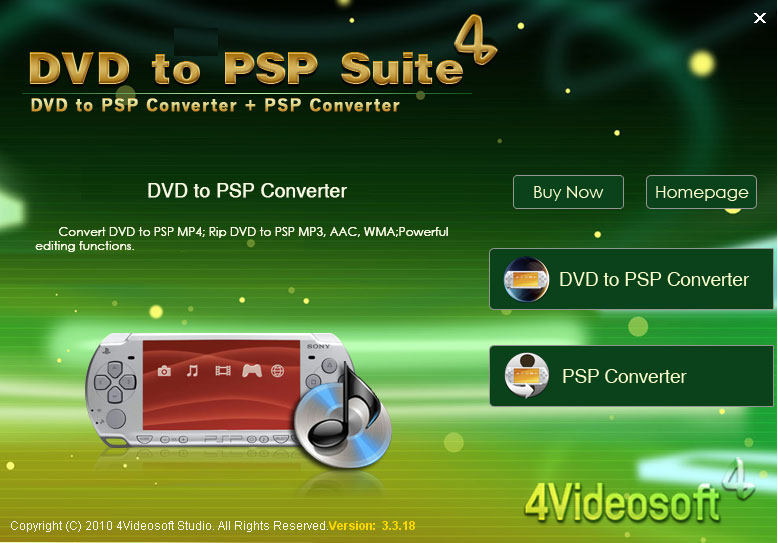
Part 1: How to put DVD on PSP
Step 0: Download and install 4Videosoft DVD to PSP Converter
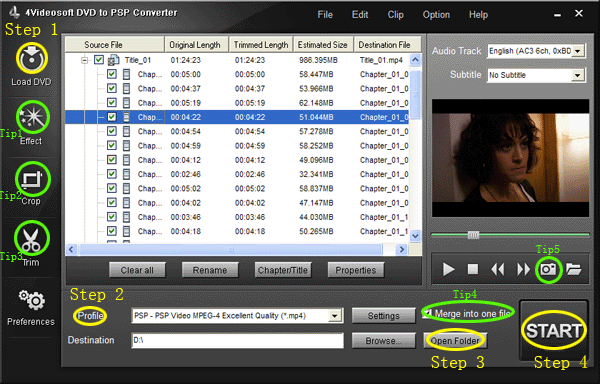
Step 1: Import DVD
Place the DVD into your DVD drive and click the “Load DVD” button to load DVD.
Step 2: Video settings
Select the output video format you want from the “Profile” drop-down list.
Step 3: Place video
Click “Open Folder” button to open your output destination file.
Step 4: Start conversion
Click the “Start” button to start your conversion and in a short while it will be finished.
Part 2: How to put video on PSP
**Step 0:**Download and install 4Videosoft PSP Video Converter .
When you finished the download process, run the .exe file to install it.
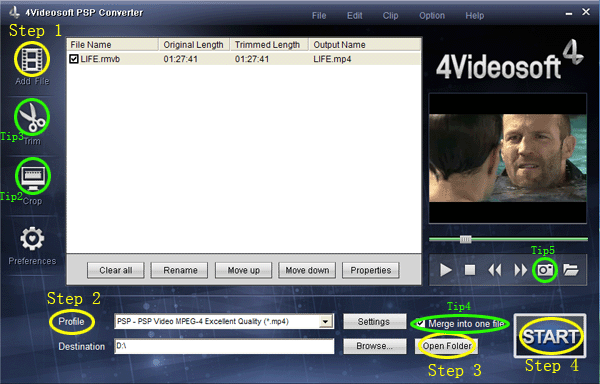
Step 1: Click “Add files” button to import videos.
Step 2: Extend the "Profile" category to select an output format.
Step 3: Click “Open Folder” button to open your output destination file.
Step 4: Click the “Start” to convert.
Tips----- Basic functions for all the 4videosof:
1. How to change your video effect
If you want to adjust the effect of your movie, please click the “Effect” button and a pop-up effect window will appear. It allows you to edit your movie’s effect including “Brightness, Contrast, Saturation and Volume”.
2: How to crop off the black edges and adjust the size of video play region
By using the "Crop" function you can crop off the black edge of your video and you can also drag the line around the video image to adjust the video play region to fit for your mobile devices
3: How to split your video
The "Trim" function also servers as a video splitter for you to get any time-length video episode. You can set the "Start Time" and "End Time" to set the exact time-length of the clip or you can directly drag the slide bar to the position you want.
4: How to join the videos
If you would like to put several files into one output file, please tick the check box of the “Merge into one file”.
5: How to save your favorite picture
If you like the current image when preview video, you can use the "Snapshot" option. Just click the "Snapshot" button, the image will be saved and you can click the "Open" button next to "Snapshot" button to open your picture.
By the way, I also find useful tools for sony fans to enjoy videos on their players.
PS3 Video Converter.
Walkman Video Converter.
Sony XPERIA Video Converter.
5:["$","$4",null,{"fallback":[[["$","link","css:/assets/_layout-BzYdn0f6.css",{"rel":"stylesheet","precedence":"vite-rsc/importer-resources","href":"/assets/_layout-BzYdn0f6.css","data-rsc-css-href":"/assets/_layout-BzYdn0f6.css"}],"$undefined"],["$","div",null,{"className":"flex justify-center items-center p-8","children":["$","div",null,{"className":"animate-spin rounded-full h-8 w-8 border-b-2 border-indigo-600"}]}]],"children":["$","div",null,{"className":"bg-white/95 mt-0.5 py-6 sm:py-12","children":["$","article",null,{"className":"mx-auto w-full max-w-2xl format format-sm sm:format-base lg:format-lg format-blue dark:format-invert","children":[["$","header",null,{"className":"mb-4 lg:mb-6 not-format","children":[["$","h1",null,{"className":"mb-4 text-3xl font-extrabold leading-tight text-gray-900 lg:mb-6 lg:text-4xl dark:text-white","children":"How to put dvd and video on PSP"}],["$","address",null,{"className":"flex items-center mb-6 not-italic","children":["$","div",null,{"className":"inline-flex items-center text-sm text-gray-900 dark:text-white","children":[["$","img",null,{"className":"mr-3 w-8 h-8 rounded-full","src":"$7","alt":"converter pspvideo"}],["$","a",null,{"href":"/author/converter_pspvideo_73511200620","rel":"author","className":"font-bold capitalize hover:underline dark:text-white","children":"converter pspvideo"}],["$","span",null,{"className":"mx-1 text-md text-gray-400 dark:text-gray-500","children":"·"}],["$","span",null,{"className":"inline-flex items-center ml-1 text-gray-500 dark:text-gray-400","children":"4 min read"}],["$","span",null,{"className":"mx-1 text-md text-gray-400 dark:text-gray-500","children":"·"}],["$","time",null,{"dateTime":"Mon Jul 06 2009","className":"text-gray-500 dark:text-gray-400","children":"Jul 6, 2009"}],[["$","span",null,{"className":"mx-1 text-md text-gray-400 dark:text-gray-500","children":"·"}],["$","a","software-applications",{"href":"/t/software-applications","className":"capitalize text-sm text-gray-500 dark:text-gray-400 hover:text-gray-600","children":"software applications"}]]]}]}]]}],["$","div",null,{"className":"lead prose mt-4 text-lg leading-8 text-gray-600","children":["$","div",null,{"dangerouslySetInnerHTML":{"__html":"$8"}}]}],"$L9","$La"]}]}]}]
b:T63b,M12.315 2c2.43 0 2.784.013 3.808.06 1.064.049 1.791.218 2.427.465a4.902 4.902 0 011.772 1.153 4.902 4.902 0 011.153 1.772c.247.636.416 1.363.465 2.427.048 1.067.06 1.407.06 4.123v.08c0 2.643-.012 2.987-.06 4.043-.049 1.064-.218 1.791-.465 2.427a4.902 4.902 0 01-1.153 1.772 4.902 4.902 0 01-1.772 1.153c-.636.247-1.363.416-2.427.465-1.067.048-1.407.06-4.123.06h-.08c-2.643 0-2.987-.012-4.043-.06-1.064-.049-1.791-.218-2.427-.465a4.902 4.902 0 01-1.772-1.153 4.902 4.902 0 01-1.153-1.772c-.247-.636-.416-1.363-.465-2.427-.047-1.024-.06-1.379-.06-3.808v-.63c0-2.43.013-2.784.06-3.808.049-1.064.218-1.791.465-2.427a4.902 4.902 0 011.153-1.772A4.902 4.902 0 015.45 2.525c.636-.247 1.363-.416 2.427-.465C8.901 2.013 9.256 2 11.685 2h.63zm-.081 1.802h-.468c-2.456 0-2.784.011-3.807.058-.975.045-1.504.207-1.857.344-.467.182-.8.398-1.15.748-.35.35-.566.683-.748 1.15-.137.353-.3.882-.344 1.857-.047 1.023-.058 1.351-.058 3.807v.468c0 2.456.011 2.784.058 3.807.045.975.207 1.504.344 1.857.182.466.399.8.748 1.15.35.35.683.566 1.15.748.353.137.882.3 1.857.344 1.054.048 1.37.058 4.041.058h.08c2.597 0 2.917-.01 3.96-.058.976-.045 1.505-.207 1.858-.344.466-.182.8-.398 1.15-.748.35-.35.566-.683.748-1.15.137-.353.3-.882.344-1.857.048-1.055.058-1.37.058-4.041v-.08c0-2.597-.01-2.917-.058-3.96-.045-.976-.207-1.505-.344-1.858a3.097 3.097 0 00-.748-1.15 3.098 3.098 0 00-1.15-.748c-.353-.137-.882-.3-1.857-.344-1.023-.047-1.351-.058-3.807-.058zM12 6.865a5.135 5.135 0 110 10.27 5.135 5.135 0 010-10.27zm0 1.802a3.333 3.333 0 100 6.666 3.333 3.333 0 000-6.666zm5.338-3.205a1.2 1.2 0 110 2.4 1.2 1.2 0 010-2.4z6:["$","footer",null,{"className":"bg-gray-900 dark:bg-gray-900","children":["$","div",null,{"className":"mx-auto max-w-7xl px-6 py-4.5 md:flex md:items-center md:justify-between lg:px-8","children":[["$","div",null,{"className":"flex justify-center space-x-6 md:order-2","children":[["$","a","Facebook",{"href":"https://facebook.com/gleeztech","target":"_blank","rel":"noopener noreferrer","className":"text-gray-400 hover:text-gray-500","children":[["$","span",null,{"className":"sr-only","children":"Facebook"}],["$","svg",null,{"className":"h-6 w-6","fill":"currentColor","viewBox":"0 0 24 24","aria-hidden":"true","children":["$","path",null,{"fillRule":"evenodd","d":"M22 12c0-5.523-4.477-10-10-10S2 6.477 2 12c0 4.991 3.657 9.128 8.438 9.878v-6.987h-2.54V12h2.54V9.797c0-2.506 1.492-3.89 3.777-3.89 1.094 0 2.238.195 2.238.195v2.46h-1.26c-1.243 0-1.63.771-1.63 1.562V12h2.773l-.443 2.89h-2.33v6.988C18.343 21.128 22 16.991 22 12z","clipRule":"evenodd"}]}]]}],["$","a","Instagram",{"href":"https://instagram.com/gleeztech","target":"_blank","rel":"noopener noreferrer","className":"text-gray-400 hover:text-gray-500","children":[["$","span",null,{"className":"sr-only","children":"Instagram"}],["$","svg",null,{"className":"h-6 w-6","fill":"currentColor","viewBox":"0 0 24 24","aria-hidden":"true","children":["$","path",null,{"fillRule":"evenodd","d":"$b","clipRule":"evenodd"}]}]]}],["$","a","X",{"href":"https://x.com/gleeztech","target":"_blank","rel":"noopener noreferrer","className":"text-gray-400 hover:text-gray-500","children":[["$","span",null,{"className":"sr-only","children":"X"}],["$","svg",null,{"className":"h-6 w-6","fill":"currentColor","viewBox":"0 0 24 24","aria-hidden":"true","children":["$","path",null,{"d":"M13.6823 10.6218L20.2391 3H18.6854L12.9921 9.61788L8.44486 3H3.2002L10.0765 13.0074L3.2002 21H4.75404L10.7663 14.0113L15.5685 21H20.8131L13.6819 10.6218H13.6823ZM11.5541 13.0956L10.8574 12.0991L5.31391 4.16971H7.70053L12.1742 10.5689L12.8709 11.5655L18.6861 19.8835H16.2995L11.5541 13.096V13.0956Z"}]}]]}],"$Lc"]}],"$Ld"]}]}]
9:null
a:["$","$4",null,{"fallback":["$","div",null,{"className":"comments-skeleton","children":[["$","div",null,{"className":"h-6 bg-gray-200 rounded w-32 mb-4 animate-pulse"}],["$","div",null,{"className":"space-y-3","children":[["$","div","1",{"className":"h-16 bg-gray-100 rounded animate-pulse"}],["$","div","2",{"className":"h-16 bg-gray-100 rounded animate-pulse"}],["$","div","3",{"className":"h-16 bg-gray-100 rounded animate-pulse"}]]}]]}],"children":"$Le"}]
c:["$","a","GitHub",{"href":"https://github.com/gleez","target":"_blank","rel":"noopener noreferrer","className":"text-gray-400 hover:text-gray-500","children":[["$","span",null,{"className":"sr-only","children":"GitHub"}],["$","svg",null,{"className":"h-6 w-6","fill":"currentColor","viewBox":"0 0 24 24","aria-hidden":"true","children":["$","path",null,{"fillRule":"evenodd","d":"M12 2C6.477 2 2 6.484 2 12.017c0 4.425 2.865 8.18 6.839 9.504.5.092.682-.217.682-.483 0-.237-.008-.868-.013-1.703-2.782.605-3.369-1.343-3.369-1.343-.454-1.158-1.11-1.466-1.11-1.466-.908-.62.069-.608.069-.608 1.003.07 1.531 1.032 1.531 1.032.892 1.53 2.341 1.088 2.91.832.092-.647.35-1.088.636-1.338-2.22-.253-4.555-1.113-4.555-4.951 0-1.093.39-1.988 1.029-2.688-.103-.253-.446-1.272.098-2.65 0 0 .84-.27 2.75 1.026A9.564 9.564 0 0112 6.844c.85.004 1.705.115 2.504.337 1.909-1.296 2.747-1.027 2.747-1.027.546 1.379.202 2.398.1 2.651.64.7 1.028 1.595 1.028 2.688 0 3.848-2.339 4.695-4.566 4.943.359.309.678.92.678 1.855 0 1.338-.012 2.419-.012 2.747 0 .268.18.58.688.482A10.019 10.019 0 0022 12.017C22 6.484 17.522 2 12 2z","clipRule":"evenodd"}]}]]}]
d:["$","div",null,{"className":"mt-8 md:order-1 md:mt-0","children":["$","p",null,{"className":"text-sm leading-5 text-gray-400","children":["© 2005 - ",2026," Gleez Inc. All rights reserved."]}]}]
f:T413,data:image/svg+xml;utf8,%3Csvg%20width%3D%2232%22%20height%3D%2232%22%20viewBox%3D%220%200%2032%2032%22%20%0A%20%20%20%20%20%20%20%20%20xmlns%3D%22http%3A%2F%2Fwww.w3.org%2F2000%2Fsvg%22%20role%3D%22img%22%20aria-label%3D%22Avatar%20for%20cosmo5566%22%3E%0A%20%20%20%20%20%20%3Crect%20width%3D%22100%25%22%20height%3D%22100%25%22%20fill%3D%22hsl(271%2C%2069%25%2C%2049%25)%22%20rx%3D%223.2%22%20%2F%3E%0A%20%20%20%20%20%20%3Ctext%20x%3D%2250%25%22%20y%3D%2250%25%22%20%0A%20%20%20%20%20%20%20%20%20%20%20%20font-family%3D%22sans-serif%22%20%0A%20%20%20%20%20%20%20%20%20%20%20%20font-size%3D%2212.8%22%20%0A%20%20%20%20%20%20%20%20%20%20%20%20font-weight%3D%22bold%22%20%0A%20%20%20%20%20%20%20%20%20%20%20%20fill%3D%22%23FFFFFF%22%20%0A%20%20%20%20%20%20%20%20%20%20%20%20text-anchor%3D%22middle%22%20%0A%20%20%20%20%20%20%20%20%20%20%20%20dominant-baseline%3D%22central%22%0A%20%20%20%20%20%20%20%20%20%20%20%20style%3D%22user-select%3A%20none%3B%22%3E%0A%20%20%20%20%20%20%20%20C%0A%20%20%20%20%20%20%3C%2Ftext%3E%0A%20%20%20%20%3C%2Fsvg%3E10:T418,data:image/svg+xml;utf8,%3Csvg%20width%3D%2232%22%20height%3D%2232%22%20viewBox%3D%220%200%2032%2032%22%20%0A%20%20%20%20%20%20%20%20%20xmlns%3D%22http%3A%2F%2Fwww.w3.org%2F2000%2Fsvg%22%20role%3D%22img%22%20aria-label%3D%22Avatar%20for%20ishome%20home%22%3E%0A%20%20%20%20%20%20%3Crect%20width%3D%22100%25%22%20height%3D%22100%25%22%20fill%3D%22hsl(150%2C%2070%25%2C%2050%25)%22%20rx%3D%223.2%22%20%2F%3E%0A%20%20%20%20%20%20%3Ctext%20x%3D%2250%25%22%20y%3D%2250%25%22%20%0A%20%20%20%20%20%20%20%20%20%20%20%20font-family%3D%22sans-serif%22%20%0A%20%20%20%20%20%20%20%20%20%20%20%20font-size%3D%2212.8%22%20%0A%20%20%20%20%20%20%20%20%20%20%20%20font-weight%3D%22bold%22%20%0A%20%20%20%20%20%20%20%20%20%20%20%20fill%3D%22%23FFFFFF%22%20%0A%20%20%20%20%20%20%20%20%20%20%20%20text-anchor%3D%22middle%22%20%0A%20%20%20%20%20%20%20%20%20%20%20%20dominant-baseline%3D%22central%22%0A%20%20%20%20%20%20%20%20%20%20%20%20style%3D%22user-select%3A%20none%3B%22%3E%0A%20%20%20%20%20%20%20%20IH%0A%20%20%20%20%20%20%3C%2Ftext%3E%0A%20%20%20%20%3C%2Fsvg%3Ee:["$","div",null,{"className":"mt-8","children":[["$","h3",null,{"className":"text-xl font-semibold mb-4","children":["Voices (",5,")"]}],["$","div",null,{"className":"space-y-6","children":[[["$","div","78874759135638",{"className":"border-l-4 border-gray-200 pl-4","children":[["$","div",null,{"className":"flex items-center gap-2 mb-2","children":["$","address",null,{"className":"flex items-center mb-6 not-italic","children":["$","div",null,{"className":"inline-flex items-center text-sm text-gray-900 dark:text-white","children":[["$","img",null,{"className":"mr-3 w-8 h-8 rounded-full","src":"$f","alt":"cosmo5566"}],["$","a",null,{"href":"/author/cosmo5566_73538866250134","rel":"author","className":"font-bold capitalize hover:underline dark:text-white","children":"cosmo5566"}],["$","span",null,{"className":"mx-1 text-md text-gray-400 dark:text-gray-500","children":"·"}],"$undefined",["$","span",null,{"className":"mx-1 text-md text-gray-400 dark:text-gray-500","children":"·"}],["$","time",null,{"dateTime":"Mon Oct 19 2009","className":"text-gray-500 dark:text-gray-400","children":"Oct 19, 2009"}],"$undefined"]}]}]}],["$","p",null,{"className":"text-gray-700","children":"Good software share with: Good software share with you now."}],["$","div",null,{"className":"flex items-center mt-4 space-x-4","children":["$","button",null,{"type":"button","className":"flex items-center font-medium text-sm text-gray-500 hover:underline dark:text-gray-400","children":[["$","svg",null,{"className":"mr-1.5 w-3 h-3","aria-hidden":"true","xmlns":"http://www.w3.org/2000/svg","fill":"currentColor","viewBox":"0 0 20 18","children":["$","path",null,{"d":"M18 0H2a2 2 0 0 0-2 2v9a2 2 0 0 0 2 2h2v4a1 1 0 0 0 1.707.707L10.414 13H18a2 2 0 0 0 2-2V2a2 2 0 0 0-2-2Zm-5 4h2a1 1 0 1 1 0 2h-2a1 1 0 1 1 0-2ZM5 4h5a1 1 0 1 1 0 2H5a1 1 0 0 1 0-2Zm2 5H5a1 1 0 0 1 0-2h2a1 1 0 0 1 0 2Zm9 0h-6a1 1 0 0 1 0-2h6a1 1 0 1 1 0 2Z"}]}],"Reply"]}]}]]}],["$","div","78841204703638",{"className":"border-l-4 border-gray-200 pl-4","children":[["$","div",null,{"className":"flex items-center gap-2 mb-2","children":["$","address",null,{"className":"flex items-center mb-6 not-italic","children":["$","div",null,{"className":"inline-flex items-center text-sm text-gray-900 dark:text-white","children":[["$","img",null,{"className":"mr-3 w-8 h-8 rounded-full","src":"$10","alt":"ishome home"}],"$L11","$L12","$undefined","$L13","$L14","$undefined"]}]}]}],"$L15","$L16"]}],"$L17","$L18","$L19"],"$L1a"]}]]}]
20:I["1715fab9d5d1",[],"default",1]
11:["$","a",null,{"href":"/author/ishome_home_73523078889878","rel":"author","className":"font-bold capitalize hover:underline dark:text-white","children":"ishome home"}]
12:["$","span",null,{"className":"mx-1 text-md text-gray-400 dark:text-gray-500","children":"·"}]
13:["$","span",null,{"className":"mx-1 text-md text-gray-400 dark:text-gray-500","children":"·"}]
14:["$","time",null,{"dateTime":"Fri Sep 04 2009","className":"text-gray-500 dark:text-gray-400","children":"Sep 4, 2009"}]
15:["$","p",null,{"className":"text-gray-700","children":"Thank you for sharing your: Thank you for sharing your experience here with us.\nIt will be very beneficial for other community members having the similar questions."}]
16:["$","div",null,{"className":"flex items-center mt-4 space-x-4","children":["$","button",null,{"type":"button","className":"flex items-center font-medium text-sm text-gray-500 hover:underline dark:text-gray-400","children":[["$","svg",null,{"className":"mr-1.5 w-3 h-3","aria-hidden":"true","xmlns":"http://www.w3.org/2000/svg","fill":"currentColor","viewBox":"0 0 20 18","children":["$","path",null,{"d":"M18 0H2a2 2 0 0 0-2 2v9a2 2 0 0 0 2 2h2v4a1 1 0 0 0 1.707.707L10.414 13H18a2 2 0 0 0 2-2V2a2 2 0 0 0-2-2Zm-5 4h2a1 1 0 1 1 0 2h-2a1 1 0 1 1 0-2ZM5 4h5a1 1 0 1 1 0 2H5a1 1 0 0 1 0-2Zm2 5H5a1 1 0 0 1 0-2h2a1 1 0 0 1 0 2Zm9 0h-6a1 1 0 0 1 0-2h6a1 1 0 1 1 0 2Z"}]}],"Reply"]}]}]
1b:T40f,data:image/svg+xml;utf8,%3Csvg%20width%3D%2232%22%20height%3D%2232%22%20viewBox%3D%220%200%2032%2032%22%20%0A%20%20%20%20%20%20%20%20%20xmlns%3D%22http%3A%2F%2Fwww.w3.org%2F2000%2Fsvg%22%20role%3D%22img%22%20aria-label%3D%22Avatar%20for%20Guest%22%3E%0A%20%20%20%20%20%20%3Crect%20width%3D%22100%25%22%20height%3D%22100%25%22%20fill%3D%22hsl(280%2C%2080%25%2C%2050%25)%22%20rx%3D%223.2%22%20%2F%3E%0A%20%20%20%20%20%20%3Ctext%20x%3D%2250%25%22%20y%3D%2250%25%22%20%0A%20%20%20%20%20%20%20%20%20%20%20%20font-family%3D%22sans-serif%22%20%0A%20%20%20%20%20%20%20%20%20%20%20%20font-size%3D%2212.8%22%20%0A%20%20%20%20%20%20%20%20%20%20%20%20font-weight%3D%22bold%22%20%0A%20%20%20%20%20%20%20%20%20%20%20%20fill%3D%22%23FFFFFF%22%20%0A%20%20%20%20%20%20%20%20%20%20%20%20text-anchor%3D%22middle%22%20%0A%20%20%20%20%20%20%20%20%20%20%20%20dominant-baseline%3D%22central%22%0A%20%20%20%20%20%20%20%20%20%20%20%20style%3D%22user-select%3A%20none%3B%22%3E%0A%20%20%20%20%20%20%20%20G%0A%20%20%20%20%20%20%3C%2Ftext%3E%0A%20%20%20%20%3C%2Fsvg%3E17:["$","div","78840164516246",{"className":"border-l-4 border-gray-200 pl-4","children":[["$","div",null,{"className":"flex items-center gap-2 mb-2","children":["$","address",null,{"className":"flex items-center mb-6 not-italic","children":["$","div",null,{"className":"inline-flex items-center text-sm text-gray-900 dark:text-white","children":[["$","img",null,{"className":"mr-3 w-8 h-8 rounded-full","src":"$1b","alt":"Guest"}],["$","a",null,{"href":"/author/guest_73325980156310","rel":"author","className":"font-bold capitalize hover:underline dark:text-white","children":"Guest"}],["$","span",null,{"className":"mx-1 text-md text-gray-400 dark:text-gray-500","children":"·"}],"$undefined",["$","span",null,{"className":"mx-1 text-md text-gray-400 dark:text-gray-500","children":"·"}],["$","time",null,{"dateTime":"Wed Sep 02 2009","className":"text-gray-500 dark:text-gray-400","children":"Sep 2, 2009"}],"$undefined"]}]}]}],["$","p",null,{"className":"text-gray-700","children":"As an apple fan, I think a: As an apple fan, I think a practical tool is important for ipod and iphone users. Recently, I tried a discount software called 4Videosoft Media Toolkit Ultimate. It is really a nice tool which can Rip DVD to AVI, MP4, MPEG, MOV, 3GP, MP3, AAC, etc,convert among all video formats (SD videos and HD videos) for portable devices, make iPhone M4R ringtone from any video/audio sources and transfer iPod to iPod, iPod to PC, PC to iPod.\nReally useful for video fans."}],["$","div",null,{"className":"flex items-center mt-4 space-x-4","children":["$","button",null,{"type":"button","className":"flex items-center font-medium text-sm text-gray-500 hover:underline dark:text-gray-400","children":[["$","svg",null,{"className":"mr-1.5 w-3 h-3","aria-hidden":"true","xmlns":"http://www.w3.org/2000/svg","fill":"currentColor","viewBox":"0 0 20 18","children":["$","path",null,{"d":"M18 0H2a2 2 0 0 0-2 2v9a2 2 0 0 0 2 2h2v4a1 1 0 0 0 1.707.707L10.414 13H18a2 2 0 0 0 2-2V2a2 2 0 0 0-2-2Zm-5 4h2a1 1 0 1 1 0 2h-2a1 1 0 1 1 0-2ZM5 4h5a1 1 0 1 1 0 2H5a1 1 0 0 1 0-2Zm2 5H5a1 1 0 0 1 0-2h2a1 1 0 0 1 0 2Zm9 0h-6a1 1 0 0 1 0-2h6a1 1 0 1 1 0 2Z"}]}],"Reply"]}]}]]}]
1c:T40f,data:image/svg+xml;utf8,%3Csvg%20width%3D%2232%22%20height%3D%2232%22%20viewBox%3D%220%200%2032%2032%22%20%0A%20%20%20%20%20%20%20%20%20xmlns%3D%22http%3A%2F%2Fwww.w3.org%2F2000%2Fsvg%22%20role%3D%22img%22%20aria-label%3D%22Avatar%20for%20Guest%22%3E%0A%20%20%20%20%20%20%3Crect%20width%3D%22100%25%22%20height%3D%22100%25%22%20fill%3D%22hsl(280%2C%2080%25%2C%2050%25)%22%20rx%3D%223.2%22%20%2F%3E%0A%20%20%20%20%20%20%3Ctext%20x%3D%2250%25%22%20y%3D%2250%25%22%20%0A%20%20%20%20%20%20%20%20%20%20%20%20font-family%3D%22sans-serif%22%20%0A%20%20%20%20%20%20%20%20%20%20%20%20font-size%3D%2212.8%22%20%0A%20%20%20%20%20%20%20%20%20%20%20%20font-weight%3D%22bold%22%20%0A%20%20%20%20%20%20%20%20%20%20%20%20fill%3D%22%23FFFFFF%22%20%0A%20%20%20%20%20%20%20%20%20%20%20%20text-anchor%3D%22middle%22%20%0A%20%20%20%20%20%20%20%20%20%20%20%20dominant-baseline%3D%22central%22%0A%20%20%20%20%20%20%20%20%20%20%20%20style%3D%22user-select%3A%20none%3B%22%3E%0A%20%20%20%20%20%20%20%20G%0A%20%20%20%20%20%20%3C%2Ftext%3E%0A%20%20%20%20%3C%2Fsvg%3E18:["$","div","78788255809942",{"className":"border-l-4 border-gray-200 pl-4","children":[["$","div",null,{"className":"flex items-center gap-2 mb-2","children":["$","address",null,{"className":"flex items-center mb-6 not-italic","children":["$","div",null,{"className":"inline-flex items-center text-sm text-gray-900 dark:text-white","children":[["$","img",null,{"className":"mr-3 w-8 h-8 rounded-full","src":"$1c","alt":"Guest"}],["$","a",null,{"href":"/author/guest_73325980156310","rel":"author","className":"font-bold capitalize hover:underline dark:text-white","children":"Guest"}],["$","span",null,{"className":"mx-1 text-md text-gray-400 dark:text-gray-500","children":"·"}],"$undefined",["$","span",null,{"className":"mx-1 text-md text-gray-400 dark:text-gray-500","children":"·"}],["$","time",null,{"dateTime":"Wed Jul 22 2009","className":"text-gray-500 dark:text-gray-400","children":"Jul 22, 2009"}],"$undefined"]}]}]}],["$","p",null,{"className":"text-gray-700","children":"I want to ask a question.: I want to ask a question. Could you promote a discount sale? I need so many tools on your website. How could I get a concessionary card from 4Videosoft? Please give me your reply ASAP."}],["$","div",null,{"className":"flex items-center mt-4 space-x-4","children":["$","button",null,{"type":"button","className":"flex items-center font-medium text-sm text-gray-500 hover:underline dark:text-gray-400","children":[["$","svg",null,{"className":"mr-1.5 w-3 h-3","aria-hidden":"true","xmlns":"http://www.w3.org/2000/svg","fill":"currentColor","viewBox":"0 0 20 18","children":["$","path",null,{"d":"M18 0H2a2 2 0 0 0-2 2v9a2 2 0 0 0 2 2h2v4a1 1 0 0 0 1.707.707L10.414 13H18a2 2 0 0 0 2-2V2a2 2 0 0 0-2-2Zm-5 4h2a1 1 0 1 1 0 2h-2a1 1 0 1 1 0-2ZM5 4h5a1 1 0 1 1 0 2H5a1 1 0 0 1 0-2Zm2 5H5a1 1 0 0 1 0-2h2a1 1 0 0 1 0 2Zm9 0h-6a1 1 0 0 1 0-2h6a1 1 0 1 1 0 2Z"}]}],"Reply"]}]}]]}]
1d:T414,data:image/svg+xml;utf8,%3Csvg%20width%3D%2232%22%20height%3D%2232%22%20viewBox%3D%220%200%2032%2032%22%20%0A%20%20%20%20%20%20%20%20%20xmlns%3D%22http%3A%2F%2Fwww.w3.org%2F2000%2Fsvg%22%20role%3D%22img%22%20aria-label%3D%22Avatar%20for%20fan%20zune%22%3E%0A%20%20%20%20%20%20%3Crect%20width%3D%22100%25%22%20height%3D%22100%25%22%20fill%3D%22hsl(49%2C%2066%25%2C%2041%25)%22%20rx%3D%223.2%22%20%2F%3E%0A%20%20%20%20%20%20%3Ctext%20x%3D%2250%25%22%20y%3D%2250%25%22%20%0A%20%20%20%20%20%20%20%20%20%20%20%20font-family%3D%22sans-serif%22%20%0A%20%20%20%20%20%20%20%20%20%20%20%20font-size%3D%2212.8%22%20%0A%20%20%20%20%20%20%20%20%20%20%20%20font-weight%3D%22bold%22%20%0A%20%20%20%20%20%20%20%20%20%20%20%20fill%3D%22%23FFFFFF%22%20%0A%20%20%20%20%20%20%20%20%20%20%20%20text-anchor%3D%22middle%22%20%0A%20%20%20%20%20%20%20%20%20%20%20%20dominant-baseline%3D%22central%22%0A%20%20%20%20%20%20%20%20%20%20%20%20style%3D%22user-select%3A%20none%3B%22%3E%0A%20%20%20%20%20%20%20%20FZ%0A%20%20%20%20%20%20%3C%2Ftext%3E%0A%20%20%20%20%3C%2Fsvg%3E1e:T77e,Enjoy YouTube video, camera: Enjoy YouTube video, camera video and other video files on iPod, iPhone, Archos, Sansa, PSP, Walkman, Zune, Creative Zen, iRiver, Palm, Cell Phone such as Nokia, Sony XPERIA, Google Phone, BlackBerry and other portable players.
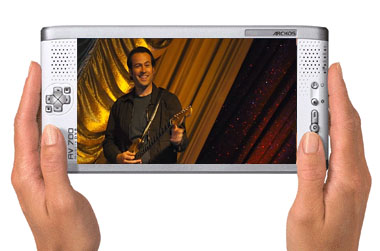
4Videosoft Video Converter Platinum is the most advanced [video converter](http://www.4videosoft.com/video-converter-platinum.html) which can convert between any video formats including MPG, MPEG, MPEG2, VOB, MP4, M4V, RM, RMVB, WMV, etc and extract audio from these video.
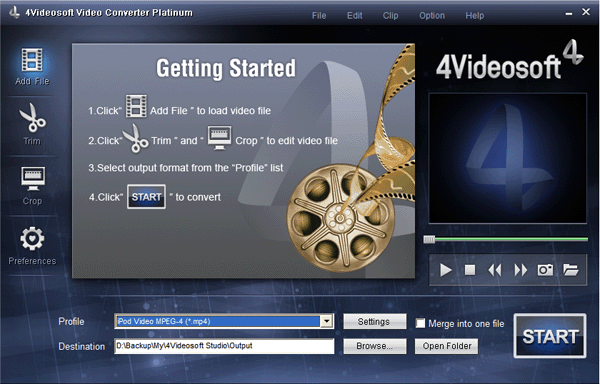
**Key Functions:**
**1. Support the mutual conversion between all the popular video and audio formats**
4Videosoft Video Converter Platinum supports all the video and audio formats. Then it can convert them into any other formats.
**2. Extract audio from video**
Convert video to only the audio for your listening.
**3. Video Splitter**
4Videosoft Video Converter Platinum has the trim function. It means that you can get any time-length video clips from your video sources.
**4. Video Cropper**
Adjust the size of video play region and the output aspect ratio to get the perfect playing effect.
**5. Video Joiner**
Merge your selected video sources into one file after conversion for you to enjoy successively.
**6. Take Snapshot**
Capture your favorite pictures when you preview. It can be saved in the default folder automatically.
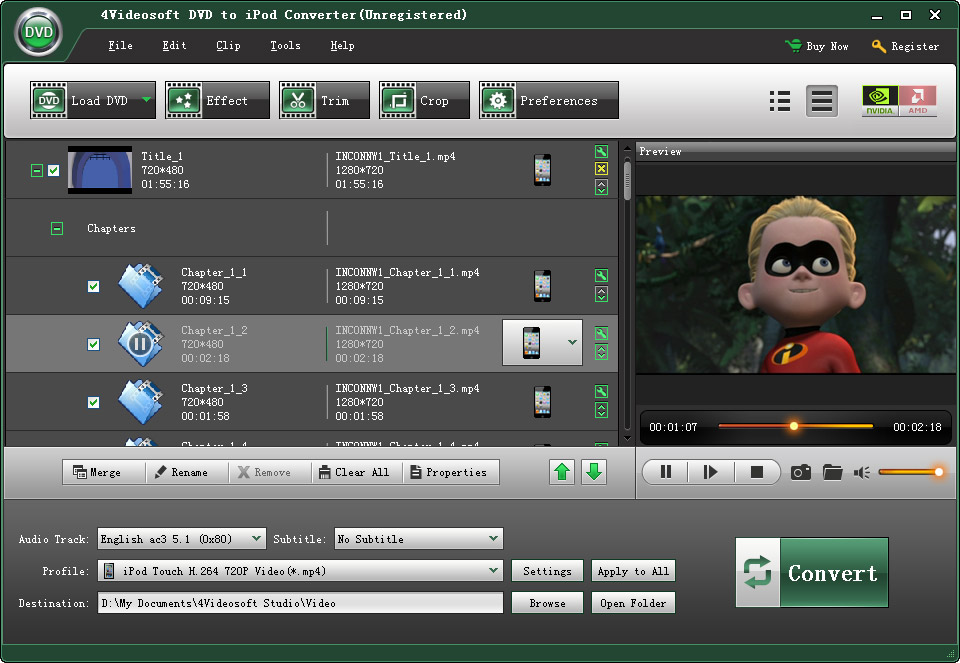
By the way, if you want put DVD on ypur ipod, 4Videosoft [DVD to iPod Converter](http://www.4videosoft.com/dvd-to-ipod-converter.html) is a nice choice.It is able to convert DVD to iPod, DVD to iPod Touch, iPod Nano, iPod Classic, even ripping DVD to your iPhone, Apple TV supporting MP4 video format.
19:["$","div","78773844181398",{"className":"border-l-4 border-gray-200 pl-4","children":[["$","div",null,{"className":"flex items-center gap-2 mb-2","children":["$","address",null,{"className":"flex items-center mb-6 not-italic","children":["$","div",null,{"className":"inline-flex items-center text-sm text-gray-900 dark:text-white","children":[["$","img",null,{"className":"mr-3 w-8 h-8 rounded-full","src":"$1d","alt":"fan zune"}],["$","a",null,{"href":"/author/fan_zune_73510428869014","rel":"author","className":"font-bold capitalize hover:underline dark:text-white","children":"fan zune"}],["$","span",null,{"className":"mx-1 text-md text-gray-400 dark:text-gray-500","children":"·"}],"$undefined",["$","span",null,{"className":"mx-1 text-md text-gray-400 dark:text-gray-500","children":"·"}],["$","time",null,{"dateTime":"Sun Jul 12 2009","className":"text-gray-500 dark:text-gray-400","children":"Jul 12, 2009"}],"$undefined"]}]}]}],["$","p",null,{"className":"text-gray-700","children":"$1e"}],"$L1f"]}]
21:T77e,Enjoy YouTube video, camera: Enjoy YouTube video, camera video and other video files on iPod, iPhone, Archos, Sansa, PSP, Walkman, Zune, Creative Zen, iRiver, Palm, Cell Phone such as Nokia, Sony XPERIA, Google Phone, BlackBerry and other portable players.

4Videosoft Video Converter Platinum is the most advanced [video converter](http://www.4videosoft.com/video-converter-platinum.html) which can convert between any video formats including MPG, MPEG, MPEG2, VOB, MP4, M4V, RM, RMVB, WMV, etc and extract audio from these video.

**Key Functions:**
**1. Support the mutual conversion between all the popular video and audio formats**
4Videosoft Video Converter Platinum supports all the video and audio formats. Then it can convert them into any other formats.
**2. Extract audio from video**
Convert video to only the audio for your listening.
**3. Video Splitter**
4Videosoft Video Converter Platinum has the trim function. It means that you can get any time-length video clips from your video sources.
**4. Video Cropper**
Adjust the size of video play region and the output aspect ratio to get the perfect playing effect.
**5. Video Joiner**
Merge your selected video sources into one file after conversion for you to enjoy successively.
**6. Take Snapshot**
Capture your favorite pictures when you preview. It can be saved in the default folder automatically.
By the way, if you want put DVD on ypur ipod, 4Videosoft [DVD to iPod Converter](http://www.4videosoft.com/dvd-to-ipod-converter.html) is a nice choice.It is able to convert DVD to iPod, DVD to iPod Touch, iPod Nano, iPod Classic, even ripping DVD to your iPhone, Apple TV supporting MP4 video format.
22:T77e,Enjoy YouTube video, camera: Enjoy YouTube video, camera video and other video files on iPod, iPhone, Archos, Sansa, PSP, Walkman, Zune, Creative Zen, iRiver, Palm, Cell Phone such as Nokia, Sony XPERIA, Google Phone, BlackBerry and other portable players.

4Videosoft Video Converter Platinum is the most advanced [video converter](http://www.4videosoft.com/video-converter-platinum.html) which can convert between any video formats including MPG, MPEG, MPEG2, VOB, MP4, M4V, RM, RMVB, WMV, etc and extract audio from these video.

**Key Functions:**
**1. Support the mutual conversion between all the popular video and audio formats**
4Videosoft Video Converter Platinum supports all the video and audio formats. Then it can convert them into any other formats.
**2. Extract audio from video**
Convert video to only the audio for your listening.
**3. Video Splitter**
4Videosoft Video Converter Platinum has the trim function. It means that you can get any time-length video clips from your video sources.
**4. Video Cropper**
Adjust the size of video play region and the output aspect ratio to get the perfect playing effect.
**5. Video Joiner**
Merge your selected video sources into one file after conversion for you to enjoy successively.
**6. Take Snapshot**
Capture your favorite pictures when you preview. It can be saved in the default folder automatically.
By the way, if you want put DVD on ypur ipod, 4Videosoft [DVD to iPod Converter](http://www.4videosoft.com/dvd-to-ipod-converter.html) is a nice choice.It is able to convert DVD to iPod, DVD to iPod Touch, iPod Nano, iPod Classic, even ripping DVD to your iPhone, Apple TV supporting MP4 video format.
1a:["$","$L20",null,{"postId":"76336802562454","endCursor":"78773844181398","initialComments":[{"id":"78874759135638","content":"Good software share with: Good software share with you now.","contentHtml":"Good software share with: Good software share with you now.","metadata":null,"isApproved":true,"createdAt":"$D2009-10-19T01:24:24.000Z","updatedAt":"$D2009-10-19T01:24:24.000Z","authorId":"73538866250134","postId":"76336802562454","parentId":null,"author":{"id":"73538866250134","nickName":"cosmo5566","username":"cosmo5566_73538866250134","email":"cosmo5566@gmail.com","role":"USER","isAdmin":false,"image":null,"metadata":null,"salt":null,"publicKey":null,"lastLogin":null,"failedAttempts":0,"lockedUntil":null,"recoveryPhraseHash":null,"recoveryCreatedAt":null,"createdAt":"$D2009-10-09T06:24:19.000Z","updatedAt":"$D2009-10-19T01:24:27.000Z"}},{"id":"78841204703638","content":"Thank you for sharing your: Thank you for sharing your experience here with us.\nIt will be very beneficial for other community members having the similar questions.","contentHtml":"Thank you for sharing your: Thank you for sharing your experience here with us.\nIt will be very beneficial for other community members having the similar questions.","metadata":null,"isApproved":true,"createdAt":"$D2009-09-04T02:54:40.000Z","updatedAt":"$D2009-09-04T02:54:40.000Z","authorId":"73523078889878","postId":"76336802562454","parentId":null,"author":{"id":"73523078889878","nickName":"ishome home","username":"ishome_home_73523078889878","email":"homeishome99@gmail.com","role":"USER","isAdmin":false,"image":null,"metadata":null,"salt":null,"publicKey":null,"lastLogin":null,"failedAttempts":0,"lockedUntil":null,"recoveryPhraseHash":null,"recoveryCreatedAt":null,"createdAt":"$D2009-08-06T02:24:22.000Z","updatedAt":"$D2009-09-04T02:54:44.000Z"}},{"id":"78840164516246","content":"As an apple fan, I think a: As an apple fan, I think a practical tool is important for ipod and iphone users. Recently, I tried a discount software called 4Videosoft Media Toolkit Ultimate. It is really a nice tool which can Rip DVD to AVI, MP4, MPEG, MOV, 3GP, MP3, AAC, etc,convert among all video formats (SD videos and HD videos) for portable devices, make iPhone M4R ringtone from any video/audio sources and transfer iPod to iPod, iPod to PC, PC to iPod.\nReally useful for video fans.","contentHtml":"As an apple fan, I think a: As an apple fan, I think a practical tool is important for ipod and iphone users. Recently, I tried a discount software called 4Videosoft Media Toolkit Ultimate. It is really a nice tool which can Rip DVD to AVI, MP4, MPEG, MOV, 3GP, MP3, AAC, etc,convert among all video formats (SD videos and HD videos) for portable devices, make iPhone M4R ringtone from any video/audio sources and transfer iPod to iPod, iPod to PC, PC to iPod.\nReally useful for video fans.","metadata":null,"isApproved":true,"createdAt":"$D2009-09-02T12:05:15.000Z","updatedAt":"$D2009-09-02T12:05:15.000Z","authorId":"73325980156310","postId":"76336802562454","parentId":null,"author":{"id":"73325980156310","nickName":"Guest","username":"guest_73325980156310","email":"guest@example.com","role":"USER","isAdmin":false,"image":null,"metadata":null,"salt":null,"publicKey":null,"lastLogin":null,"failedAttempts":0,"lockedUntil":null,"recoveryPhraseHash":null,"recoveryCreatedAt":null,"createdAt":"$D2005-01-01T00:00:00.000Z","updatedAt":"$D2005-01-01T00:00:00.000Z"}},{"id":"78788255809942","content":"I want to ask a question.: I want to ask a question. Could you promote a discount sale? I need so many tools on your website. How could I get a concessionary card from 4Videosoft? Please give me your reply ASAP.","contentHtml":"I want to ask a question.: I want to ask a question. Could you promote a discount sale? I need so many tools on your website. How could I get a concessionary card from 4Videosoft? Please give me your reply ASAP.","metadata":null,"isApproved":true,"createdAt":"$D2009-07-22T12:18:57.000Z","updatedAt":"$D2009-07-22T12:18:57.000Z","authorId":"73325980156310","postId":"76336802562454","parentId":null,"author":{"id":"73325980156310","nickName":"Guest","username":"guest_73325980156310","email":"guest@example.com","role":"USER","isAdmin":false,"image":null,"metadata":null,"salt":null,"publicKey":null,"lastLogin":null,"failedAttempts":0,"lockedUntil":null,"recoveryPhraseHash":null,"recoveryCreatedAt":null,"createdAt":"$D2005-01-01T00:00:00.000Z","updatedAt":"$D2005-01-01T00:00:00.000Z"}},{"id":"78773844181398","content":"$21","contentHtml":"$22","metadata":null,"isApproved":true,"createdAt":"$D2009-07-12T09:51:59.000Z","updatedAt":"$D2009-07-12T09:51:59.000Z","authorId":"73510428869014","postId":"76336802562454","parentId":null,"author":{"id":"73510428869014","nickName":"fan zune","username":"fan_zune_73510428869014","email":"zunefan951@gmail.com","role":"USER","isAdmin":false,"image":null,"metadata":null,"salt":null,"publicKey":null,"lastLogin":null,"failedAttempts":0,"lockedUntil":null,"recoveryPhraseHash":null,"recoveryCreatedAt":null,"createdAt":"$D2009-06-30T04:03:34.000Z","updatedAt":"$D2009-08-31T12:31:37.000Z"}}]}]
1f:["$","div",null,{"className":"flex items-center mt-4 space-x-4","children":["$","button",null,{"type":"button","className":"flex items-center font-medium text-sm text-gray-500 hover:underline dark:text-gray-400","children":[["$","svg",null,{"className":"mr-1.5 w-3 h-3","aria-hidden":"true","xmlns":"http://www.w3.org/2000/svg","fill":"currentColor","viewBox":"0 0 20 18","children":["$","path",null,{"d":"M18 0H2a2 2 0 0 0-2 2v9a2 2 0 0 0 2 2h2v4a1 1 0 0 0 1.707.707L10.414 13H18a2 2 0 0 0 2-2V2a2 2 0 0 0-2-2Zm-5 4h2a1 1 0 1 1 0 2h-2a1 1 0 1 1 0-2ZM5 4h5a1 1 0 1 1 0 2H5a1 1 0 0 1 0-2Zm2 5H5a1 1 0 0 1 0-2h2a1 1 0 0 1 0 2Zm9 0h-6a1 1 0 0 1 0-2h6a1 1 0 1 1 0 2Z"}]}],"Reply"]}]}]