0:{"root":[["$","meta","1",{"property":"csp-nonce","nonce":"53c20bbe-2010-43a0-aed0-06126e442b13"}],"$L1"],"formState":"$undefined","returnValue":"$undefined"}
2:"$Sreact.fragment"
3:I["7ada5cab5be8",[],"Header",1]
4:"$Sreact.suspense"
:HL["/assets/_layout-BzYdn0f6.css","stylesheet"]
1:["$","$2","2",{"children":[[["$","link","css:/assets/_layout-BzYdn0f6.css",{"rel":"stylesheet","precedence":"vite-rsc/importer-resources","href":"/assets/_layout-BzYdn0f6.css","data-rsc-css-href":"/assets/_layout-BzYdn0f6.css"}],"$undefined"],["$","html",null,{"lang":"en","className":"$undefined","children":[["$","head",null,{"children":[["$","meta",null,{"charSet":"UTF-8"}],["$","meta",null,{"name":"viewport","content":"width=device-width, initial-scale=1.0"}],["$","link",null,{"rel":"icon","type":"image/png","href":"/static/icons/apple-icon.png"}],["$","link",null,{"rel":"icon","type":"image/png","sizes":"32x32","href":"/static/icons/favicon-32x32.png"}],["$","link",null,{"rel":"apple-touch-icon","href":"/static/icons/apple-icon.png"}],["$","meta",null,{"name":"theme-color","content":"#1e40af"}],["$","meta",null,{"name":"language","content":"en_US"}],["$","meta",null,{"httpEquiv":"content-language","content":"en_US"}]]}],["$","body",null,{"className":"min-h-screen flex flex-col","children":[["$","$L3",null,{}],["$","main",null,{"className":"main-content grow bg-gray-100","children":["$","$4",null,{"fallback":[[["$","link","css:/assets/_layout-BzYdn0f6.css",{"rel":"stylesheet","precedence":"vite-rsc/importer-resources","href":"/assets/_layout-BzYdn0f6.css","data-rsc-css-href":"/assets/_layout-BzYdn0f6.css"}],"$undefined"],["$","div",null,{"className":"flex justify-center items-center p-8","children":["$","div",null,{"className":"animate-spin rounded-full h-8 w-8 border-b-2 border-indigo-600"}]}]],"children":[[["$","title",null,{"children":"How to Put Dvd And Video on Zune | Gleez"}],["$","meta",null,{"name":"description","content":"We all know that Zune is a product line of portable media players, manufactured by Microsoft. And Zune users need to buy online music, video, and podcast…"}],["$","meta",null,{"name":"keywords","content":"how, put, dvd, video, zune, Gleez, privacy, secure productivity"}],["$","meta",null,{"name":"author","content":"fan zune"}],["$","meta",null,{"property":"og:title","content":"How to Put Dvd And Video on Zune | Gleez"}],["$","meta",null,{"property":"og:description","content":"We all know that Zune is a product line of portable media players, manufactured by Microsoft. And Zune users need to buy online music, video, and podcast…"}],["$","meta",null,{"property":"og:type","content":"article"}],["$","meta",null,{"property":"og:url","content":"https://gleez.com/s/how-to-put-dvd-and-video-on-zune"}],["$","meta",null,{"property":"og:image","content":"/static/og.png"}],["$","meta",null,{"property":"og:image:alt","content":"How to Put Dvd And Video on Zune"}],["$","meta",null,{"property":"og:site_name","content":"Gleez"}],["$","meta",null,{"property":"og:locale","content":"en_US"}],["$","meta",null,{"property":"article:published_time","content":"2009-07-01T07:48:29.000Z"}],["$","meta",null,{"property":"article:modified_time","content":"2018-12-31T17:59:24.000Z"}],["$","meta",null,{"property":"article:author","content":"https://gleez.com/author/73510428869014"}],[],["$","meta",null,{"name":"twitter:card","content":"summary_large_image"}],["$","meta",null,{"name":"twitter:title","content":"How to Put Dvd And Video on Zune | Gleez"}],["$","meta",null,{"name":"twitter:description","content":"We all know that Zune is a product line of portable media players, manufactured by Microsoft. And Zune users need to buy online music, video, and podcast…"}],["$","meta",null,{"name":"twitter:image","content":"/static/og.png"}],["$","meta",null,{"name":"twitter:image:alt","content":"How to Put Dvd And Video on Zune"}],["$","meta",null,{"name":"twitter:site","content":"@gleeztech"}],["$","meta",null,{"name":"twitter:creator","content":"@gleeztech"}],["$","link",null,{"rel":"canonical","href":"https://gleez.com/s/how-to-put-dvd-and-video-on-zune"}],["$","meta",null,{"name":"robots","content":"index, follow"}],["$","meta",null,{"name":"googlebot","content":"index, follow, max-snippet:-1, max-image-preview:large"}],["$","script",null,{"type":"application/ld+json","dangerouslySetInnerHTML":{"__html":"{\"@context\":\"https://schema.org\",\"@type\":\"BlogPosting\",\"headline\":\"How to Put Dvd And Video on Zune\",\"description\":\"We all know that Zune is a product line of portable media players, manufactured by Microsoft. And Zune users need to buy online music, video, and podcast…\",\"image\":\"/static/og.png\",\"author\":{\"@type\":\"Person\",\"name\":\"fan zune\"},\"publisher\":{\"@type\":\"Organization\",\"name\":\"Gleez\",\"logo\":{\"@type\":\"ImageObject\",\"url\":\"https://gleez.tech/static/logo-512.png\"}},\"datePublished\":\"2009-07-01T07:48:29.000Z\",\"dateModified\":\"2018-12-31T17:59:24.000Z\",\"mainEntityOfPage\":{\"@type\":\"WebPage\",\"@id\":\"https://gleez.com/s/how-to-put-dvd-and-video-on-zune\"}}"}}]],"$L5"]}]}],"$L6"]}]]}]]}]
7:T414,data:image/svg+xml;utf8,%3Csvg%20width%3D%2232%22%20height%3D%2232%22%20viewBox%3D%220%200%2032%2032%22%20%0A%20%20%20%20%20%20%20%20%20xmlns%3D%22http%3A%2F%2Fwww.w3.org%2F2000%2Fsvg%22%20role%3D%22img%22%20aria-label%3D%22Avatar%20for%20fan%20zune%22%3E%0A%20%20%20%20%20%20%3Crect%20width%3D%22100%25%22%20height%3D%22100%25%22%20fill%3D%22hsl(49%2C%2066%25%2C%2041%25)%22%20rx%3D%223.2%22%20%2F%3E%0A%20%20%20%20%20%20%3Ctext%20x%3D%2250%25%22%20y%3D%2250%25%22%20%0A%20%20%20%20%20%20%20%20%20%20%20%20font-family%3D%22sans-serif%22%20%0A%20%20%20%20%20%20%20%20%20%20%20%20font-size%3D%2212.8%22%20%0A%20%20%20%20%20%20%20%20%20%20%20%20font-weight%3D%22bold%22%20%0A%20%20%20%20%20%20%20%20%20%20%20%20fill%3D%22%23FFFFFF%22%20%0A%20%20%20%20%20%20%20%20%20%20%20%20text-anchor%3D%22middle%22%20%0A%20%20%20%20%20%20%20%20%20%20%20%20dominant-baseline%3D%22central%22%0A%20%20%20%20%20%20%20%20%20%20%20%20style%3D%22user-select%3A%20none%3B%22%3E%0A%20%20%20%20%20%20%20%20FZ%0A%20%20%20%20%20%20%3C%2Ftext%3E%0A%20%20%20%20%3C%2Fsvg%3E8:Tfde,We all know that Zune is a product line of portable media players, manufactured by Microsoft.
And Zune users need to buy online music, video, and podcast downloads which is provided by Zune Marketplace services when they want to enjoy music and videos.
Sometimes, Zune user had a video or dvd which is not provided by Zune Marketplace. How can they upload the files to zune? In the following text, I will show a way to enjoy personal videos and dvds on Zune player.
To complete this process, I need a tool called 4Videosoft DVD to Zune Suite.
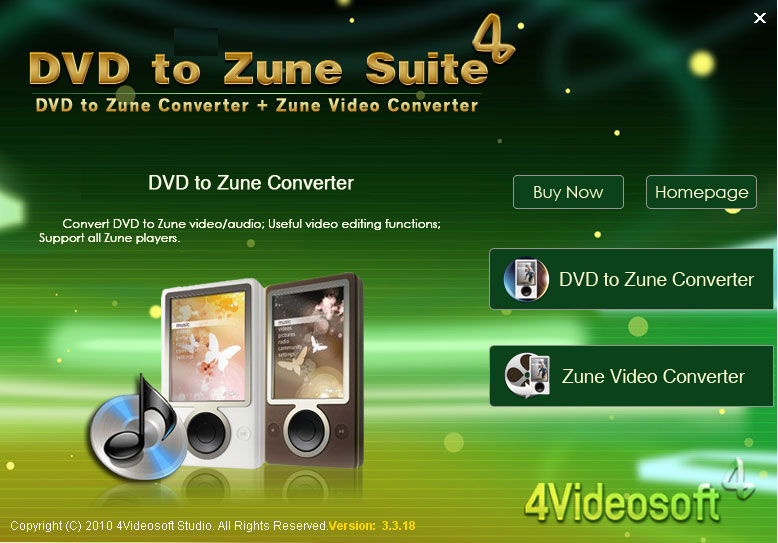
I divide this guide into two parts:
1. How to put dvd on zune
2. How to put video on zune
Part 1: How to put dvd on zune
Step 0: Download and install 4Videosoft DVD to Zune Converter
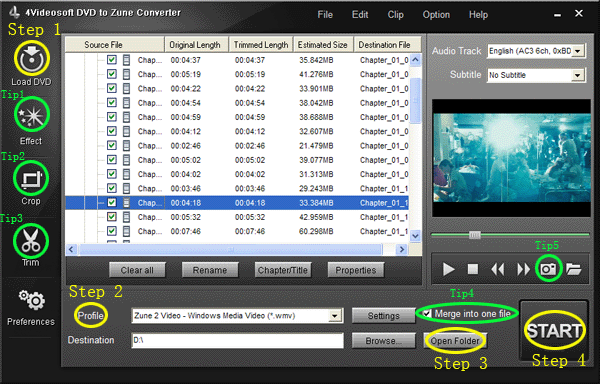
Step 1: Import DVD
Place the DVD into your DVD drive and click the “Load DVD” button to load DVD.
Step 2: Video settings
Select the output video format you want from the “Profile” drop-down list.
Step 3: Place video
Click “Open Folder” button to open your output destination file.
Step 4: Start conversion
Click the “Start” button to start your conversion and in a short while it will be finished.
**Part 2:
How to put video on zune**
**Step 0:**Download and install 4Videosoft Zune Video Converter.
When you finished the download process, run the .exe file to install it.
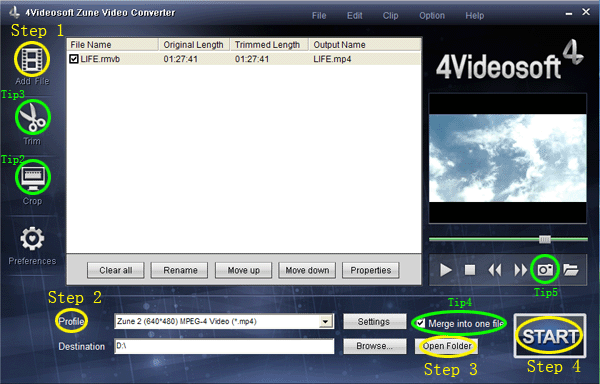
Step 1: Click “Add files” button to import videos.
Step 2: Extend the "Profile" category to select an output format.
Step 3: Click “Open Folder” button to open your output destination file.
Step 4: Click the “Start” to convert.
Tips----- Basic functions for all the 4videosof:
1. How to change your video effect
If you want to adjust the effect of your movie, please click the “Effect” button and a pop-up effect window will appear. It allows you to edit your movie’s effect including “Brightness, Contrast, Saturation and Volume”.
2: How to crop off the black edges and adjust the size of video play region
By using the "Crop" function you can crop off the black edge of your video and you can also drag the line around the video image to adjust the video play region to fit for your mobile devices
3: How to split your video
The "Trim" function also servers as a video splitter for you to get any time-length video episode. You can set the "Start Time" and "End Time" to set the exact time-length of the clip or you can directly drag the slide bar to the position you want.
4: How to join the videos
If you would like to put several files into one output file, please tick the check box of the “Merge into one file”.
5: How to save your favorite picture
If you like the current image when preview video, you can use the "Snapshot" option. Just click the "Snapshot" button, the image will be saved and you can click the "Open" button next to "Snapshot" button to open your picture.
5:["$","$4",null,{"fallback":[[["$","link","css:/assets/_layout-BzYdn0f6.css",{"rel":"stylesheet","precedence":"vite-rsc/importer-resources","href":"/assets/_layout-BzYdn0f6.css","data-rsc-css-href":"/assets/_layout-BzYdn0f6.css"}],"$undefined"],["$","div",null,{"className":"flex justify-center items-center p-8","children":["$","div",null,{"className":"animate-spin rounded-full h-8 w-8 border-b-2 border-indigo-600"}]}]],"children":["$","div",null,{"className":"bg-white/95 mt-0.5 py-6 sm:py-12","children":["$","article",null,{"className":"mx-auto w-full max-w-2xl format format-sm sm:format-base lg:format-lg format-blue dark:format-invert","children":[["$","header",null,{"className":"mb-4 lg:mb-6 not-format","children":[["$","h1",null,{"className":"mb-4 text-3xl font-extrabold leading-tight text-gray-900 lg:mb-6 lg:text-4xl dark:text-white","children":"How to Put Dvd And Video on Zune"}],["$","address",null,{"className":"flex items-center mb-6 not-italic","children":["$","div",null,{"className":"inline-flex items-center text-sm text-gray-900 dark:text-white","children":[["$","img",null,{"className":"mr-3 w-8 h-8 rounded-full","src":"$7","alt":"fan zune"}],["$","a",null,{"href":"/author/fan_zune_73510428869014","rel":"author","className":"font-bold capitalize hover:underline dark:text-white","children":"fan zune"}],["$","span",null,{"className":"mx-1 text-md text-gray-400 dark:text-gray-500","children":"·"}],["$","span",null,{"className":"inline-flex items-center ml-1 text-gray-500 dark:text-gray-400","children":"3 min read"}],["$","span",null,{"className":"mx-1 text-md text-gray-400 dark:text-gray-500","children":"·"}],["$","time",null,{"dateTime":"Wed Jul 01 2009","className":"text-gray-500 dark:text-gray-400","children":"Jul 1, 2009"}],[["$","span",null,{"className":"mx-1 text-md text-gray-400 dark:text-gray-500","children":"·"}],["$","a","software-applications",{"href":"/t/software-applications","className":"capitalize text-sm text-gray-500 dark:text-gray-400 hover:text-gray-600","children":"software applications"}]]]}]}]]}],["$","div",null,{"className":"lead prose mt-4 text-lg leading-8 text-gray-600","children":["$","div",null,{"dangerouslySetInnerHTML":{"__html":"$8"}}]}],"$L9","$La"]}]}]}]
b:T63b,M12.315 2c2.43 0 2.784.013 3.808.06 1.064.049 1.791.218 2.427.465a4.902 4.902 0 011.772 1.153 4.902 4.902 0 011.153 1.772c.247.636.416 1.363.465 2.427.048 1.067.06 1.407.06 4.123v.08c0 2.643-.012 2.987-.06 4.043-.049 1.064-.218 1.791-.465 2.427a4.902 4.902 0 01-1.153 1.772 4.902 4.902 0 01-1.772 1.153c-.636.247-1.363.416-2.427.465-1.067.048-1.407.06-4.123.06h-.08c-2.643 0-2.987-.012-4.043-.06-1.064-.049-1.791-.218-2.427-.465a4.902 4.902 0 01-1.772-1.153 4.902 4.902 0 01-1.153-1.772c-.247-.636-.416-1.363-.465-2.427-.047-1.024-.06-1.379-.06-3.808v-.63c0-2.43.013-2.784.06-3.808.049-1.064.218-1.791.465-2.427a4.902 4.902 0 011.153-1.772A4.902 4.902 0 015.45 2.525c.636-.247 1.363-.416 2.427-.465C8.901 2.013 9.256 2 11.685 2h.63zm-.081 1.802h-.468c-2.456 0-2.784.011-3.807.058-.975.045-1.504.207-1.857.344-.467.182-.8.398-1.15.748-.35.35-.566.683-.748 1.15-.137.353-.3.882-.344 1.857-.047 1.023-.058 1.351-.058 3.807v.468c0 2.456.011 2.784.058 3.807.045.975.207 1.504.344 1.857.182.466.399.8.748 1.15.35.35.683.566 1.15.748.353.137.882.3 1.857.344 1.054.048 1.37.058 4.041.058h.08c2.597 0 2.917-.01 3.96-.058.976-.045 1.505-.207 1.858-.344.466-.182.8-.398 1.15-.748.35-.35.566-.683.748-1.15.137-.353.3-.882.344-1.857.048-1.055.058-1.37.058-4.041v-.08c0-2.597-.01-2.917-.058-3.96-.045-.976-.207-1.505-.344-1.858a3.097 3.097 0 00-.748-1.15 3.098 3.098 0 00-1.15-.748c-.353-.137-.882-.3-1.857-.344-1.023-.047-1.351-.058-3.807-.058zM12 6.865a5.135 5.135 0 110 10.27 5.135 5.135 0 010-10.27zm0 1.802a3.333 3.333 0 100 6.666 3.333 3.333 0 000-6.666zm5.338-3.205a1.2 1.2 0 110 2.4 1.2 1.2 0 010-2.4z6:["$","footer",null,{"className":"bg-gray-900 dark:bg-gray-900","children":["$","div",null,{"className":"mx-auto max-w-7xl px-6 py-4.5 md:flex md:items-center md:justify-between lg:px-8","children":[["$","div",null,{"className":"flex justify-center space-x-6 md:order-2","children":[["$","a","Facebook",{"href":"https://facebook.com/gleeztech","target":"_blank","rel":"noopener noreferrer","className":"text-gray-400 hover:text-gray-500","children":[["$","span",null,{"className":"sr-only","children":"Facebook"}],["$","svg",null,{"className":"h-6 w-6","fill":"currentColor","viewBox":"0 0 24 24","aria-hidden":"true","children":["$","path",null,{"fillRule":"evenodd","d":"M22 12c0-5.523-4.477-10-10-10S2 6.477 2 12c0 4.991 3.657 9.128 8.438 9.878v-6.987h-2.54V12h2.54V9.797c0-2.506 1.492-3.89 3.777-3.89 1.094 0 2.238.195 2.238.195v2.46h-1.26c-1.243 0-1.63.771-1.63 1.562V12h2.773l-.443 2.89h-2.33v6.988C18.343 21.128 22 16.991 22 12z","clipRule":"evenodd"}]}]]}],["$","a","Instagram",{"href":"https://instagram.com/gleeztech","target":"_blank","rel":"noopener noreferrer","className":"text-gray-400 hover:text-gray-500","children":[["$","span",null,{"className":"sr-only","children":"Instagram"}],["$","svg",null,{"className":"h-6 w-6","fill":"currentColor","viewBox":"0 0 24 24","aria-hidden":"true","children":["$","path",null,{"fillRule":"evenodd","d":"$b","clipRule":"evenodd"}]}]]}],["$","a","X",{"href":"https://x.com/gleeztech","target":"_blank","rel":"noopener noreferrer","className":"text-gray-400 hover:text-gray-500","children":[["$","span",null,{"className":"sr-only","children":"X"}],["$","svg",null,{"className":"h-6 w-6","fill":"currentColor","viewBox":"0 0 24 24","aria-hidden":"true","children":["$","path",null,{"d":"M13.6823 10.6218L20.2391 3H18.6854L12.9921 9.61788L8.44486 3H3.2002L10.0765 13.0074L3.2002 21H4.75404L10.7663 14.0113L15.5685 21H20.8131L13.6819 10.6218H13.6823ZM11.5541 13.0956L10.8574 12.0991L5.31391 4.16971H7.70053L12.1742 10.5689L12.8709 11.5655L18.6861 19.8835H16.2995L11.5541 13.096V13.0956Z"}]}]]}],"$Lc"]}],"$Ld"]}]}]
9:null
a:["$","$4",null,{"fallback":["$","div",null,{"className":"comments-skeleton","children":[["$","div",null,{"className":"h-6 bg-gray-200 rounded w-32 mb-4 animate-pulse"}],["$","div",null,{"className":"space-y-3","children":[["$","div","1",{"className":"h-16 bg-gray-100 rounded animate-pulse"}],["$","div","2",{"className":"h-16 bg-gray-100 rounded animate-pulse"}],["$","div","3",{"className":"h-16 bg-gray-100 rounded animate-pulse"}]]}]]}],"children":"$Le"}]
c:["$","a","GitHub",{"href":"https://github.com/gleez","target":"_blank","rel":"noopener noreferrer","className":"text-gray-400 hover:text-gray-500","children":[["$","span",null,{"className":"sr-only","children":"GitHub"}],["$","svg",null,{"className":"h-6 w-6","fill":"currentColor","viewBox":"0 0 24 24","aria-hidden":"true","children":["$","path",null,{"fillRule":"evenodd","d":"M12 2C6.477 2 2 6.484 2 12.017c0 4.425 2.865 8.18 6.839 9.504.5.092.682-.217.682-.483 0-.237-.008-.868-.013-1.703-2.782.605-3.369-1.343-3.369-1.343-.454-1.158-1.11-1.466-1.11-1.466-.908-.62.069-.608.069-.608 1.003.07 1.531 1.032 1.531 1.032.892 1.53 2.341 1.088 2.91.832.092-.647.35-1.088.636-1.338-2.22-.253-4.555-1.113-4.555-4.951 0-1.093.39-1.988 1.029-2.688-.103-.253-.446-1.272.098-2.65 0 0 .84-.27 2.75 1.026A9.564 9.564 0 0112 6.844c.85.004 1.705.115 2.504.337 1.909-1.296 2.747-1.027 2.747-1.027.546 1.379.202 2.398.1 2.651.64.7 1.028 1.595 1.028 2.688 0 3.848-2.339 4.695-4.566 4.943.359.309.678.92.678 1.855 0 1.338-.012 2.419-.012 2.747 0 .268.18.58.688.482A10.019 10.019 0 0022 12.017C22 6.484 17.522 2 12 2z","clipRule":"evenodd"}]}]]}]
d:["$","div",null,{"className":"mt-8 md:order-1 md:mt-0","children":["$","p",null,{"className":"text-sm leading-5 text-gray-400","children":["© 2005 - ",2026," Gleez Inc. All rights reserved."]}]}]
f:T419,data:image/svg+xml;utf8,%3Csvg%20width%3D%2232%22%20height%3D%2232%22%20viewBox%3D%220%200%2032%2032%22%20%0A%20%20%20%20%20%20%20%20%20xmlns%3D%22http%3A%2F%2Fwww.w3.org%2F2000%2Fsvg%22%20role%3D%22img%22%20aria-label%3D%22Avatar%20for%20holiday%20pink%22%3E%0A%20%20%20%20%20%20%3Crect%20width%3D%22100%25%22%20height%3D%22100%25%22%20fill%3D%22hsl(298%2C%2057%25%2C%2042%25)%22%20rx%3D%223.2%22%20%2F%3E%0A%20%20%20%20%20%20%3Ctext%20x%3D%2250%25%22%20y%3D%2250%25%22%20%0A%20%20%20%20%20%20%20%20%20%20%20%20font-family%3D%22sans-serif%22%20%0A%20%20%20%20%20%20%20%20%20%20%20%20font-size%3D%2212.8%22%20%0A%20%20%20%20%20%20%20%20%20%20%20%20font-weight%3D%22bold%22%20%0A%20%20%20%20%20%20%20%20%20%20%20%20fill%3D%22%23FFFFFF%22%20%0A%20%20%20%20%20%20%20%20%20%20%20%20text-anchor%3D%22middle%22%20%0A%20%20%20%20%20%20%20%20%20%20%20%20dominant-baseline%3D%22central%22%0A%20%20%20%20%20%20%20%20%20%20%20%20style%3D%22user-select%3A%20none%3B%22%3E%0A%20%20%20%20%20%20%20%20HP%0A%20%20%20%20%20%20%3C%2Ftext%3E%0A%20%20%20%20%3C%2Fsvg%3E10:T415,data:image/svg+xml;utf8,%3Csvg%20width%3D%2232%22%20height%3D%2232%22%20viewBox%3D%220%200%2032%2032%22%20%0A%20%20%20%20%20%20%20%20%20xmlns%3D%22http%3A%2F%2Fwww.w3.org%2F2000%2Fsvg%22%20role%3D%22img%22%20aria-label%3D%22Avatar%20for%20meshy%20why%22%3E%0A%20%20%20%20%20%20%3Crect%20width%3D%22100%25%22%20height%3D%22100%25%22%20fill%3D%22hsl(60%2C%2070%25%2C%2050%25)%22%20rx%3D%223.2%22%20%2F%3E%0A%20%20%20%20%20%20%3Ctext%20x%3D%2250%25%22%20y%3D%2250%25%22%20%0A%20%20%20%20%20%20%20%20%20%20%20%20font-family%3D%22sans-serif%22%20%0A%20%20%20%20%20%20%20%20%20%20%20%20font-size%3D%2212.8%22%20%0A%20%20%20%20%20%20%20%20%20%20%20%20font-weight%3D%22bold%22%20%0A%20%20%20%20%20%20%20%20%20%20%20%20fill%3D%22%23FFFFFF%22%20%0A%20%20%20%20%20%20%20%20%20%20%20%20text-anchor%3D%22middle%22%20%0A%20%20%20%20%20%20%20%20%20%20%20%20dominant-baseline%3D%22central%22%0A%20%20%20%20%20%20%20%20%20%20%20%20style%3D%22user-select%3A%20none%3B%22%3E%0A%20%20%20%20%20%20%20%20MW%0A%20%20%20%20%20%20%3C%2Ftext%3E%0A%20%20%20%20%3C%2Fsvg%3Ee:["$","div",null,{"className":"mt-8","children":[["$","h3",null,{"className":"text-xl font-semibold mb-4","children":["Voices (",5,")"]}],["$","div",null,{"className":"space-y-6","children":[[["$","div","78840885936534",{"className":"border-l-4 border-gray-200 pl-4","children":[["$","div",null,{"className":"flex items-center gap-2 mb-2","children":["$","address",null,{"className":"flex items-center mb-6 not-italic","children":["$","div",null,{"className":"inline-flex items-center text-sm text-gray-900 dark:text-white","children":[["$","img",null,{"className":"mr-3 w-8 h-8 rounded-full","src":"$f","alt":"holiday pink"}],["$","a",null,{"href":"/author/holiday_pink_73491554501014","rel":"author","className":"font-bold capitalize hover:underline dark:text-white","children":"holiday pink"}],["$","span",null,{"className":"mx-1 text-md text-gray-400 dark:text-gray-500","children":"·"}],"$undefined",["$","span",null,{"className":"mx-1 text-md text-gray-400 dark:text-gray-500","children":"·"}],["$","time",null,{"dateTime":"Thu Sep 03 2009","className":"text-gray-500 dark:text-gray-400","children":"Sep 3, 2009"}],"$undefined"]}]}]}],["$","p",null,{"className":"text-gray-700","children":"Thank you for sharing your: Thank you for sharing your experience here with us.\nIt will be very beneficial for other community members having the similar questions."}],["$","div",null,{"className":"flex items-center mt-4 space-x-4","children":["$","button",null,{"type":"button","className":"flex items-center font-medium text-sm text-gray-500 hover:underline dark:text-gray-400","children":[["$","svg",null,{"className":"mr-1.5 w-3 h-3","aria-hidden":"true","xmlns":"http://www.w3.org/2000/svg","fill":"currentColor","viewBox":"0 0 20 18","children":["$","path",null,{"d":"M18 0H2a2 2 0 0 0-2 2v9a2 2 0 0 0 2 2h2v4a1 1 0 0 0 1.707.707L10.414 13H18a2 2 0 0 0 2-2V2a2 2 0 0 0-2-2Zm-5 4h2a1 1 0 1 1 0 2h-2a1 1 0 1 1 0-2ZM5 4h5a1 1 0 1 1 0 2H5a1 1 0 0 1 0-2Zm2 5H5a1 1 0 0 1 0-2h2a1 1 0 0 1 0 2Zm9 0h-6a1 1 0 0 1 0-2h6a1 1 0 1 1 0 2Z"}]}],"Reply"]}]}]]}],["$","div","78806425534870",{"className":"border-l-4 border-gray-200 pl-4","children":[["$","div",null,{"className":"flex items-center gap-2 mb-2","children":["$","address",null,{"className":"flex items-center mb-6 not-italic","children":["$","div",null,{"className":"inline-flex items-center text-sm text-gray-900 dark:text-white","children":[["$","img",null,{"className":"mr-3 w-8 h-8 rounded-full","src":"$10","alt":"meshy why"}],"$L11","$L12","$undefined","$L13","$L14","$undefined"]}]}]}],"$L15","$L16"]}],"$L17","$L18","$L19"],"$L1a"]}]]}]
1e:I["1715fab9d5d1",[],"default",1]
11:["$","a",null,{"href":"/author/meshy_why_73522240029078","rel":"author","className":"font-bold capitalize hover:underline dark:text-white","children":"meshy why"}]
12:["$","span",null,{"className":"mx-1 text-md text-gray-400 dark:text-gray-500","children":"·"}]
13:["$","span",null,{"className":"mx-1 text-md text-gray-400 dark:text-gray-500","children":"·"}]
14:["$","time",null,{"dateTime":"Tue Aug 04 2009","className":"text-gray-500 dark:text-gray-400","children":"Aug 4, 2009"}]
15:["$","p",null,{"className":"text-gray-700","children":"Is there someone had a dvd: Is there someone had a dvd converter? Can you share the registeration code with me? Please contact with me, I just want to convert a dvd for one time. Thank your for your kindness."}]
16:["$","div",null,{"className":"flex items-center mt-4 space-x-4","children":["$","button",null,{"type":"button","className":"flex items-center font-medium text-sm text-gray-500 hover:underline dark:text-gray-400","children":[["$","svg",null,{"className":"mr-1.5 w-3 h-3","aria-hidden":"true","xmlns":"http://www.w3.org/2000/svg","fill":"currentColor","viewBox":"0 0 20 18","children":["$","path",null,{"d":"M18 0H2a2 2 0 0 0-2 2v9a2 2 0 0 0 2 2h2v4a1 1 0 0 0 1.707.707L10.414 13H18a2 2 0 0 0 2-2V2a2 2 0 0 0-2-2Zm-5 4h2a1 1 0 1 1 0 2h-2a1 1 0 1 1 0-2ZM5 4h5a1 1 0 1 1 0 2H5a1 1 0 0 1 0-2Zm2 5H5a1 1 0 0 1 0-2h2a1 1 0 0 1 0 2Zm9 0h-6a1 1 0 0 1 0-2h6a1 1 0 1 1 0 2Z"}]}],"Reply"]}]}]
1b:T40f,data:image/svg+xml;utf8,%3Csvg%20width%3D%2232%22%20height%3D%2232%22%20viewBox%3D%220%200%2032%2032%22%20%0A%20%20%20%20%20%20%20%20%20xmlns%3D%22http%3A%2F%2Fwww.w3.org%2F2000%2Fsvg%22%20role%3D%22img%22%20aria-label%3D%22Avatar%20for%20Guest%22%3E%0A%20%20%20%20%20%20%3Crect%20width%3D%22100%25%22%20height%3D%22100%25%22%20fill%3D%22hsl(280%2C%2080%25%2C%2050%25)%22%20rx%3D%223.2%22%20%2F%3E%0A%20%20%20%20%20%20%3Ctext%20x%3D%2250%25%22%20y%3D%2250%25%22%20%0A%20%20%20%20%20%20%20%20%20%20%20%20font-family%3D%22sans-serif%22%20%0A%20%20%20%20%20%20%20%20%20%20%20%20font-size%3D%2212.8%22%20%0A%20%20%20%20%20%20%20%20%20%20%20%20font-weight%3D%22bold%22%20%0A%20%20%20%20%20%20%20%20%20%20%20%20fill%3D%22%23FFFFFF%22%20%0A%20%20%20%20%20%20%20%20%20%20%20%20text-anchor%3D%22middle%22%20%0A%20%20%20%20%20%20%20%20%20%20%20%20dominant-baseline%3D%22central%22%0A%20%20%20%20%20%20%20%20%20%20%20%20style%3D%22user-select%3A%20none%3B%22%3E%0A%20%20%20%20%20%20%20%20G%0A%20%20%20%20%20%20%3C%2Ftext%3E%0A%20%20%20%20%3C%2Fsvg%3E17:["$","div","78801962795414",{"className":"border-l-4 border-gray-200 pl-4","children":[["$","div",null,{"className":"flex items-center gap-2 mb-2","children":["$","address",null,{"className":"flex items-center mb-6 not-italic","children":["$","div",null,{"className":"inline-flex items-center text-sm text-gray-900 dark:text-white","children":[["$","img",null,{"className":"mr-3 w-8 h-8 rounded-full","src":"$1b","alt":"Guest"}],["$","a",null,{"href":"/author/guest_73325980156310","rel":"author","className":"font-bold capitalize hover:underline dark:text-white","children":"Guest"}],["$","span",null,{"className":"mx-1 text-md text-gray-400 dark:text-gray-500","children":"·"}],"$undefined",["$","span",null,{"className":"mx-1 text-md text-gray-400 dark:text-gray-500","children":"·"}],["$","time",null,{"dateTime":"Thu Jul 30 2009","className":"text-gray-500 dark:text-gray-400","children":"Jul 30, 2009"}],"$undefined"]}]}]}],["$","p",null,{"className":"text-gray-700","children":"It is my ideal choice: I think this product is my ideal choice, because it is functional and highly qualified.It is worth the money and now I really enjoy my players conveniently."}],["$","div",null,{"className":"flex items-center mt-4 space-x-4","children":["$","button",null,{"type":"button","className":"flex items-center font-medium text-sm text-gray-500 hover:underline dark:text-gray-400","children":[["$","svg",null,{"className":"mr-1.5 w-3 h-3","aria-hidden":"true","xmlns":"http://www.w3.org/2000/svg","fill":"currentColor","viewBox":"0 0 20 18","children":["$","path",null,{"d":"M18 0H2a2 2 0 0 0-2 2v9a2 2 0 0 0 2 2h2v4a1 1 0 0 0 1.707.707L10.414 13H18a2 2 0 0 0 2-2V2a2 2 0 0 0-2-2Zm-5 4h2a1 1 0 1 1 0 2h-2a1 1 0 1 1 0-2ZM5 4h5a1 1 0 1 1 0 2H5a1 1 0 0 1 0-2Zm2 5H5a1 1 0 0 1 0-2h2a1 1 0 0 1 0 2Zm9 0h-6a1 1 0 0 1 0-2h6a1 1 0 1 1 0 2Z"}]}],"Reply"]}]}]]}]
1c:T40f,data:image/svg+xml;utf8,%3Csvg%20width%3D%2232%22%20height%3D%2232%22%20viewBox%3D%220%200%2032%2032%22%20%0A%20%20%20%20%20%20%20%20%20xmlns%3D%22http%3A%2F%2Fwww.w3.org%2F2000%2Fsvg%22%20role%3D%22img%22%20aria-label%3D%22Avatar%20for%20Guest%22%3E%0A%20%20%20%20%20%20%3Crect%20width%3D%22100%25%22%20height%3D%22100%25%22%20fill%3D%22hsl(280%2C%2080%25%2C%2050%25)%22%20rx%3D%223.2%22%20%2F%3E%0A%20%20%20%20%20%20%3Ctext%20x%3D%2250%25%22%20y%3D%2250%25%22%20%0A%20%20%20%20%20%20%20%20%20%20%20%20font-family%3D%22sans-serif%22%20%0A%20%20%20%20%20%20%20%20%20%20%20%20font-size%3D%2212.8%22%20%0A%20%20%20%20%20%20%20%20%20%20%20%20font-weight%3D%22bold%22%20%0A%20%20%20%20%20%20%20%20%20%20%20%20fill%3D%22%23FFFFFF%22%20%0A%20%20%20%20%20%20%20%20%20%20%20%20text-anchor%3D%22middle%22%20%0A%20%20%20%20%20%20%20%20%20%20%20%20dominant-baseline%3D%22central%22%0A%20%20%20%20%20%20%20%20%20%20%20%20style%3D%22user-select%3A%20none%3B%22%3E%0A%20%20%20%20%20%20%20%20G%0A%20%20%20%20%20%20%3C%2Ftext%3E%0A%20%20%20%20%3C%2Fsvg%3E18:["$","div","78793305751958",{"className":"border-l-4 border-gray-200 pl-4","children":[["$","div",null,{"className":"flex items-center gap-2 mb-2","children":["$","address",null,{"className":"flex items-center mb-6 not-italic","children":["$","div",null,{"className":"inline-flex items-center text-sm text-gray-900 dark:text-white","children":[["$","img",null,{"className":"mr-3 w-8 h-8 rounded-full","src":"$1c","alt":"Guest"}],["$","a",null,{"href":"/author/guest_73325980156310","rel":"author","className":"font-bold capitalize hover:underline dark:text-white","children":"Guest"}],["$","span",null,{"className":"mx-1 text-md text-gray-400 dark:text-gray-500","children":"·"}],"$undefined",["$","span",null,{"className":"mx-1 text-md text-gray-400 dark:text-gray-500","children":"·"}],["$","time",null,{"dateTime":"Tue Jul 28 2009","className":"text-gray-500 dark:text-gray-400","children":"Jul 28, 2009"}],"$undefined"]}]}]}],["$","p",null,{"className":"text-gray-700","children":"How to put dvd and video on Walkman: Aftering changing so many products I only find this one not only has high quality but also is economic. I am lucky with it!"}],["$","div",null,{"className":"flex items-center mt-4 space-x-4","children":["$","button",null,{"type":"button","className":"flex items-center font-medium text-sm text-gray-500 hover:underline dark:text-gray-400","children":[["$","svg",null,{"className":"mr-1.5 w-3 h-3","aria-hidden":"true","xmlns":"http://www.w3.org/2000/svg","fill":"currentColor","viewBox":"0 0 20 18","children":["$","path",null,{"d":"M18 0H2a2 2 0 0 0-2 2v9a2 2 0 0 0 2 2h2v4a1 1 0 0 0 1.707.707L10.414 13H18a2 2 0 0 0 2-2V2a2 2 0 0 0-2-2Zm-5 4h2a1 1 0 1 1 0 2h-2a1 1 0 1 1 0-2ZM5 4h5a1 1 0 1 1 0 2H5a1 1 0 0 1 0-2Zm2 5H5a1 1 0 0 1 0-2h2a1 1 0 0 1 0 2Zm9 0h-6a1 1 0 0 1 0-2h6a1 1 0 1 1 0 2Z"}]}],"Reply"]}]}]]}]
1d:T419,data:image/svg+xml;utf8,%3Csvg%20width%3D%2232%22%20height%3D%2232%22%20viewBox%3D%220%200%2032%2032%22%20%0A%20%20%20%20%20%20%20%20%20xmlns%3D%22http%3A%2F%2Fwww.w3.org%2F2000%2Fsvg%22%20role%3D%22img%22%20aria-label%3D%22Avatar%20for%20lee%20leekeman%22%3E%0A%20%20%20%20%20%20%3Crect%20width%3D%22100%25%22%20height%3D%22100%25%22%20fill%3D%22hsl(160%2C%2080%25%2C%2050%25)%22%20rx%3D%223.2%22%20%2F%3E%0A%20%20%20%20%20%20%3Ctext%20x%3D%2250%25%22%20y%3D%2250%25%22%20%0A%20%20%20%20%20%20%20%20%20%20%20%20font-family%3D%22sans-serif%22%20%0A%20%20%20%20%20%20%20%20%20%20%20%20font-size%3D%2212.8%22%20%0A%20%20%20%20%20%20%20%20%20%20%20%20font-weight%3D%22bold%22%20%0A%20%20%20%20%20%20%20%20%20%20%20%20fill%3D%22%23FFFFFF%22%20%0A%20%20%20%20%20%20%20%20%20%20%20%20text-anchor%3D%22middle%22%20%0A%20%20%20%20%20%20%20%20%20%20%20%20dominant-baseline%3D%22central%22%0A%20%20%20%20%20%20%20%20%20%20%20%20style%3D%22user-select%3A%20none%3B%22%3E%0A%20%20%20%20%20%20%20%20LL%0A%20%20%20%20%20%20%3C%2Ftext%3E%0A%20%20%20%20%3C%2Fsvg%3E19:["$","div","78792466891158",{"className":"border-l-4 border-gray-200 pl-4","children":[["$","div",null,{"className":"flex items-center gap-2 mb-2","children":["$","address",null,{"className":"flex items-center mb-6 not-italic","children":["$","div",null,{"className":"inline-flex items-center text-sm text-gray-900 dark:text-white","children":[["$","img",null,{"className":"mr-3 w-8 h-8 rounded-full","src":"$1d","alt":"lee leekeman"}],["$","a",null,{"href":"/author/lee_leekeman_73514723836310","rel":"author","className":"font-bold capitalize hover:underline dark:text-white","children":"lee leekeman"}],["$","span",null,{"className":"mx-1 text-md text-gray-400 dark:text-gray-500","children":"·"}],"$undefined",["$","span",null,{"className":"mx-1 text-md text-gray-400 dark:text-gray-500","children":"·"}],["$","time",null,{"dateTime":"Mon Jul 27 2009","className":"text-gray-500 dark:text-gray-400","children":"Jul 27, 2009"}],"$undefined"]}]}]}],["$","p",null,{"className":"text-gray-700","children":"It is my good assistant: I find it a great pleasure to use this product. It can maintain my video in high quality, so I feel quite pleased with it."}],["$","div",null,{"className":"flex items-center mt-4 space-x-4","children":["$","button",null,{"type":"button","className":"flex items-center font-medium text-sm text-gray-500 hover:underline dark:text-gray-400","children":[["$","svg",null,{"className":"mr-1.5 w-3 h-3","aria-hidden":"true","xmlns":"http://www.w3.org/2000/svg","fill":"currentColor","viewBox":"0 0 20 18","children":["$","path",null,{"d":"M18 0H2a2 2 0 0 0-2 2v9a2 2 0 0 0 2 2h2v4a1 1 0 0 0 1.707.707L10.414 13H18a2 2 0 0 0 2-2V2a2 2 0 0 0-2-2Zm-5 4h2a1 1 0 1 1 0 2h-2a1 1 0 1 1 0-2ZM5 4h5a1 1 0 1 1 0 2H5a1 1 0 0 1 0-2Zm2 5H5a1 1 0 0 1 0-2h2a1 1 0 0 1 0 2Zm9 0h-6a1 1 0 0 1 0-2h6a1 1 0 1 1 0 2Z"}]}],"Reply"]}]}]]}]
1a:["$","$L1e",null,{"postId":"76335259058582","endCursor":"78792466891158","initialComments":[{"id":"78840885936534","content":"Thank you for sharing your: Thank you for sharing your experience here with us.\nIt will be very beneficial for other community members having the similar questions.","contentHtml":"Thank you for sharing your: Thank you for sharing your experience here with us.\nIt will be very beneficial for other community members having the similar questions.","metadata":null,"isApproved":true,"createdAt":"$D2009-09-03T12:09:16.000Z","updatedAt":"$D2009-09-03T12:09:16.000Z","authorId":"73491554501014","postId":"76335259058582","parentId":null,"author":{"id":"73491554501014","nickName":"holiday pink","username":"holiday_pink_73491554501014","email":"pinkholiday99@gmail.com","role":"USER","isAdmin":false,"image":null,"metadata":null,"salt":null,"publicKey":null,"lastLogin":null,"failedAttempts":0,"lockedUntil":null,"recoveryPhraseHash":null,"recoveryCreatedAt":null,"createdAt":"$D2009-04-01T05:54:41.000Z","updatedAt":"$D2009-09-03T12:09:27.000Z"}},{"id":"78806425534870","content":"Is there someone had a dvd: Is there someone had a dvd converter? Can you share the registeration code with me? Please contact with me, I just want to convert a dvd for one time. Thank your for your kindness.","contentHtml":"Is there someone had a dvd: Is there someone had a dvd converter? Can you share the registeration code with me? Please contact with me, I just want to convert a dvd for one time. Thank your for your kindness.","metadata":null,"isApproved":true,"createdAt":"$D2009-08-04T12:16:32.000Z","updatedAt":"$D2009-08-04T12:16:32.000Z","authorId":"73522240029078","postId":"76335259058582","parentId":null,"author":{"id":"73522240029078","nickName":"meshy why","username":"meshy_why_73522240029078","email":"whymeshy@gmail.com","role":"USER","isAdmin":false,"image":null,"metadata":null,"salt":null,"publicKey":null,"lastLogin":null,"failedAttempts":0,"lockedUntil":null,"recoveryPhraseHash":null,"recoveryCreatedAt":null,"createdAt":"$D2009-08-03T03:35:04.000Z","updatedAt":"$D2009-08-04T12:16:37.000Z"}},{"id":"78801962795414","content":"It is my ideal choice: I think this product is my ideal choice, because it is functional and highly qualified.It is worth the money and now I really enjoy my players conveniently.","contentHtml":"It is my ideal choice: I think this product is my ideal choice, because it is functional and highly qualified.It is worth the money and now I really enjoy my players conveniently.","metadata":null,"isApproved":true,"createdAt":"$D2009-07-30T12:15:11.000Z","updatedAt":"$D2009-07-30T12:15:11.000Z","authorId":"73325980156310","postId":"76335259058582","parentId":null,"author":{"id":"73325980156310","nickName":"Guest","username":"guest_73325980156310","email":"guest@example.com","role":"USER","isAdmin":false,"image":null,"metadata":null,"salt":null,"publicKey":null,"lastLogin":null,"failedAttempts":0,"lockedUntil":null,"recoveryPhraseHash":null,"recoveryCreatedAt":null,"createdAt":"$D2005-01-01T00:00:00.000Z","updatedAt":"$D2005-01-01T00:00:00.000Z"}},{"id":"78793305751958","content":"How to put dvd and video on Walkman: Aftering changing so many products I only find this one not only has high quality but also is economic. I am lucky with it!","contentHtml":"How to put dvd and video on Walkman: Aftering changing so many products I only find this one not only has high quality but also is economic. I am lucky with it!","metadata":null,"isApproved":true,"createdAt":"$D2009-07-28T12:30:23.000Z","updatedAt":"$D2009-07-28T12:30:23.000Z","authorId":"73325980156310","postId":"76335259058582","parentId":null,"author":{"id":"73325980156310","nickName":"Guest","username":"guest_73325980156310","email":"guest@example.com","role":"USER","isAdmin":false,"image":null,"metadata":null,"salt":null,"publicKey":null,"lastLogin":null,"failedAttempts":0,"lockedUntil":null,"recoveryPhraseHash":null,"recoveryCreatedAt":null,"createdAt":"$D2005-01-01T00:00:00.000Z","updatedAt":"$D2005-01-01T00:00:00.000Z"}},{"id":"78792466891158","content":"It is my good assistant: I find it a great pleasure to use this product. It can maintain my video in high quality, so I feel quite pleased with it.","contentHtml":"It is my good assistant: I find it a great pleasure to use this product. It can maintain my video in high quality, so I feel quite pleased with it.","metadata":null,"isApproved":true,"createdAt":"$D2009-07-27T12:22:43.000Z","updatedAt":"$D2009-07-27T12:22:43.000Z","authorId":"73514723836310","postId":"76335259058582","parentId":null,"author":{"id":"73514723836310","nickName":"lee leekeman","username":"lee_leekeman_73514723836310","email":"leekeman@gmail.com","role":"USER","isAdmin":false,"image":null,"metadata":null,"salt":null,"publicKey":null,"lastLogin":null,"failedAttempts":0,"lockedUntil":null,"recoveryPhraseHash":null,"recoveryCreatedAt":null,"createdAt":"$D2009-07-27T08:58:02.000Z","updatedAt":"$D2009-07-27T12:38:06.000Z"}}]}]