0:{"root":[["$","meta","1",{"property":"csp-nonce","nonce":"610ec22c-567e-4fb3-804d-ae5316e1ef1b"}],"$L1"],"formState":"$undefined","returnValue":"$undefined"}
2:"$Sreact.fragment"
3:I["7ada5cab5be8",[],"Header",1]
4:"$Sreact.suspense"
:HL["/assets/_layout-BzYdn0f6.css","stylesheet"]
1:["$","$2","2",{"children":[[["$","link","css:/assets/_layout-BzYdn0f6.css",{"rel":"stylesheet","precedence":"vite-rsc/importer-resources","href":"/assets/_layout-BzYdn0f6.css","data-rsc-css-href":"/assets/_layout-BzYdn0f6.css"}],"$undefined"],["$","html",null,{"lang":"en","className":"$undefined","children":[["$","head",null,{"children":[["$","meta",null,{"charSet":"UTF-8"}],["$","meta",null,{"name":"viewport","content":"width=device-width, initial-scale=1.0"}],["$","link",null,{"rel":"icon","type":"image/png","href":"/static/icons/apple-icon.png"}],["$","link",null,{"rel":"icon","type":"image/png","sizes":"32x32","href":"/static/icons/favicon-32x32.png"}],["$","link",null,{"rel":"apple-touch-icon","href":"/static/icons/apple-icon.png"}],["$","meta",null,{"name":"theme-color","content":"#1e40af"}],["$","meta",null,{"name":"language","content":"en_US"}],["$","meta",null,{"httpEquiv":"content-language","content":"en_US"}]]}],["$","body",null,{"className":"min-h-screen flex flex-col","children":[["$","$L3",null,{}],["$","main",null,{"className":"main-content grow bg-gray-100","children":["$","$4",null,{"fallback":[[["$","link","css:/assets/_layout-BzYdn0f6.css",{"rel":"stylesheet","precedence":"vite-rsc/importer-resources","href":"/assets/_layout-BzYdn0f6.css","data-rsc-css-href":"/assets/_layout-BzYdn0f6.css"}],"$undefined"],["$","div",null,{"className":"flex justify-center items-center p-8","children":["$","div",null,{"className":"animate-spin rounded-full h-8 w-8 border-b-2 border-indigo-600"}]}]],"children":[[["$","title",null,{"children":"How to Transfer Music from iPod to Computer | Gleez"}],["$","meta",null,{"name":"description","content":"[b]Question:[/b] One day one of my best friend asked me that how he could put all his music in iPod to his computer."}],["$","meta",null,{"name":"keywords","content":"how, transfer, music, ipod, computer, Gleez, privacy, secure productivity"}],["$","meta",null,{"name":"author","content":"guy tim"}],["$","meta",null,{"property":"og:title","content":"How to Transfer Music from iPod to Computer | Gleez"}],["$","meta",null,{"property":"og:description","content":"[b]Question:[/b] One day one of my best friend asked me that how he could put all his music in iPod to his computer."}],["$","meta",null,{"property":"og:type","content":"article"}],["$","meta",null,{"property":"og:url","content":"https://gleez.com/s/how-to-transfer-music-from-ipod-to-computer-2"}],["$","meta",null,{"property":"og:image","content":"/static/og.png"}],["$","meta",null,{"property":"og:image:alt","content":"How to Transfer Music from iPod to Computer"}],["$","meta",null,{"property":"og:site_name","content":"Gleez"}],["$","meta",null,{"property":"og:locale","content":"en_US"}],["$","meta",null,{"property":"article:published_time","content":"2009-03-12T01:25:48.000Z"}],["$","meta",null,{"property":"article:modified_time","content":"2018-12-31T17:59:22.000Z"}],["$","meta",null,{"property":"article:author","content":"https://gleez.com/author/73472210370966"}],[],["$","meta",null,{"name":"twitter:card","content":"summary_large_image"}],["$","meta",null,{"name":"twitter:title","content":"How to Transfer Music from iPod to Computer | Gleez"}],["$","meta",null,{"name":"twitter:description","content":"[b]Question:[/b] One day one of my best friend asked me that how he could put all his music in iPod to his computer."}],["$","meta",null,{"name":"twitter:image","content":"/static/og.png"}],["$","meta",null,{"name":"twitter:image:alt","content":"How to Transfer Music from iPod to Computer"}],["$","meta",null,{"name":"twitter:site","content":"@gleeztech"}],["$","meta",null,{"name":"twitter:creator","content":"@gleeztech"}],["$","link",null,{"rel":"canonical","href":"https://gleez.com/s/how-to-transfer-music-from-ipod-to-computer-2"}],["$","meta",null,{"name":"robots","content":"index, follow"}],["$","meta",null,{"name":"googlebot","content":"index, follow, max-snippet:-1, max-image-preview:large"}],["$","script",null,{"type":"application/ld+json","dangerouslySetInnerHTML":{"__html":"{\"@context\":\"https://schema.org\",\"@type\":\"BlogPosting\",\"headline\":\"How to Transfer Music from iPod to Computer\",\"description\":\"[b]Question:[/b] One day one of my best friend asked me that how he could put all his music in iPod to his computer.\",\"image\":\"/static/og.png\",\"author\":{\"@type\":\"Person\",\"name\":\"guy tim\"},\"publisher\":{\"@type\":\"Organization\",\"name\":\"Gleez\",\"logo\":{\"@type\":\"ImageObject\",\"url\":\"https://gleez.tech/static/logo-512.png\"}},\"datePublished\":\"2009-03-12T01:25:48.000Z\",\"dateModified\":\"2018-12-31T17:59:22.000Z\",\"mainEntityOfPage\":{\"@type\":\"WebPage\",\"@id\":\"https://gleez.com/s/how-to-transfer-music-from-ipod-to-computer-2\"}}"}}]],"$L5"]}]}],"$L6"]}]]}]]}]
7:T414,data:image/svg+xml;utf8,%3Csvg%20width%3D%2232%22%20height%3D%2232%22%20viewBox%3D%220%200%2032%2032%22%20%0A%20%20%20%20%20%20%20%20%20xmlns%3D%22http%3A%2F%2Fwww.w3.org%2F2000%2Fsvg%22%20role%3D%22img%22%20aria-label%3D%22Avatar%20for%20guy%20tim%22%3E%0A%20%20%20%20%20%20%3Crect%20width%3D%22100%25%22%20height%3D%22100%25%22%20fill%3D%22hsl(171%2C%2076%25%2C%2051%25)%22%20rx%3D%223.2%22%20%2F%3E%0A%20%20%20%20%20%20%3Ctext%20x%3D%2250%25%22%20y%3D%2250%25%22%20%0A%20%20%20%20%20%20%20%20%20%20%20%20font-family%3D%22sans-serif%22%20%0A%20%20%20%20%20%20%20%20%20%20%20%20font-size%3D%2212.8%22%20%0A%20%20%20%20%20%20%20%20%20%20%20%20font-weight%3D%22bold%22%20%0A%20%20%20%20%20%20%20%20%20%20%20%20fill%3D%22%23FFFFFF%22%20%0A%20%20%20%20%20%20%20%20%20%20%20%20text-anchor%3D%22middle%22%20%0A%20%20%20%20%20%20%20%20%20%20%20%20dominant-baseline%3D%22central%22%0A%20%20%20%20%20%20%20%20%20%20%20%20style%3D%22user-select%3A%20none%3B%22%3E%0A%20%20%20%20%20%20%20%20GT%0A%20%20%20%20%20%20%3C%2Ftext%3E%0A%20%20%20%20%3C%2Fsvg%3E8:Ta1d,[b]Question:[/b]
One day one of my best friend asked me that how he could put all his music in iPod to his computer.
[b]Answer:[/b]
I solved his problem after I found Aiseesoft iPod to Computer Transfer.. So today I write this guide to show how to transfer Music from iPod to Computer.
[b]Software Requirement: iPod to Computer Transfer[/b]
[b]Aiseesoft iPod to Coumputer Transfer[/b] is a powerful iPod to computer transfer that can transfer all the iPod things to your computer, most importantly it supports all the iPods, from the oldest one to iPod nano-chromatic.
[b]Firstly, connect your iPod to your computer[/b]
When you plug your iPod into your computer, Aiseesoft iPod to Computer Transfer can automatically load your iPod into it.
[b]Secondly, choose songs[/b]
Choose the songs, videos, and other things that you want to backup at the top of the window. (1)
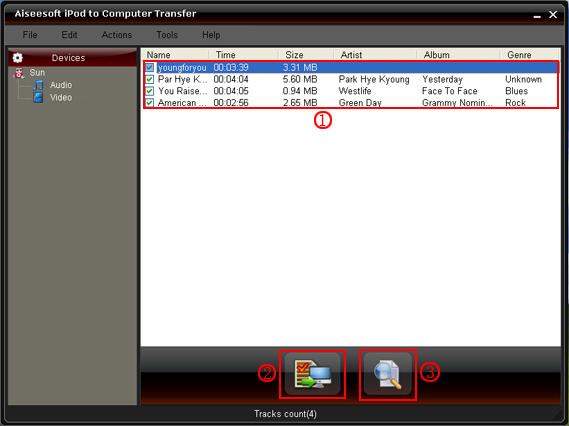
[b]Finally,the most important and the last thing[/b]you need to do are to click the “export to pc” button. (2). After you click “export to pc” button a pop-up window will appear and with it you can choose where you place your iPod songs and videos.
Few seconds later you will have your iPod songs, videos and other things on your computer.
[b]Tips:[/b]
-
To make your backup in a good order, you can click “Track Filter” button (3). Aiseesoft iPod to Computer Transfer classily your songs and video into “Grene”, “Artist” and “Album” 3 classes.
-
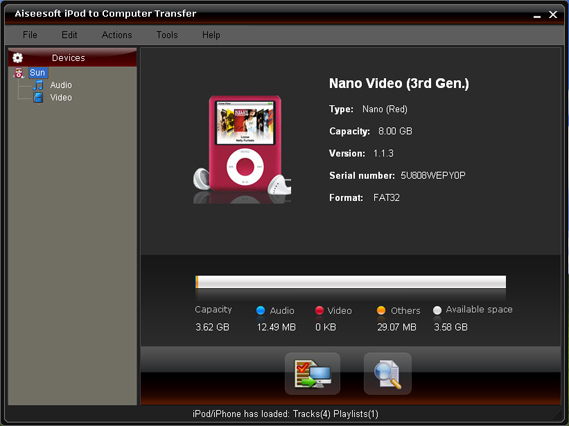
For the beginner of iPod you can know the generation and name of your iPod from Aiseesoft iPod to Computer Transfer. And you can also know how many spaces have used and how many left in your iPod.
-
This one is really important. If your iPod is iPod touch and iPhone, you have to install iTunes when you use this software. To other iPods, it is not necessary, you can use any computer you want.
[b]PS. I also found a good news that you can getAiseesoft DVD to iPod Suite with only $35. it includes a Aiseesoft DVD to iPod Converter, a Aiseesoft iPod Movie Converter and a Aiseesoft iPod to Computer Transfer.[/b]
5:["$","$4",null,{"fallback":[[["$","link","css:/assets/_layout-BzYdn0f6.css",{"rel":"stylesheet","precedence":"vite-rsc/importer-resources","href":"/assets/_layout-BzYdn0f6.css","data-rsc-css-href":"/assets/_layout-BzYdn0f6.css"}],"$undefined"],["$","div",null,{"className":"flex justify-center items-center p-8","children":["$","div",null,{"className":"animate-spin rounded-full h-8 w-8 border-b-2 border-indigo-600"}]}]],"children":["$","div",null,{"className":"bg-white/95 mt-0.5 py-6 sm:py-12","children":["$","article",null,{"className":"mx-auto w-full max-w-2xl format format-sm sm:format-base lg:format-lg format-blue dark:format-invert","children":[["$","header",null,{"className":"mb-4 lg:mb-6 not-format","children":[["$","h1",null,{"className":"mb-4 text-3xl font-extrabold leading-tight text-gray-900 lg:mb-6 lg:text-4xl dark:text-white","children":"How to Transfer Music from iPod to Computer"}],["$","address",null,{"className":"flex items-center mb-6 not-italic","children":["$","div",null,{"className":"inline-flex items-center text-sm text-gray-900 dark:text-white","children":[["$","img",null,{"className":"mr-3 w-8 h-8 rounded-full","src":"$7","alt":"guy tim"}],["$","a",null,{"href":"/author/guy_tim_73472210370966","rel":"author","className":"font-bold capitalize hover:underline dark:text-white","children":"guy tim"}],["$","span",null,{"className":"mx-1 text-md text-gray-400 dark:text-gray-500","children":"·"}],["$","span",null,{"className":"inline-flex items-center ml-1 text-gray-500 dark:text-gray-400","children":"2 min read"}],["$","span",null,{"className":"mx-1 text-md text-gray-400 dark:text-gray-500","children":"·"}],["$","time",null,{"dateTime":"Thu Mar 12 2009","className":"text-gray-500 dark:text-gray-400","children":"Mar 12, 2009"}],[["$","span",null,{"className":"mx-1 text-md text-gray-400 dark:text-gray-500","children":"·"}],["$","a","software-applications",{"href":"/t/software-applications","className":"capitalize text-sm text-gray-500 dark:text-gray-400 hover:text-gray-600","children":"software applications"}]]]}]}]]}],["$","div",null,{"className":"lead prose mt-4 text-lg leading-8 text-gray-600","children":["$","div",null,{"dangerouslySetInnerHTML":{"__html":"$8"}}]}],"$L9","$La"]}]}]}]
b:T63b,M12.315 2c2.43 0 2.784.013 3.808.06 1.064.049 1.791.218 2.427.465a4.902 4.902 0 011.772 1.153 4.902 4.902 0 011.153 1.772c.247.636.416 1.363.465 2.427.048 1.067.06 1.407.06 4.123v.08c0 2.643-.012 2.987-.06 4.043-.049 1.064-.218 1.791-.465 2.427a4.902 4.902 0 01-1.153 1.772 4.902 4.902 0 01-1.772 1.153c-.636.247-1.363.416-2.427.465-1.067.048-1.407.06-4.123.06h-.08c-2.643 0-2.987-.012-4.043-.06-1.064-.049-1.791-.218-2.427-.465a4.902 4.902 0 01-1.772-1.153 4.902 4.902 0 01-1.153-1.772c-.247-.636-.416-1.363-.465-2.427-.047-1.024-.06-1.379-.06-3.808v-.63c0-2.43.013-2.784.06-3.808.049-1.064.218-1.791.465-2.427a4.902 4.902 0 011.153-1.772A4.902 4.902 0 015.45 2.525c.636-.247 1.363-.416 2.427-.465C8.901 2.013 9.256 2 11.685 2h.63zm-.081 1.802h-.468c-2.456 0-2.784.011-3.807.058-.975.045-1.504.207-1.857.344-.467.182-.8.398-1.15.748-.35.35-.566.683-.748 1.15-.137.353-.3.882-.344 1.857-.047 1.023-.058 1.351-.058 3.807v.468c0 2.456.011 2.784.058 3.807.045.975.207 1.504.344 1.857.182.466.399.8.748 1.15.35.35.683.566 1.15.748.353.137.882.3 1.857.344 1.054.048 1.37.058 4.041.058h.08c2.597 0 2.917-.01 3.96-.058.976-.045 1.505-.207 1.858-.344.466-.182.8-.398 1.15-.748.35-.35.566-.683.748-1.15.137-.353.3-.882.344-1.857.048-1.055.058-1.37.058-4.041v-.08c0-2.597-.01-2.917-.058-3.96-.045-.976-.207-1.505-.344-1.858a3.097 3.097 0 00-.748-1.15 3.098 3.098 0 00-1.15-.748c-.353-.137-.882-.3-1.857-.344-1.023-.047-1.351-.058-3.807-.058zM12 6.865a5.135 5.135 0 110 10.27 5.135 5.135 0 010-10.27zm0 1.802a3.333 3.333 0 100 6.666 3.333 3.333 0 000-6.666zm5.338-3.205a1.2 1.2 0 110 2.4 1.2 1.2 0 010-2.4z6:["$","footer",null,{"className":"bg-gray-900 dark:bg-gray-900","children":["$","div",null,{"className":"mx-auto max-w-7xl px-6 py-4.5 md:flex md:items-center md:justify-between lg:px-8","children":[["$","div",null,{"className":"flex justify-center space-x-6 md:order-2","children":[["$","a","Facebook",{"href":"https://facebook.com/gleeztech","target":"_blank","rel":"noopener noreferrer","className":"text-gray-400 hover:text-gray-500","children":[["$","span",null,{"className":"sr-only","children":"Facebook"}],["$","svg",null,{"className":"h-6 w-6","fill":"currentColor","viewBox":"0 0 24 24","aria-hidden":"true","children":["$","path",null,{"fillRule":"evenodd","d":"M22 12c0-5.523-4.477-10-10-10S2 6.477 2 12c0 4.991 3.657 9.128 8.438 9.878v-6.987h-2.54V12h2.54V9.797c0-2.506 1.492-3.89 3.777-3.89 1.094 0 2.238.195 2.238.195v2.46h-1.26c-1.243 0-1.63.771-1.63 1.562V12h2.773l-.443 2.89h-2.33v6.988C18.343 21.128 22 16.991 22 12z","clipRule":"evenodd"}]}]]}],["$","a","Instagram",{"href":"https://instagram.com/gleeztech","target":"_blank","rel":"noopener noreferrer","className":"text-gray-400 hover:text-gray-500","children":[["$","span",null,{"className":"sr-only","children":"Instagram"}],["$","svg",null,{"className":"h-6 w-6","fill":"currentColor","viewBox":"0 0 24 24","aria-hidden":"true","children":["$","path",null,{"fillRule":"evenodd","d":"$b","clipRule":"evenodd"}]}]]}],["$","a","X",{"href":"https://x.com/gleeztech","target":"_blank","rel":"noopener noreferrer","className":"text-gray-400 hover:text-gray-500","children":[["$","span",null,{"className":"sr-only","children":"X"}],["$","svg",null,{"className":"h-6 w-6","fill":"currentColor","viewBox":"0 0 24 24","aria-hidden":"true","children":["$","path",null,{"d":"M13.6823 10.6218L20.2391 3H18.6854L12.9921 9.61788L8.44486 3H3.2002L10.0765 13.0074L3.2002 21H4.75404L10.7663 14.0113L15.5685 21H20.8131L13.6819 10.6218H13.6823ZM11.5541 13.0956L10.8574 12.0991L5.31391 4.16971H7.70053L12.1742 10.5689L12.8709 11.5655L18.6861 19.8835H16.2995L11.5541 13.096V13.0956Z"}]}]]}],"$Lc"]}],"$Ld"]}]}]
9:null
a:["$","$4",null,{"fallback":["$","div",null,{"className":"comments-skeleton","children":[["$","div",null,{"className":"h-6 bg-gray-200 rounded w-32 mb-4 animate-pulse"}],["$","div",null,{"className":"space-y-3","children":[["$","div","1",{"className":"h-16 bg-gray-100 rounded animate-pulse"}],["$","div","2",{"className":"h-16 bg-gray-100 rounded animate-pulse"}],["$","div","3",{"className":"h-16 bg-gray-100 rounded animate-pulse"}]]}]]}],"children":"$Le"}]
c:["$","a","GitHub",{"href":"https://github.com/gleez","target":"_blank","rel":"noopener noreferrer","className":"text-gray-400 hover:text-gray-500","children":[["$","span",null,{"className":"sr-only","children":"GitHub"}],["$","svg",null,{"className":"h-6 w-6","fill":"currentColor","viewBox":"0 0 24 24","aria-hidden":"true","children":["$","path",null,{"fillRule":"evenodd","d":"M12 2C6.477 2 2 6.484 2 12.017c0 4.425 2.865 8.18 6.839 9.504.5.092.682-.217.682-.483 0-.237-.008-.868-.013-1.703-2.782.605-3.369-1.343-3.369-1.343-.454-1.158-1.11-1.466-1.11-1.466-.908-.62.069-.608.069-.608 1.003.07 1.531 1.032 1.531 1.032.892 1.53 2.341 1.088 2.91.832.092-.647.35-1.088.636-1.338-2.22-.253-4.555-1.113-4.555-4.951 0-1.093.39-1.988 1.029-2.688-.103-.253-.446-1.272.098-2.65 0 0 .84-.27 2.75 1.026A9.564 9.564 0 0112 6.844c.85.004 1.705.115 2.504.337 1.909-1.296 2.747-1.027 2.747-1.027.546 1.379.202 2.398.1 2.651.64.7 1.028 1.595 1.028 2.688 0 3.848-2.339 4.695-4.566 4.943.359.309.678.92.678 1.855 0 1.338-.012 2.419-.012 2.747 0 .268.18.58.688.482A10.019 10.019 0 0022 12.017C22 6.484 17.522 2 12 2z","clipRule":"evenodd"}]}]]}]
d:["$","div",null,{"className":"mt-8 md:order-1 md:mt-0","children":["$","p",null,{"className":"text-sm leading-5 text-gray-400","children":["© 2005 - ",2026," Gleez Inc. All rights reserved."]}]}]
f:T40f,data:image/svg+xml;utf8,%3Csvg%20width%3D%2232%22%20height%3D%2232%22%20viewBox%3D%220%200%2032%2032%22%20%0A%20%20%20%20%20%20%20%20%20xmlns%3D%22http%3A%2F%2Fwww.w3.org%2F2000%2Fsvg%22%20role%3D%22img%22%20aria-label%3D%22Avatar%20for%20zhang%22%3E%0A%20%20%20%20%20%20%3Crect%20width%3D%22100%25%22%20height%3D%22100%25%22%20fill%3D%22hsl(356%2C%2081%25%2C%2056%25)%22%20rx%3D%223.2%22%20%2F%3E%0A%20%20%20%20%20%20%3Ctext%20x%3D%2250%25%22%20y%3D%2250%25%22%20%0A%20%20%20%20%20%20%20%20%20%20%20%20font-family%3D%22sans-serif%22%20%0A%20%20%20%20%20%20%20%20%20%20%20%20font-size%3D%2212.8%22%20%0A%20%20%20%20%20%20%20%20%20%20%20%20font-weight%3D%22bold%22%20%0A%20%20%20%20%20%20%20%20%20%20%20%20fill%3D%22%23FFFFFF%22%20%0A%20%20%20%20%20%20%20%20%20%20%20%20text-anchor%3D%22middle%22%20%0A%20%20%20%20%20%20%20%20%20%20%20%20dominant-baseline%3D%22central%22%0A%20%20%20%20%20%20%20%20%20%20%20%20style%3D%22user-select%3A%20none%3B%22%3E%0A%20%20%20%20%20%20%20%20Z%0A%20%20%20%20%20%20%3C%2Ftext%3E%0A%20%20%20%20%3C%2Fsvg%3E10:T7a0,wmv to flv
Found a good: wmv to flv
Found a good software for [**convert wmv to flv**](http://www.applemacvideo.com/howtoconvert/wmvmac/wmv-to-flv-mac.html)
Once I was very disappointed that I can't [**wmv to flv mac**](http://www.applemacvideo.com/howtoconvert/wmvmac/wmv-to-flv-mac.html) .Thanks to the [**wmv to flv converter mac**](http://www.applemacvideo.com/howtoconvert/wmvmac/wmv-to-flv-mac.html),which can [**convert wmv to flv mac**](http://www.applemacvideo.com/howtoconvert/wmvmac/wmv-to-flv-mac.html) .Besides,it [**convert wmv to flv**](http://www.applemacvideo.com/howtoconvert/wmvmac/wmv-to-flv-mac.html) to a great number of devices like ipod ,iphone ,blackberry ,zune etc on. In a word ,if you have great movie and feel like sharing on your mac or you mobile devices for mac ,the [**wmv to flv mac**](http://www.applemacvideo.com/howtoconvert/wmvmac/wmv-to-flv-mac.html) converter helps a lot .Experiences with firsthand told me it is a very smart [**convert wmv to flv**](http://www.applemacvideo.com/howtoconvert/wmvmac/wmv-to-flv-mac.html) tool for mac .
In fact ,I has applied this mac dvd ripper for [**convert wmv to flv mac**](http://www.applemacvideo.com/howtoconvert/wmvmac/wmv-to-flv-mac.html) for one year,it is easy to use.
[convert wmv to flv on a mac](http://www.applemacvideo.com/howtoconvert/wmvmac/wmv-to-flv-mac.html)
[convert wmv to flash on Mac](http://www.applemacvideo.com/howtoconvert/wmvmac/wmv-to-flv-mac.html)
[mac convert from flv to wmv](http://www.applemacvideo.com/howtoconvert/wmvmac/wmv-to-flv-mac.html)
[wmv in flv mac](http://www.applemacvideo.com/howtoconvert/wmvmac/wmv-to-flv-mac.html)
[flv to wmv mac](http://www.applemacvideo.com/howtoconvert/wmvmac/wmv-to-flv-mac.html)
[wmv in flv umwandeln für mac](http://www.applemacvideo.com/howtoconvert/wmvmac/wmv-to-flv-mac.html)
[mac wmv to flv](http://www.applemacvideo.com/howtoconvert/wmvmac/wmv-to-flv-mac.html)e:["$","div",null,{"className":"mt-8","children":[["$","h3",null,{"className":"text-xl font-semibold mb-4","children":["Voices (",11,")"]}],["$","div",null,{"className":"space-y-6","children":[[["$","div","79119857484182",{"className":"border-l-4 border-gray-200 pl-4","children":[["$","div",null,{"className":"flex items-center gap-2 mb-2","children":["$","address",null,{"className":"flex items-center mb-6 not-italic","children":["$","div",null,{"className":"inline-flex items-center text-sm text-gray-900 dark:text-white","children":[["$","img",null,{"className":"mr-3 w-8 h-8 rounded-full","src":"$f","alt":"zhang"}],["$","a",null,{"href":"/author/zhang_73618423808406","rel":"author","className":"font-bold capitalize hover:underline dark:text-white","children":"zhang"}],["$","span",null,{"className":"mx-1 text-md text-gray-400 dark:text-gray-500","children":"·"}],"$undefined",["$","span",null,{"className":"mx-1 text-md text-gray-400 dark:text-gray-500","children":"·"}],["$","time",null,{"dateTime":"Tue Oct 12 2010","className":"text-gray-500 dark:text-gray-400","children":"Oct 12, 2010"}],"$undefined"]}]}]}],["$","p",null,{"className":"text-gray-700","children":"$10"}],"$L11"]}],"$L12","$L13","$L14","$L15"],"$L16"]}]]}]
1f:I["1715fab9d5d1",[],"default",1]
11:["$","div",null,{"className":"flex items-center mt-4 space-x-4","children":["$","button",null,{"type":"button","className":"flex items-center font-medium text-sm text-gray-500 hover:underline dark:text-gray-400","children":[["$","svg",null,{"className":"mr-1.5 w-3 h-3","aria-hidden":"true","xmlns":"http://www.w3.org/2000/svg","fill":"currentColor","viewBox":"0 0 20 18","children":["$","path",null,{"d":"M18 0H2a2 2 0 0 0-2 2v9a2 2 0 0 0 2 2h2v4a1 1 0 0 0 1.707.707L10.414 13H18a2 2 0 0 0 2-2V2a2 2 0 0 0-2-2Zm-5 4h2a1 1 0 1 1 0 2h-2a1 1 0 1 1 0-2ZM5 4h5a1 1 0 1 1 0 2H5a1 1 0 0 1 0-2Zm2 5H5a1 1 0 0 1 0-2h2a1 1 0 0 1 0 2Zm9 0h-6a1 1 0 0 1 0-2h6a1 1 0 1 1 0 2Z"}]}],"Reply"]}]}]
17:T40f,data:image/svg+xml;utf8,%3Csvg%20width%3D%2232%22%20height%3D%2232%22%20viewBox%3D%220%200%2032%2032%22%20%0A%20%20%20%20%20%20%20%20%20xmlns%3D%22http%3A%2F%2Fwww.w3.org%2F2000%2Fsvg%22%20role%3D%22img%22%20aria-label%3D%22Avatar%20for%20Guest%22%3E%0A%20%20%20%20%20%20%3Crect%20width%3D%22100%25%22%20height%3D%22100%25%22%20fill%3D%22hsl(280%2C%2080%25%2C%2050%25)%22%20rx%3D%223.2%22%20%2F%3E%0A%20%20%20%20%20%20%3Ctext%20x%3D%2250%25%22%20y%3D%2250%25%22%20%0A%20%20%20%20%20%20%20%20%20%20%20%20font-family%3D%22sans-serif%22%20%0A%20%20%20%20%20%20%20%20%20%20%20%20font-size%3D%2212.8%22%20%0A%20%20%20%20%20%20%20%20%20%20%20%20font-weight%3D%22bold%22%20%0A%20%20%20%20%20%20%20%20%20%20%20%20fill%3D%22%23FFFFFF%22%20%0A%20%20%20%20%20%20%20%20%20%20%20%20text-anchor%3D%22middle%22%20%0A%20%20%20%20%20%20%20%20%20%20%20%20dominant-baseline%3D%22central%22%0A%20%20%20%20%20%20%20%20%20%20%20%20style%3D%22user-select%3A%20none%3B%22%3E%0A%20%20%20%20%20%20%20%20G%0A%20%20%20%20%20%20%3C%2Ftext%3E%0A%20%20%20%20%3C%2Fsvg%3E12:["$","div","79102123966870",{"className":"border-l-4 border-gray-200 pl-4","children":[["$","div",null,{"className":"flex items-center gap-2 mb-2","children":["$","address",null,{"className":"flex items-center mb-6 not-italic","children":["$","div",null,{"className":"inline-flex items-center text-sm text-gray-900 dark:text-white","children":[["$","img",null,{"className":"mr-3 w-8 h-8 rounded-full","src":"$17","alt":"Guest"}],["$","a",null,{"href":"/author/guest_73325980156310","rel":"author","className":"font-bold capitalize hover:underline dark:text-white","children":"Guest"}],["$","span",null,{"className":"mx-1 text-md text-gray-400 dark:text-gray-500","children":"·"}],"$undefined",["$","span",null,{"className":"mx-1 text-md text-gray-400 dark:text-gray-500","children":"·"}],["$","time",null,{"dateTime":"Wed Sep 15 2010","className":"text-gray-500 dark:text-gray-400","children":"Sep 15, 2010"}],"$undefined"]}]}]}],["$","p",null,{"className":"text-gray-700","children":"So many third-party software: So many third-party software development companies have already set their sights on this huge potential market and aimed at the profits this iPad can bring. Since this revolutionary and innovative iPad is running on the iPhone operating system (currently, version 3.2), users cannot transfer files between PC and iPad freely. In order for iPad users to transfer video and audio to iPad, we, the Aiseesoft Studio, as well as being before, will work better to enhance your enjoyment between iPad and any other portable device. (http://www.aiseesoft.com/dvd-to-ipad-converter.html) DVD to iPad Converter | (http://www.aiseesoft.com/ipad-video-converter.html) iPad Video Converter | (http://www.aiseesoft.com/ipad-transfer.html) iPad Transfer | (http://www.aiseesoft.com/ipad-converter-suite.html) iPad Converter Suite."}],["$","div",null,{"className":"flex items-center mt-4 space-x-4","children":["$","button",null,{"type":"button","className":"flex items-center font-medium text-sm text-gray-500 hover:underline dark:text-gray-400","children":[["$","svg",null,{"className":"mr-1.5 w-3 h-3","aria-hidden":"true","xmlns":"http://www.w3.org/2000/svg","fill":"currentColor","viewBox":"0 0 20 18","children":["$","path",null,{"d":"M18 0H2a2 2 0 0 0-2 2v9a2 2 0 0 0 2 2h2v4a1 1 0 0 0 1.707.707L10.414 13H18a2 2 0 0 0 2-2V2a2 2 0 0 0-2-2Zm-5 4h2a1 1 0 1 1 0 2h-2a1 1 0 1 1 0-2ZM5 4h5a1 1 0 1 1 0 2H5a1 1 0 0 1 0-2Zm2 5H5a1 1 0 0 1 0-2h2a1 1 0 0 1 0 2Zm9 0h-6a1 1 0 0 1 0-2h6a1 1 0 1 1 0 2Z"}]}],"Reply"]}]}]]}]
18:T40f,data:image/svg+xml;utf8,%3Csvg%20width%3D%2232%22%20height%3D%2232%22%20viewBox%3D%220%200%2032%2032%22%20%0A%20%20%20%20%20%20%20%20%20xmlns%3D%22http%3A%2F%2Fwww.w3.org%2F2000%2Fsvg%22%20role%3D%22img%22%20aria-label%3D%22Avatar%20for%20Guest%22%3E%0A%20%20%20%20%20%20%3Crect%20width%3D%22100%25%22%20height%3D%22100%25%22%20fill%3D%22hsl(280%2C%2080%25%2C%2050%25)%22%20rx%3D%223.2%22%20%2F%3E%0A%20%20%20%20%20%20%3Ctext%20x%3D%2250%25%22%20y%3D%2250%25%22%20%0A%20%20%20%20%20%20%20%20%20%20%20%20font-family%3D%22sans-serif%22%20%0A%20%20%20%20%20%20%20%20%20%20%20%20font-size%3D%2212.8%22%20%0A%20%20%20%20%20%20%20%20%20%20%20%20font-weight%3D%22bold%22%20%0A%20%20%20%20%20%20%20%20%20%20%20%20fill%3D%22%23FFFFFF%22%20%0A%20%20%20%20%20%20%20%20%20%20%20%20text-anchor%3D%22middle%22%20%0A%20%20%20%20%20%20%20%20%20%20%20%20dominant-baseline%3D%22central%22%0A%20%20%20%20%20%20%20%20%20%20%20%20style%3D%22user-select%3A%20none%3B%22%3E%0A%20%20%20%20%20%20%20%20G%0A%20%20%20%20%20%20%3C%2Ftext%3E%0A%20%20%20%20%3C%2Fsvg%3E13:["$","div","78721750925718",{"className":"border-l-4 border-gray-200 pl-4","children":[["$","div",null,{"className":"flex items-center gap-2 mb-2","children":["$","address",null,{"className":"flex items-center mb-6 not-italic","children":["$","div",null,{"className":"inline-flex items-center text-sm text-gray-900 dark:text-white","children":[["$","img",null,{"className":"mr-3 w-8 h-8 rounded-full","src":"$18","alt":"Guest"}],["$","a",null,{"href":"/author/guest_73325980156310","rel":"author","className":"font-bold capitalize hover:underline dark:text-white","children":"Guest"}],["$","span",null,{"className":"mx-1 text-md text-gray-400 dark:text-gray-500","children":"·"}],"$undefined",["$","span",null,{"className":"mx-1 text-md text-gray-400 dark:text-gray-500","children":"·"}],["$","time",null,{"dateTime":"Wed May 27 2009","className":"text-gray-500 dark:text-gray-400","children":"May 27, 2009"}],"$undefined"]}]}]}],["$","p",null,{"className":"text-gray-700","children":"Thanks for the information!: Thanks for the information!"}],["$","div",null,{"className":"flex items-center mt-4 space-x-4","children":["$","button",null,{"type":"button","className":"flex items-center font-medium text-sm text-gray-500 hover:underline dark:text-gray-400","children":[["$","svg",null,{"className":"mr-1.5 w-3 h-3","aria-hidden":"true","xmlns":"http://www.w3.org/2000/svg","fill":"currentColor","viewBox":"0 0 20 18","children":["$","path",null,{"d":"M18 0H2a2 2 0 0 0-2 2v9a2 2 0 0 0 2 2h2v4a1 1 0 0 0 1.707.707L10.414 13H18a2 2 0 0 0 2-2V2a2 2 0 0 0-2-2Zm-5 4h2a1 1 0 1 1 0 2h-2a1 1 0 1 1 0-2ZM5 4h5a1 1 0 1 1 0 2H5a1 1 0 0 1 0-2Zm2 5H5a1 1 0 0 1 0-2h2a1 1 0 0 1 0 2Zm9 0h-6a1 1 0 0 1 0-2h6a1 1 0 1 1 0 2Z"}]}],"Reply"]}]}]]}]
19:T418,data:image/svg+xml;utf8,%3Csvg%20width%3D%2232%22%20height%3D%2232%22%20viewBox%3D%220%200%2032%2032%22%20%0A%20%20%20%20%20%20%20%20%20xmlns%3D%22http%3A%2F%2Fwww.w3.org%2F2000%2Fsvg%22%20role%3D%22img%22%20aria-label%3D%22Avatar%20for%20Ronado%20chan%22%3E%0A%20%20%20%20%20%20%3Crect%20width%3D%22100%25%22%20height%3D%22100%25%22%20fill%3D%22hsl(151%2C%2071%25%2C%2051%25)%22%20rx%3D%223.2%22%20%2F%3E%0A%20%20%20%20%20%20%3Ctext%20x%3D%2250%25%22%20y%3D%2250%25%22%20%0A%20%20%20%20%20%20%20%20%20%20%20%20font-family%3D%22sans-serif%22%20%0A%20%20%20%20%20%20%20%20%20%20%20%20font-size%3D%2212.8%22%20%0A%20%20%20%20%20%20%20%20%20%20%20%20font-weight%3D%22bold%22%20%0A%20%20%20%20%20%20%20%20%20%20%20%20fill%3D%22%23FFFFFF%22%20%0A%20%20%20%20%20%20%20%20%20%20%20%20text-anchor%3D%22middle%22%20%0A%20%20%20%20%20%20%20%20%20%20%20%20dominant-baseline%3D%22central%22%0A%20%20%20%20%20%20%20%20%20%20%20%20style%3D%22user-select%3A%20none%3B%22%3E%0A%20%20%20%20%20%20%20%20RC%0A%20%20%20%20%20%20%3C%2Ftext%3E%0A%20%20%20%20%3C%2Fsvg%3E1a:Tae7,In olden days people used to: In olden days people used to use all bulky mobile phones with hard keypad, people found it difficult in handling them and carrying their operations. Today a new era has emerged in mobile phones - BlackBerry 9500.
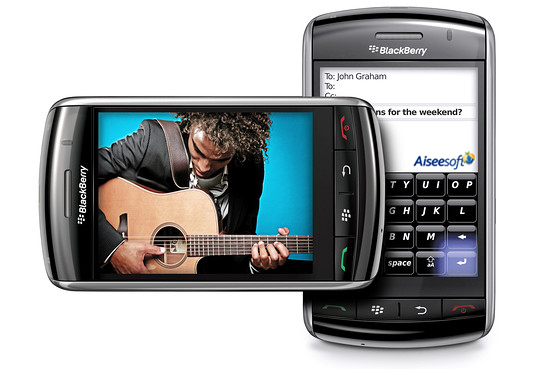
BlackBerry 9500 is known for its quality and appearance as follows.
**1. Full touch screen**
They are embedded with a special touch screen capability. This screen allows users to touch the screen and carry out their operation. The first phone which featured this touch screen capability, and included touch screen software was the new Apple iPhone. This iPhone had problems in the software understanding. In order to solve this problem Black Berry introduced the stylish and powerful touch screen phone into the market. This mobile display images more clearly, as it has a resolution of 360*480.
BlackBerry 9500 has 4 physical keys. These 4 keys constitute (send, end, menu and back). It does not have any keyboard.
**2. OS 4.7**
This mobile phone includes a powerful and unique operating system. This system allows users to carry out all their operations with a single touch. Today its one of the leading wireless phones available in the market, most of the people of Europe and America are enjoying this model. This mobile phone functions with the new Black Berry touch UI OS. This OS is called as OS 4.7. All the buttons are available on this screen for users; people can touch them and dial numbers.
**3. Entertainment functions**
This mobile features entertainment functions like FM radio, Java enabled games, Audio and Video player. People can play audio files having formats like AAC, eAAC, MP3. Video player can play files of 3GP and MPEG4. Moreover, people can also enjoy their DVD collections and downloaded or purchased movies on this large screen phone only with a third-party software called [DVD to BlackBerry Suite](http://www.aiseesoft.com/dvd-to-blackberry-suite.html)
This thunder phones runs a special music player. This player allows users to play continuous videos and audios for long duration without any disturbance. The display on this thunder phone is similar to the iPhone.
**4. Network**
BlackBerry 9500 uses networks like CDMA EV-DO, EDGE, GRPS, GSM, HSDPA (3G). For connecting to other mobiles this mobile features technologies like Bluetooth, WI-Fi, USB. This mobile uses this latest V2.0 technology along with A2DP for Bluetooth, this technology allows users to detect other mobiles and transfer files from them within less time. Its wireless connectivity allows users to connect to their local LAN and enjoy the effects of internet.
It looks simple just like a glass surface. This mobile gives out an outstanding performance for the users.14:["$","div","78707137970582",{"className":"border-l-4 border-gray-200 pl-4","children":[["$","div",null,{"className":"flex items-center gap-2 mb-2","children":["$","address",null,{"className":"flex items-center mb-6 not-italic","children":["$","div",null,{"className":"inline-flex items-center text-sm text-gray-900 dark:text-white","children":[["$","img",null,{"className":"mr-3 w-8 h-8 rounded-full","src":"$19","alt":"Ronado chan"}],["$","a",null,{"href":"/author/ronado_chan_73490463981974","rel":"author","className":"font-bold capitalize hover:underline dark:text-white","children":"Ronado chan"}],["$","span",null,{"className":"mx-1 text-md text-gray-400 dark:text-gray-500","children":"·"}],"$undefined",["$","span",null,{"className":"mx-1 text-md text-gray-400 dark:text-gray-500","children":"·"}],["$","time",null,{"dateTime":"Thu May 14 2009","className":"text-gray-500 dark:text-gray-400","children":"May 14, 2009"}],"$undefined"]}]}]}],["$","p",null,{"className":"text-gray-700","children":"$1a"}],"$L1b"]}]
1c:T40f,data:image/svg+xml;utf8,%3Csvg%20width%3D%2232%22%20height%3D%2232%22%20viewBox%3D%220%200%2032%2032%22%20%0A%20%20%20%20%20%20%20%20%20xmlns%3D%22http%3A%2F%2Fwww.w3.org%2F2000%2Fsvg%22%20role%3D%22img%22%20aria-label%3D%22Avatar%20for%20Guest%22%3E%0A%20%20%20%20%20%20%3Crect%20width%3D%22100%25%22%20height%3D%22100%25%22%20fill%3D%22hsl(280%2C%2080%25%2C%2050%25)%22%20rx%3D%223.2%22%20%2F%3E%0A%20%20%20%20%20%20%3Ctext%20x%3D%2250%25%22%20y%3D%2250%25%22%20%0A%20%20%20%20%20%20%20%20%20%20%20%20font-family%3D%22sans-serif%22%20%0A%20%20%20%20%20%20%20%20%20%20%20%20font-size%3D%2212.8%22%20%0A%20%20%20%20%20%20%20%20%20%20%20%20font-weight%3D%22bold%22%20%0A%20%20%20%20%20%20%20%20%20%20%20%20fill%3D%22%23FFFFFF%22%20%0A%20%20%20%20%20%20%20%20%20%20%20%20text-anchor%3D%22middle%22%20%0A%20%20%20%20%20%20%20%20%20%20%20%20dominant-baseline%3D%22central%22%0A%20%20%20%20%20%20%20%20%20%20%20%20style%3D%22user-select%3A%20none%3B%22%3E%0A%20%20%20%20%20%20%20%20G%0A%20%20%20%20%20%20%3C%2Ftext%3E%0A%20%20%20%20%3C%2Fsvg%3E1d:Tbf3,I have a lot of videos that: I have a lot of videos that I took when parties were held with my friends and family. Every time I watch those videos, it is really a nice memory. Some of them are DVDs and some are videos on my computer. Now I can put them on my iPod. And you can also put them on your iPod/Zune/PSP/Creative Zen and other PMP and mobile phones using Aiseesoft [Mod Converter Suite](http://www.aiseesoft.com/mod-converter-suite.html)
**Part 1: How to convert home-made videos to iPod/Archos/Sansa/Walkman and so on.**
**Step 0: click "Mod Video Converter" button to use Aiseesoft [Mod Video Converter](http://www.aiseesoft.com/mod-video-converter.html)**
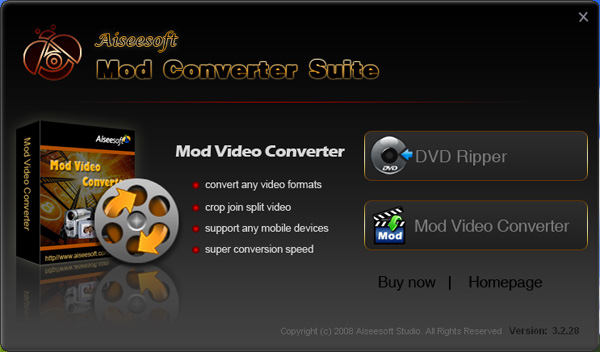
**Step 1: Add files**
Click “Add File” to add your video files and then click "play" button to preview videos.
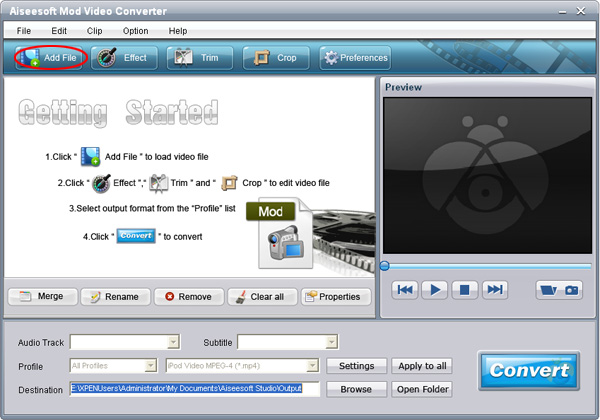
**Step 2: Set output video format**
Click “Profile” button from the profile list to select the output video format such as AVI, MPG, MPEG and WMV. You can click the “Settings” button to set parameters of your output video such as Resolution, Frame Rate and so on.
**Step 3: Click the “Start” button to start the conversion.**
**More functions:**
**1. Merge into one file.**
This button could help you convert several files into one file.
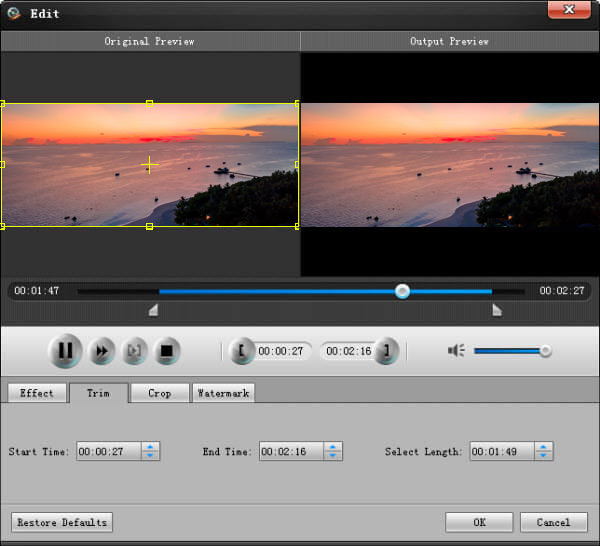
**2. Trim your video.**
click the "trim" button and set the “Start Time” and “End Time” to choose part as you want convert or you can directly drag the slide bar to the accurate position.
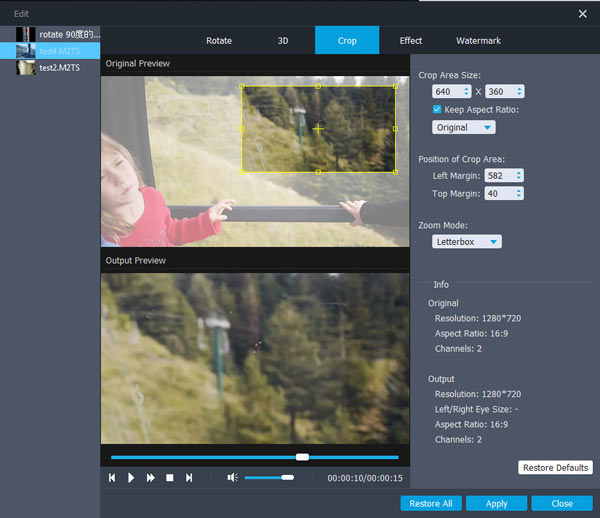
**3. Crop your video**
By using the “Crop” button you can crop the black edge of your video and you can also drag the line around the video image to adjust your video to your mobile devices.
After finishing conversion, the finished videos will be saved. You could click "Open Folder" button to visit your videos.
**Part2: How to rip DVD to iPod/Zune/PSP/Creative Zen…… video formats.**
**Step 0: click "DVD ripper" button to use Aiseesoft DVD Ripper- [Best DVD Ripper](http://www.aiseesoft.com/dvd-ripper.html)**
**Step 1: Import DVD.**
Place the DVD into your DVD drive and click the “Load DVD” button to load DVD.
![image]()
**Tips:** This DVD Ripper can load three DVD source, you can load your DVD from DVD drive, DVD folder in your PC and also IFO file.
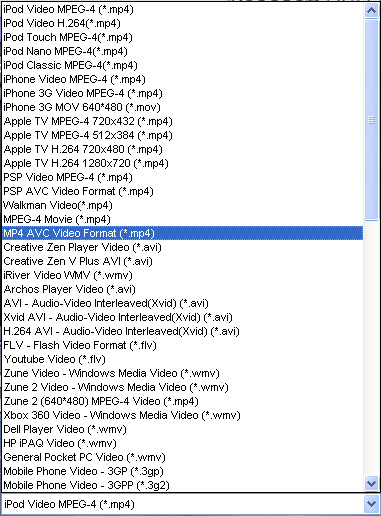
**Step 2: Video settings.**
Select the output video format you want from the “Profile” drop-down list.
**Tips:**
1: You can also select Audio Track and Subtitle from their respectively drop-down list.
2: You can click the “Settings” button to set your video parameters.
**Step 3: Start conversion**
Click the “Start” button to start your conversion.
**Step 4: Click “Open” button to open your output destination file.**
Just as the Mod Video Converter, it also could trim, crop and effect.15:["$","div","78702591345046",{"className":"border-l-4 border-gray-200 pl-4","children":[["$","div",null,{"className":"flex items-center gap-2 mb-2","children":["$","address",null,{"className":"flex items-center mb-6 not-italic","children":["$","div",null,{"className":"inline-flex items-center text-sm text-gray-900 dark:text-white","children":[["$","img",null,{"className":"mr-3 w-8 h-8 rounded-full","src":"$1c","alt":"Guest"}],["$","a",null,{"href":"/author/guest_73325980156310","rel":"author","className":"font-bold capitalize hover:underline dark:text-white","children":"Guest"}],["$","span",null,{"className":"mx-1 text-md text-gray-400 dark:text-gray-500","children":"·"}],"$undefined",["$","span",null,{"className":"mx-1 text-md text-gray-400 dark:text-gray-500","children":"·"}],["$","time",null,{"dateTime":"Mon May 04 2009","className":"text-gray-500 dark:text-gray-400","children":"May 4, 2009"}],"$undefined"]}]}]}],["$","p",null,{"className":"text-gray-700","children":"$1d"}],"$L1e"]}]
20:T7a0,wmv to flv
Found a good: wmv to flv
Found a good software for [**convert wmv to flv**](http://www.applemacvideo.com/howtoconvert/wmvmac/wmv-to-flv-mac.html)
Once I was very disappointed that I can't [**wmv to flv mac**](http://www.applemacvideo.com/howtoconvert/wmvmac/wmv-to-flv-mac.html) .Thanks to the [**wmv to flv converter mac**](http://www.applemacvideo.com/howtoconvert/wmvmac/wmv-to-flv-mac.html),which can [**convert wmv to flv mac**](http://www.applemacvideo.com/howtoconvert/wmvmac/wmv-to-flv-mac.html) .Besides,it [**convert wmv to flv**](http://www.applemacvideo.com/howtoconvert/wmvmac/wmv-to-flv-mac.html) to a great number of devices like ipod ,iphone ,blackberry ,zune etc on. In a word ,if you have great movie and feel like sharing on your mac or you mobile devices for mac ,the [**wmv to flv mac**](http://www.applemacvideo.com/howtoconvert/wmvmac/wmv-to-flv-mac.html) converter helps a lot .Experiences with firsthand told me it is a very smart [**convert wmv to flv**](http://www.applemacvideo.com/howtoconvert/wmvmac/wmv-to-flv-mac.html) tool for mac .
In fact ,I has applied this mac dvd ripper for [**convert wmv to flv mac**](http://www.applemacvideo.com/howtoconvert/wmvmac/wmv-to-flv-mac.html) for one year,it is easy to use.
[convert wmv to flv on a mac](http://www.applemacvideo.com/howtoconvert/wmvmac/wmv-to-flv-mac.html)
[convert wmv to flash on Mac](http://www.applemacvideo.com/howtoconvert/wmvmac/wmv-to-flv-mac.html)
[mac convert from flv to wmv](http://www.applemacvideo.com/howtoconvert/wmvmac/wmv-to-flv-mac.html)
[wmv in flv mac](http://www.applemacvideo.com/howtoconvert/wmvmac/wmv-to-flv-mac.html)
[flv to wmv mac](http://www.applemacvideo.com/howtoconvert/wmvmac/wmv-to-flv-mac.html)
[wmv in flv umwandeln für mac](http://www.applemacvideo.com/howtoconvert/wmvmac/wmv-to-flv-mac.html)
[mac wmv to flv](http://www.applemacvideo.com/howtoconvert/wmvmac/wmv-to-flv-mac.html)21:T7a0,wmv to flv
Found a good: wmv to flv
Found a good software for [**convert wmv to flv**](http://www.applemacvideo.com/howtoconvert/wmvmac/wmv-to-flv-mac.html)
Once I was very disappointed that I can't [**wmv to flv mac**](http://www.applemacvideo.com/howtoconvert/wmvmac/wmv-to-flv-mac.html) .Thanks to the [**wmv to flv converter mac**](http://www.applemacvideo.com/howtoconvert/wmvmac/wmv-to-flv-mac.html),which can [**convert wmv to flv mac**](http://www.applemacvideo.com/howtoconvert/wmvmac/wmv-to-flv-mac.html) .Besides,it [**convert wmv to flv**](http://www.applemacvideo.com/howtoconvert/wmvmac/wmv-to-flv-mac.html) to a great number of devices like ipod ,iphone ,blackberry ,zune etc on. In a word ,if you have great movie and feel like sharing on your mac or you mobile devices for mac ,the [**wmv to flv mac**](http://www.applemacvideo.com/howtoconvert/wmvmac/wmv-to-flv-mac.html) converter helps a lot .Experiences with firsthand told me it is a very smart [**convert wmv to flv**](http://www.applemacvideo.com/howtoconvert/wmvmac/wmv-to-flv-mac.html) tool for mac .
In fact ,I has applied this mac dvd ripper for [**convert wmv to flv mac**](http://www.applemacvideo.com/howtoconvert/wmvmac/wmv-to-flv-mac.html) for one year,it is easy to use.
[convert wmv to flv on a mac](http://www.applemacvideo.com/howtoconvert/wmvmac/wmv-to-flv-mac.html)
[convert wmv to flash on Mac](http://www.applemacvideo.com/howtoconvert/wmvmac/wmv-to-flv-mac.html)
[mac convert from flv to wmv](http://www.applemacvideo.com/howtoconvert/wmvmac/wmv-to-flv-mac.html)
[wmv in flv mac](http://www.applemacvideo.com/howtoconvert/wmvmac/wmv-to-flv-mac.html)
[flv to wmv mac](http://www.applemacvideo.com/howtoconvert/wmvmac/wmv-to-flv-mac.html)
[wmv in flv umwandeln für mac](http://www.applemacvideo.com/howtoconvert/wmvmac/wmv-to-flv-mac.html)
[mac wmv to flv](http://www.applemacvideo.com/howtoconvert/wmvmac/wmv-to-flv-mac.html)22:Tae7,In olden days people used to: In olden days people used to use all bulky mobile phones with hard keypad, people found it difficult in handling them and carrying their operations. Today a new era has emerged in mobile phones - BlackBerry 9500.

BlackBerry 9500 is known for its quality and appearance as follows.
**1. Full touch screen**
They are embedded with a special touch screen capability. This screen allows users to touch the screen and carry out their operation. The first phone which featured this touch screen capability, and included touch screen software was the new Apple iPhone. This iPhone had problems in the software understanding. In order to solve this problem Black Berry introduced the stylish and powerful touch screen phone into the market. This mobile display images more clearly, as it has a resolution of 360*480.
BlackBerry 9500 has 4 physical keys. These 4 keys constitute (send, end, menu and back). It does not have any keyboard.
**2. OS 4.7**
This mobile phone includes a powerful and unique operating system. This system allows users to carry out all their operations with a single touch. Today its one of the leading wireless phones available in the market, most of the people of Europe and America are enjoying this model. This mobile phone functions with the new Black Berry touch UI OS. This OS is called as OS 4.7. All the buttons are available on this screen for users; people can touch them and dial numbers.
**3. Entertainment functions**
This mobile features entertainment functions like FM radio, Java enabled games, Audio and Video player. People can play audio files having formats like AAC, eAAC, MP3. Video player can play files of 3GP and MPEG4. Moreover, people can also enjoy their DVD collections and downloaded or purchased movies on this large screen phone only with a third-party software called [DVD to BlackBerry Suite](http://www.aiseesoft.com/dvd-to-blackberry-suite.html)
This thunder phones runs a special music player. This player allows users to play continuous videos and audios for long duration without any disturbance. The display on this thunder phone is similar to the iPhone.
**4. Network**
BlackBerry 9500 uses networks like CDMA EV-DO, EDGE, GRPS, GSM, HSDPA (3G). For connecting to other mobiles this mobile features technologies like Bluetooth, WI-Fi, USB. This mobile uses this latest V2.0 technology along with A2DP for Bluetooth, this technology allows users to detect other mobiles and transfer files from them within less time. Its wireless connectivity allows users to connect to their local LAN and enjoy the effects of internet.
It looks simple just like a glass surface. This mobile gives out an outstanding performance for the users.23:Tae7,In olden days people used to: In olden days people used to use all bulky mobile phones with hard keypad, people found it difficult in handling them and carrying their operations. Today a new era has emerged in mobile phones - BlackBerry 9500.

BlackBerry 9500 is known for its quality and appearance as follows.
**1. Full touch screen**
They are embedded with a special touch screen capability. This screen allows users to touch the screen and carry out their operation. The first phone which featured this touch screen capability, and included touch screen software was the new Apple iPhone. This iPhone had problems in the software understanding. In order to solve this problem Black Berry introduced the stylish and powerful touch screen phone into the market. This mobile display images more clearly, as it has a resolution of 360*480.
BlackBerry 9500 has 4 physical keys. These 4 keys constitute (send, end, menu and back). It does not have any keyboard.
**2. OS 4.7**
This mobile phone includes a powerful and unique operating system. This system allows users to carry out all their operations with a single touch. Today its one of the leading wireless phones available in the market, most of the people of Europe and America are enjoying this model. This mobile phone functions with the new Black Berry touch UI OS. This OS is called as OS 4.7. All the buttons are available on this screen for users; people can touch them and dial numbers.
**3. Entertainment functions**
This mobile features entertainment functions like FM radio, Java enabled games, Audio and Video player. People can play audio files having formats like AAC, eAAC, MP3. Video player can play files of 3GP and MPEG4. Moreover, people can also enjoy their DVD collections and downloaded or purchased movies on this large screen phone only with a third-party software called [DVD to BlackBerry Suite](http://www.aiseesoft.com/dvd-to-blackberry-suite.html)
This thunder phones runs a special music player. This player allows users to play continuous videos and audios for long duration without any disturbance. The display on this thunder phone is similar to the iPhone.
**4. Network**
BlackBerry 9500 uses networks like CDMA EV-DO, EDGE, GRPS, GSM, HSDPA (3G). For connecting to other mobiles this mobile features technologies like Bluetooth, WI-Fi, USB. This mobile uses this latest V2.0 technology along with A2DP for Bluetooth, this technology allows users to detect other mobiles and transfer files from them within less time. Its wireless connectivity allows users to connect to their local LAN and enjoy the effects of internet.
It looks simple just like a glass surface. This mobile gives out an outstanding performance for the users.24:Tbf3,I have a lot of videos that: I have a lot of videos that I took when parties were held with my friends and family. Every time I watch those videos, it is really a nice memory. Some of them are DVDs and some are videos on my computer. Now I can put them on my iPod. And you can also put them on your iPod/Zune/PSP/Creative Zen and other PMP and mobile phones using Aiseesoft [Mod Converter Suite](http://www.aiseesoft.com/mod-converter-suite.html)
**Part 1: How to convert home-made videos to iPod/Archos/Sansa/Walkman and so on.**
**Step 0: click "Mod Video Converter" button to use Aiseesoft [Mod Video Converter](http://www.aiseesoft.com/mod-video-converter.html)**

**Step 1: Add files**
Click “Add File” to add your video files and then click "play" button to preview videos.

**Step 2: Set output video format**
Click “Profile” button from the profile list to select the output video format such as AVI, MPG, MPEG and WMV. You can click the “Settings” button to set parameters of your output video such as Resolution, Frame Rate and so on.
**Step 3: Click the “Start” button to start the conversion.**
**More functions:**
**1. Merge into one file.**
This button could help you convert several files into one file.
**2. Trim your video.**
click the "trim" button and set the “Start Time” and “End Time” to choose part as you want convert or you can directly drag the slide bar to the accurate position.

**3. Crop your video**
By using the “Crop” button you can crop the black edge of your video and you can also drag the line around the video image to adjust your video to your mobile devices.

After finishing conversion, the finished videos will be saved. You could click "Open Folder" button to visit your videos.
**Part2: How to rip DVD to iPod/Zune/PSP/Creative Zen…… video formats.**
**Step 0: click "DVD ripper" button to use Aiseesoft DVD Ripper- [Best DVD Ripper](http://www.aiseesoft.com/dvd-ripper.html)**
**Step 1: Import DVD.**
Place the DVD into your DVD drive and click the “Load DVD” button to load DVD.
![image]()
**Tips:** This DVD Ripper can load three DVD source, you can load your DVD from DVD drive, DVD folder in your PC and also IFO file.
**Step 2: Video settings.**
Select the output video format you want from the “Profile” drop-down list.

**Tips:**
1: You can also select Audio Track and Subtitle from their respectively drop-down list.
2: You can click the “Settings” button to set your video parameters.
**Step 3: Start conversion**
Click the “Start” button to start your conversion.
**Step 4: Click “Open” button to open your output destination file.**
Just as the Mod Video Converter, it also could trim, crop and effect.25:Tbf3,I have a lot of videos that: I have a lot of videos that I took when parties were held with my friends and family. Every time I watch those videos, it is really a nice memory. Some of them are DVDs and some are videos on my computer. Now I can put them on my iPod. And you can also put them on your iPod/Zune/PSP/Creative Zen and other PMP and mobile phones using Aiseesoft [Mod Converter Suite](http://www.aiseesoft.com/mod-converter-suite.html)
**Part 1: How to convert home-made videos to iPod/Archos/Sansa/Walkman and so on.**
**Step 0: click "Mod Video Converter" button to use Aiseesoft [Mod Video Converter](http://www.aiseesoft.com/mod-video-converter.html)**

**Step 1: Add files**
Click “Add File” to add your video files and then click "play" button to preview videos.

**Step 2: Set output video format**
Click “Profile” button from the profile list to select the output video format such as AVI, MPG, MPEG and WMV. You can click the “Settings” button to set parameters of your output video such as Resolution, Frame Rate and so on.
**Step 3: Click the “Start” button to start the conversion.**
**More functions:**
**1. Merge into one file.**
This button could help you convert several files into one file.
**2. Trim your video.**
click the "trim" button and set the “Start Time” and “End Time” to choose part as you want convert or you can directly drag the slide bar to the accurate position.

**3. Crop your video**
By using the “Crop” button you can crop the black edge of your video and you can also drag the line around the video image to adjust your video to your mobile devices.

After finishing conversion, the finished videos will be saved. You could click "Open Folder" button to visit your videos.
**Part2: How to rip DVD to iPod/Zune/PSP/Creative Zen…… video formats.**
**Step 0: click "DVD ripper" button to use Aiseesoft DVD Ripper- [Best DVD Ripper](http://www.aiseesoft.com/dvd-ripper.html)**
**Step 1: Import DVD.**
Place the DVD into your DVD drive and click the “Load DVD” button to load DVD.
![image]()
**Tips:** This DVD Ripper can load three DVD source, you can load your DVD from DVD drive, DVD folder in your PC and also IFO file.
**Step 2: Video settings.**
Select the output video format you want from the “Profile” drop-down list.

**Tips:**
1: You can also select Audio Track and Subtitle from their respectively drop-down list.
2: You can click the “Settings” button to set your video parameters.
**Step 3: Start conversion**
Click the “Start” button to start your conversion.
**Step 4: Click “Open” button to open your output destination file.**
Just as the Mod Video Converter, it also could trim, crop and effect.16:["$","$L1f",null,{"postId":"76301754958230","endCursor":"78702591345046","initialComments":[{"id":"79119857484182","content":"$20","contentHtml":"$21","metadata":null,"isApproved":true,"createdAt":"$D2010-10-12T07:22:08.000Z","updatedAt":"$D2010-10-12T07:22:08.000Z","authorId":"73618423808406","postId":"76301754958230","parentId":null,"author":{"id":"73618423808406","nickName":"zhang","username":"zhang_73618423808406","email":"pan645260@gmail.com","role":"USER","isAdmin":false,"image":null,"metadata":null,"salt":null,"publicKey":null,"lastLogin":null,"failedAttempts":0,"lockedUntil":null,"recoveryPhraseHash":null,"recoveryCreatedAt":null,"createdAt":"$D2010-05-19T03:20:05.000Z","updatedAt":"$D2010-10-20T10:55:24.000Z"}},{"id":"79102123966870","content":"So many third-party software: So many third-party software development companies have already set their sights on this huge potential market and aimed at the profits this iPad can bring. Since this revolutionary and innovative iPad is running on the iPhone operating system (currently, version 3.2), users cannot transfer files between PC and iPad freely. In order for iPad users to transfer video and audio to iPad, we, the Aiseesoft Studio, as well as being before, will work better to enhance your enjoyment between iPad and any other portable device. (http://www.aiseesoft.com/dvd-to-ipad-converter.html) DVD to iPad Converter | (http://www.aiseesoft.com/ipad-video-converter.html) iPad Video Converter | (http://www.aiseesoft.com/ipad-transfer.html) iPad Transfer | (http://www.aiseesoft.com/ipad-converter-suite.html) iPad Converter Suite.","contentHtml":"So many third-party software: So many third-party software development companies have already set their sights on this huge potential market and aimed at the profits this iPad can bring. Since this revolutionary and innovative iPad is running on the iPhone operating system (currently, version 3.2), users cannot transfer files between PC and iPad freely. In order for iPad users to transfer video and audio to iPad, we, the Aiseesoft Studio, as well as being before, will work better to enhance your enjoyment between iPad and any other portable device. (http://www.aiseesoft.com/dvd-to-ipad-converter.html) DVD to iPad Converter | (http://www.aiseesoft.com/ipad-video-converter.html) iPad Video Converter | (http://www.aiseesoft.com/ipad-transfer.html) iPad Transfer | (http://www.aiseesoft.com/ipad-converter-suite.html) iPad Converter Suite.","metadata":null,"isApproved":true,"createdAt":"$D2010-09-15T12:48:58.000Z","updatedAt":"$D2010-09-15T12:48:58.000Z","authorId":"73325980156310","postId":"76301754958230","parentId":null,"author":{"id":"73325980156310","nickName":"Guest","username":"guest_73325980156310","email":"guest@example.com","role":"USER","isAdmin":false,"image":null,"metadata":null,"salt":null,"publicKey":null,"lastLogin":null,"failedAttempts":0,"lockedUntil":null,"recoveryPhraseHash":null,"recoveryCreatedAt":null,"createdAt":"$D2005-01-01T00:00:00.000Z","updatedAt":"$D2005-01-01T00:00:00.000Z"}},{"id":"78721750925718","content":"Thanks for the information!: Thanks for the information!","contentHtml":"Thanks for the information!: Thanks for the information!","metadata":null,"isApproved":true,"createdAt":"$D2009-05-27T11:28:31.000Z","updatedAt":"$D2009-05-27T11:28:31.000Z","authorId":"73325980156310","postId":"76301754958230","parentId":null,"author":{"id":"73325980156310","nickName":"Guest","username":"guest_73325980156310","email":"guest@example.com","role":"USER","isAdmin":false,"image":null,"metadata":null,"salt":null,"publicKey":null,"lastLogin":null,"failedAttempts":0,"lockedUntil":null,"recoveryPhraseHash":null,"recoveryCreatedAt":null,"createdAt":"$D2005-01-01T00:00:00.000Z","updatedAt":"$D2005-01-01T00:00:00.000Z"}},{"id":"78707137970582","content":"$22","contentHtml":"$23","metadata":null,"isApproved":true,"createdAt":"$D2009-05-14T00:40:11.000Z","updatedAt":"$D2009-05-14T00:40:11.000Z","authorId":"73490463981974","postId":"76301754958230","parentId":null,"author":{"id":"73490463981974","nickName":"Ronado chan","username":"ronado_chan_73490463981974","email":"alannewyear@gmail.com","role":"USER","isAdmin":false,"image":null,"metadata":null,"salt":null,"publicKey":null,"lastLogin":null,"failedAttempts":0,"lockedUntil":null,"recoveryPhraseHash":null,"recoveryCreatedAt":null,"createdAt":"$D2009-03-24T02:40:25.000Z","updatedAt":"$D2009-05-15T13:07:24.000Z"}},{"id":"78702591345046","content":"$24","contentHtml":"$25","metadata":null,"isApproved":true,"createdAt":"$D2009-05-04T11:11:46.000Z","updatedAt":"$D2009-05-04T11:11:46.000Z","authorId":"73325980156310","postId":"76301754958230","parentId":null,"author":{"id":"73325980156310","nickName":"Guest","username":"guest_73325980156310","email":"guest@example.com","role":"USER","isAdmin":false,"image":null,"metadata":null,"salt":null,"publicKey":null,"lastLogin":null,"failedAttempts":0,"lockedUntil":null,"recoveryPhraseHash":null,"recoveryCreatedAt":null,"createdAt":"$D2005-01-01T00:00:00.000Z","updatedAt":"$D2005-01-01T00:00:00.000Z"}}]}]
1b:["$","div",null,{"className":"flex items-center mt-4 space-x-4","children":["$","button",null,{"type":"button","className":"flex items-center font-medium text-sm text-gray-500 hover:underline dark:text-gray-400","children":[["$","svg",null,{"className":"mr-1.5 w-3 h-3","aria-hidden":"true","xmlns":"http://www.w3.org/2000/svg","fill":"currentColor","viewBox":"0 0 20 18","children":["$","path",null,{"d":"M18 0H2a2 2 0 0 0-2 2v9a2 2 0 0 0 2 2h2v4a1 1 0 0 0 1.707.707L10.414 13H18a2 2 0 0 0 2-2V2a2 2 0 0 0-2-2Zm-5 4h2a1 1 0 1 1 0 2h-2a1 1 0 1 1 0-2ZM5 4h5a1 1 0 1 1 0 2H5a1 1 0 0 1 0-2Zm2 5H5a1 1 0 0 1 0-2h2a1 1 0 0 1 0 2Zm9 0h-6a1 1 0 0 1 0-2h6a1 1 0 1 1 0 2Z"}]}],"Reply"]}]}]
1e:["$","div",null,{"className":"flex items-center mt-4 space-x-4","children":["$","button",null,{"type":"button","className":"flex items-center font-medium text-sm text-gray-500 hover:underline dark:text-gray-400","children":[["$","svg",null,{"className":"mr-1.5 w-3 h-3","aria-hidden":"true","xmlns":"http://www.w3.org/2000/svg","fill":"currentColor","viewBox":"0 0 20 18","children":["$","path",null,{"d":"M18 0H2a2 2 0 0 0-2 2v9a2 2 0 0 0 2 2h2v4a1 1 0 0 0 1.707.707L10.414 13H18a2 2 0 0 0 2-2V2a2 2 0 0 0-2-2Zm-5 4h2a1 1 0 1 1 0 2h-2a1 1 0 1 1 0-2ZM5 4h5a1 1 0 1 1 0 2H5a1 1 0 0 1 0-2Zm2 5H5a1 1 0 0 1 0-2h2a1 1 0 0 1 0 2Zm9 0h-6a1 1 0 0 1 0-2h6a1 1 0 1 1 0 2Z"}]}],"Reply"]}]}]