Do you want to freely enjoy your iPod?
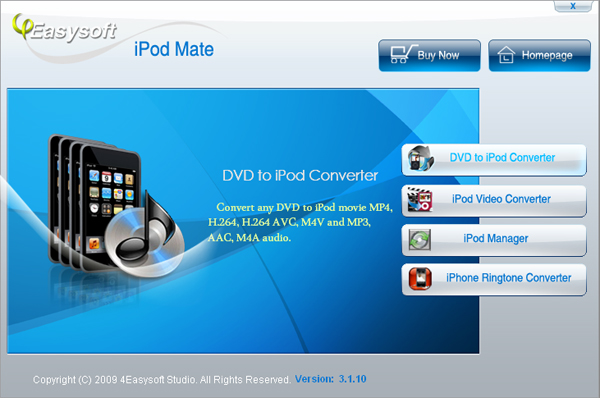
Here is one tool that can help you enjoy your iPod fully. No matter you want to put DVD movies, videos in any formats on your iPod, backup your iPod files, transfer files on PC to your iPod or between two iPod devices, even make your own iPhone Ringtone, 4Easysoft iPod Mate which combined DVD to iPod Converter, iPod Video Converter, iPod Manager, and iPhone Ringtone Converter together can help us easily solve these problems.
Preparation : Download and install 4Easysoft iPod Mate
The following are the detailed guide:
Part 1: How to convert DVD to iPod
Step 1: Run 4Easysoft iPod Mate, choose “DVD to iPod Converter”.
After click “DVD to iPod Converter”, a new dialogue pops up.
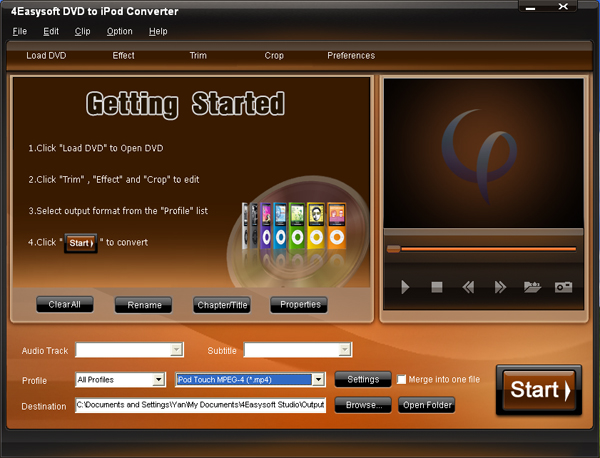
Step 2: Follow the instructions on it to load DVD and set the out put settings.
This converter can support all commercial DVDs, including DVD with the restriction of CSS, Region, RCE, Sony ARccOS. And just click“Load DVD” button, you can load your DVD from DVD drive, DVD folder in your PC or IFO file.
You can also choose the audio track and subtitle you need.
From the profile drop-down list, you can choose the output video format you need.
And you can click “Settings” button to set the Video Encoder, Resolution, Frame Rate, Video Bitrate, etc
Click “Browse” button, you can select the output path or you can choose the default path of the program.
Step 3: Start the conversion.
Click “Start” button to begin the conversion. It will be finished with high output quality and converting speed.
Before your start the conversion your can edit your videos by using the function of effect, trim, crop, snapshot, merge to help you make more enjoyable videos.
Part 2: How to convert video to iPod
Step 1: Run 4Easysoft iPod Mate, choose “iPod Video Converter”.
After click “iPod Video Converter”, a new dialogue pops up.
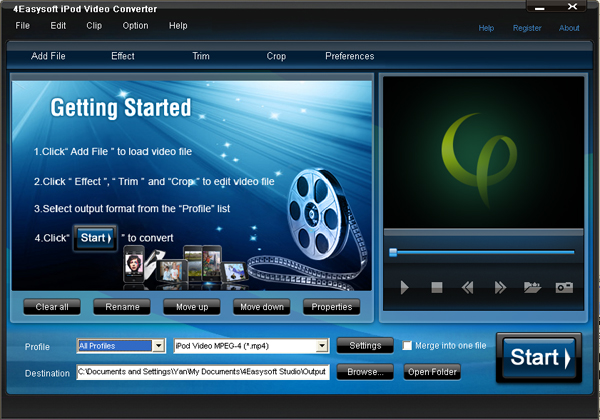
Step 2: Follow the instructions on it to add video files and set the out put settings.
It can convert almost all the video/audio formats such as MPEG, VOB, MP4, M4V, QuickTime, HD MTS, HD M2TS, HD MPG for iPod.
From the profile drop-down list, you can choose the output video format you need.
And you can click “Settings” button to set the Video Encoder, Resolution, Frame Rate, Video Bitrate, etc
Click “Browse” button, you can select the output path or you can choose the default path of the program.
You can also edit your videos by using the function of effect, trim, crop, snapshot, merge.
Step 3: Start the conversion.
Click “Start” button to begin the conversion. It will be finished with high output quality and converting speed.
Part 3: How to transfer video to ipod/ipod to PC/iPod to iPod
Step 1: Run 4Easysoft iPod Mate, choose “iPod Manager”.
After click “iPod Manager”, a new dialogue pops up.
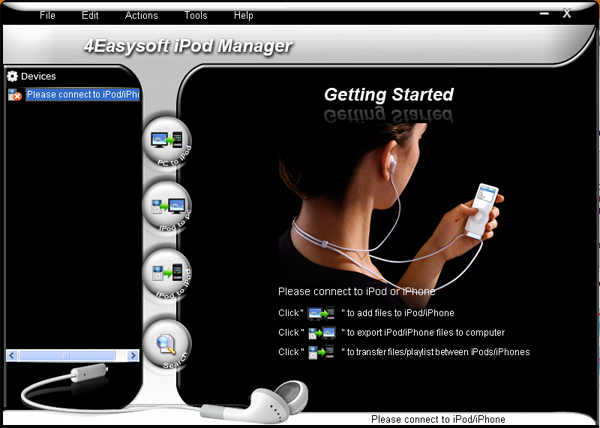
Step 2: Connect your iPod to your computer via USB cable
Step 3: According your needs to select the the functions
a. If you want to import video/audio files to your iPod, click "PC to iPod" button, and then follow the instruction on it.
b. If you want to transfer iPod files to PC, click "iPod to PC" button, and then follow the instruction on it.
Tip: Click "Search" button to use "Track Filter" function to help you quickly browse your library by genre, artist and album.
c. If you want to transfer iPod to iPod, click "iPod to iPod" button, and then follow the instruction on it.
Step 3: After you have finished the above two steps,just follow the instructions on it to complete your demands.
Part 4: How to make iPhone Ringtone
Step 1: Run 4Easysoft iPod Mate, choose “iPhone Ringtone Converter”.
After click “iPhone Ringtone Converter”, a new dialogue pops up.
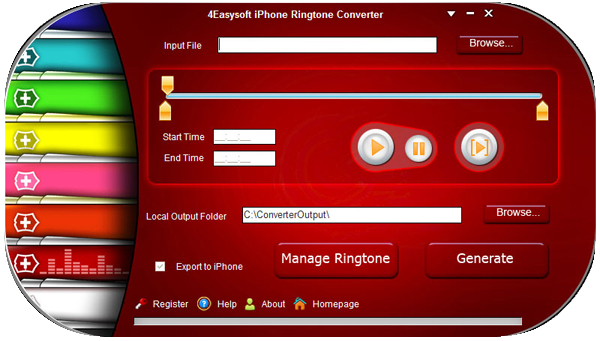
Step 2: Input source files, pre-listen music and choose the clip
The source files can be any video and audio files, such as MP4, H.264/AVC, AVI, MPEG, WMV, MP3, WMA, WAV, etc.
You can drag the slide bar to get music clip to convert, or type the start & end time in the corresponding text box directly.
Step 3: Set output destination
You can choose the output folder by clicking "Browse" button on the right side of the "Local Output File" label.
Step 4: Start the conversion
After all the settings are finished, click "Generate" button to start creating your own iPhone ringtone. During the creation, you can check the process by the progress bar at the bottom..
Just try and explore this amazing tool!
6:["$","$4",null,{"fallback":[[["$","link","css:/assets/_layout-BzYdn0f6.css",{"rel":"stylesheet","precedence":"vite-rsc/importer-resources","href":"/assets/_layout-BzYdn0f6.css","data-rsc-css-href":"/assets/_layout-BzYdn0f6.css"}],"$undefined"],["$","div",null,{"className":"flex justify-center items-center p-8","children":["$","div",null,{"className":"animate-spin rounded-full h-8 w-8 border-b-2 border-indigo-600"}]}]],"children":["$","div",null,{"className":"bg-white/95 mt-0.5 py-6 sm:py-12","children":["$","article",null,{"className":"mx-auto w-full max-w-2xl format format-sm sm:format-base lg:format-lg format-blue dark:format-invert","children":[["$","header",null,{"className":"mb-4 lg:mb-6 not-format","children":[["$","h1",null,{"className":"mb-4 text-3xl font-extrabold leading-tight text-gray-900 lg:mb-6 lg:text-4xl dark:text-white","children":"Convert DVD/Video to iPod/Manage iPod/Make iPhone Ringtone in one tool"}],["$","address",null,{"className":"flex items-center mb-6 not-italic","children":["$","div",null,{"className":"inline-flex items-center text-sm text-gray-900 dark:text-white","children":[["$","img",null,{"className":"mr-3 w-8 h-8 rounded-full","src":"$8","alt":"easy only"}],["$","a",null,{"href":"/author/easy_only_73540225204630","rel":"author","className":"font-bold capitalize hover:underline dark:text-white","children":"easy only"}],["$","span",null,{"className":"mx-1 text-md text-gray-400 dark:text-gray-500","children":"·"}],["$","span",null,{"className":"inline-flex items-center ml-1 text-gray-500 dark:text-gray-400","children":"4 min read"}],["$","span",null,{"className":"mx-1 text-md text-gray-400 dark:text-gray-500","children":"·"}],["$","time",null,{"dateTime":"Wed Oct 21 2009","className":"text-gray-500 dark:text-gray-400","children":"Oct 21, 2009"}],[["$","span",null,{"className":"mx-1 text-md text-gray-400 dark:text-gray-500","children":"·"}],["$","a","software-applications",{"href":"/t/software-applications","className":"capitalize text-sm text-gray-500 dark:text-gray-400 hover:text-gray-600","children":"software applications"}]]]}]}]]}],["$","div",null,{"className":"lead prose mt-4 text-lg leading-8 text-gray-600","children":["$","div",null,{"dangerouslySetInnerHTML":{"__html":"$9"}}]}],"$La","$Lb"]}]}]}] c:T63b,M12.315 2c2.43 0 2.784.013 3.808.06 1.064.049 1.791.218 2.427.465a4.902 4.902 0 011.772 1.153 4.902 4.902 0 011.153 1.772c.247.636.416 1.363.465 2.427.048 1.067.06 1.407.06 4.123v.08c0 2.643-.012 2.987-.06 4.043-.049 1.064-.218 1.791-.465 2.427a4.902 4.902 0 01-1.153 1.772 4.902 4.902 0 01-1.772 1.153c-.636.247-1.363.416-2.427.465-1.067.048-1.407.06-4.123.06h-.08c-2.643 0-2.987-.012-4.043-.06-1.064-.049-1.791-.218-2.427-.465a4.902 4.902 0 01-1.772-1.153 4.902 4.902 0 01-1.153-1.772c-.247-.636-.416-1.363-.465-2.427-.047-1.024-.06-1.379-.06-3.808v-.63c0-2.43.013-2.784.06-3.808.049-1.064.218-1.791.465-2.427a4.902 4.902 0 011.153-1.772A4.902 4.902 0 015.45 2.525c.636-.247 1.363-.416 2.427-.465C8.901 2.013 9.256 2 11.685 2h.63zm-.081 1.802h-.468c-2.456 0-2.784.011-3.807.058-.975.045-1.504.207-1.857.344-.467.182-.8.398-1.15.748-.35.35-.566.683-.748 1.15-.137.353-.3.882-.344 1.857-.047 1.023-.058 1.351-.058 3.807v.468c0 2.456.011 2.784.058 3.807.045.975.207 1.504.344 1.857.182.466.399.8.748 1.15.35.35.683.566 1.15.748.353.137.882.3 1.857.344 1.054.048 1.37.058 4.041.058h.08c2.597 0 2.917-.01 3.96-.058.976-.045 1.505-.207 1.858-.344.466-.182.8-.398 1.15-.748.35-.35.566-.683.748-1.15.137-.353.3-.882.344-1.857.048-1.055.058-1.37.058-4.041v-.08c0-2.597-.01-2.917-.058-3.96-.045-.976-.207-1.505-.344-1.858a3.097 3.097 0 00-.748-1.15 3.098 3.098 0 00-1.15-.748c-.353-.137-.882-.3-1.857-.344-1.023-.047-1.351-.058-3.807-.058zM12 6.865a5.135 5.135 0 110 10.27 5.135 5.135 0 010-10.27zm0 1.802a3.333 3.333 0 100 6.666 3.333 3.333 0 000-6.666zm5.338-3.205a1.2 1.2 0 110 2.4 1.2 1.2 0 010-2.4z7:["$","footer",null,{"className":"bg-gray-900 dark:bg-gray-900","children":["$","div",null,{"className":"mx-auto max-w-7xl px-6 py-4.5 md:flex md:items-center md:justify-between lg:px-8","children":[["$","div",null,{"className":"flex justify-center space-x-6 md:order-2","children":[["$","a","Facebook",{"href":"https://facebook.com/gleeztech","target":"_blank","rel":"noopener noreferrer","className":"text-gray-400 hover:text-gray-500","children":[["$","span",null,{"className":"sr-only","children":"Facebook"}],["$","svg",null,{"className":"h-6 w-6","fill":"currentColor","viewBox":"0 0 24 24","aria-hidden":"true","children":["$","path",null,{"fillRule":"evenodd","d":"M22 12c0-5.523-4.477-10-10-10S2 6.477 2 12c0 4.991 3.657 9.128 8.438 9.878v-6.987h-2.54V12h2.54V9.797c0-2.506 1.492-3.89 3.777-3.89 1.094 0 2.238.195 2.238.195v2.46h-1.26c-1.243 0-1.63.771-1.63 1.562V12h2.773l-.443 2.89h-2.33v6.988C18.343 21.128 22 16.991 22 12z","clipRule":"evenodd"}]}]]}],["$","a","Instagram",{"href":"https://instagram.com/gleeztech","target":"_blank","rel":"noopener noreferrer","className":"text-gray-400 hover:text-gray-500","children":[["$","span",null,{"className":"sr-only","children":"Instagram"}],["$","svg",null,{"className":"h-6 w-6","fill":"currentColor","viewBox":"0 0 24 24","aria-hidden":"true","children":["$","path",null,{"fillRule":"evenodd","d":"$c","clipRule":"evenodd"}]}]]}],["$","a","X",{"href":"https://x.com/gleeztech","target":"_blank","rel":"noopener noreferrer","className":"text-gray-400 hover:text-gray-500","children":[["$","span",null,{"className":"sr-only","children":"X"}],["$","svg",null,{"className":"h-6 w-6","fill":"currentColor","viewBox":"0 0 24 24","aria-hidden":"true","children":["$","path",null,{"d":"M13.6823 10.6218L20.2391 3H18.6854L12.9921 9.61788L8.44486 3H3.2002L10.0765 13.0074L3.2002 21H4.75404L10.7663 14.0113L15.5685 21H20.8131L13.6819 10.6218H13.6823ZM11.5541 13.0956L10.8574 12.0991L5.31391 4.16971H7.70053L12.1742 10.5689L12.8709 11.5655L18.6861 19.8835H16.2995L11.5541 13.096V13.0956Z"}]}]]}],"$Ld"]}],"$Le"]}]}] a:null b:["$","$4",null,{"fallback":["$","div",null,{"className":"comments-skeleton","children":[["$","div",null,{"className":"h-6 bg-gray-200 rounded w-32 mb-4 animate-pulse"}],["$","div",null,{"className":"space-y-3","children":[["$","div","1",{"className":"h-16 bg-gray-100 rounded animate-pulse"}],["$","div","2",{"className":"h-16 bg-gray-100 rounded animate-pulse"}],["$","div","3",{"className":"h-16 bg-gray-100 rounded animate-pulse"}]]}]]}],"children":"$Lf"}] d:["$","a","GitHub",{"href":"https://github.com/gleez","target":"_blank","rel":"noopener noreferrer","className":"text-gray-400 hover:text-gray-500","children":[["$","span",null,{"className":"sr-only","children":"GitHub"}],["$","svg",null,{"className":"h-6 w-6","fill":"currentColor","viewBox":"0 0 24 24","aria-hidden":"true","children":["$","path",null,{"fillRule":"evenodd","d":"M12 2C6.477 2 2 6.484 2 12.017c0 4.425 2.865 8.18 6.839 9.504.5.092.682-.217.682-.483 0-.237-.008-.868-.013-1.703-2.782.605-3.369-1.343-3.369-1.343-.454-1.158-1.11-1.466-1.11-1.466-.908-.62.069-.608.069-.608 1.003.07 1.531 1.032 1.531 1.032.892 1.53 2.341 1.088 2.91.832.092-.647.35-1.088.636-1.338-2.22-.253-4.555-1.113-4.555-4.951 0-1.093.39-1.988 1.029-2.688-.103-.253-.446-1.272.098-2.65 0 0 .84-.27 2.75 1.026A9.564 9.564 0 0112 6.844c.85.004 1.705.115 2.504.337 1.909-1.296 2.747-1.027 2.747-1.027.546 1.379.202 2.398.1 2.651.64.7 1.028 1.595 1.028 2.688 0 3.848-2.339 4.695-4.566 4.943.359.309.678.92.678 1.855 0 1.338-.012 2.419-.012 2.747 0 .268.18.58.688.482A10.019 10.019 0 0022 12.017C22 6.484 17.522 2 12 2z","clipRule":"evenodd"}]}]]}] e:["$","div",null,{"className":"mt-8 md:order-1 md:mt-0","children":["$","p",null,{"className":"text-sm leading-5 text-gray-400","children":["© 2005 - ",2026," Gleez Inc. All rights reserved."]}]}] f:["$","div",null,{"className":"mt-8","children":[["$","h3",null,{"className":"text-xl font-semibold mb-4","children":"Voices"}],["$","p",null,{"className":"text-gray-500","children":"Empty airwaves. Fill them with your thoughts!"}]]}]