"The majority of my albums are in my Windows Media Player and I would like to transfer those albums to my iPod. Now I don't know how to. All I know is that WMA is not compatible with Apple iPod. So how do I rescue my songs? I tried to use limewire to download free music but it is a mess."
If you meet the same problem, you got the right place! The following tutorial details how to put both protected and unprotected WMA (Windows Media Audio) music files to iPod.
If the WMA files you are going to play on your iPod is unprotected, you just select and drag them into iTunes Library and they should be automatically converted to whatever iPod format you selected in iTunes preferences for importing.
If they are WMA files protected by DRM, it is not that easy. You need to use some software to strip the DRM off your WMA files and then convert the WMA files to the much more widely-supported MP3 format.
Note: As with any transcoding, the quality will go down. But if you've got a lot of protected WMA files you'd like to get on your iPod, this solution would do the trick.
In this tutorial, I'd like to show how to remove DRM from WMA files and convert the WMA files to MP3 format using TuneClone Audio Converter. Let’s take a look at how it performs:
1. Settings at TuneClone
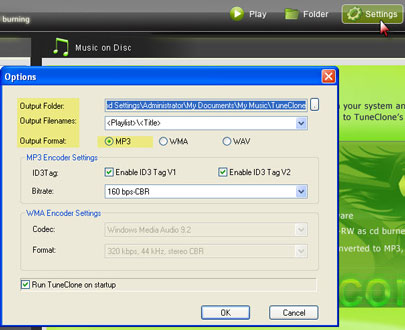
Download TuneClone (fully compatible with Windows XP and Windows Vista) and install it. After launching TuneClone, click the Settings button. In the pop-up dialog of Options, you can specify the Output Folder, Output Filenames, Output Format (here we choose MP3), etc. for the output files.
Tip: You can get the output protection removed MP3 music folder by clicking the Folder button after the whole process.
2. Burning at Windows Media Player(WMP 11)
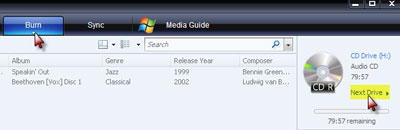
Create a new playlist and drag into it the WMA files you are going to enjoy on your iPod. After that, click the Burn button and select Audio CD from the drop-down list. On the right panel of CD Drive, click Next Drive to locate the CD drive to TuneClone's Virtual CD Burner.
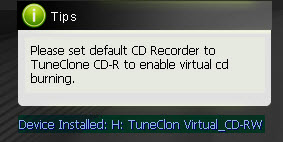
Note: If you are unsure whether TuneClone's Virtual CD burner is successfully installed or where it is installed, please refer to the bottom left corner of TuneClone:
Then, drag the playlist you created just now to the Burn List and click the Start Burn button to start burning the playlist. While the burning gets started, TuneClone will automatically convert the WMA playlist to MP3 files. You can open the manager screen to show all the converted music files.
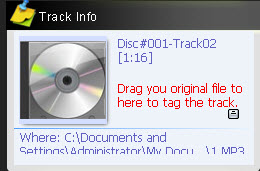
Note: If you get the output files formatted as 01-1.mp3, 01-2.mp3, etc., please click the output MP3 songs in the manager screen and drag the counterpart original WMA songs to the Track Info panel of TuneClone one by one. The information about the artist, album, title, etc. will be changed accordingly. It would be a time-consuming process if you are burning a big collection of music. However, since Windows Media Player 11 doesn't support CD-text burning, this seems to be the only way to get the information back.
After you get the output MP3 files converted from the WMA playlist in your Windows Media Player, you can now begin to transfer the MP3 files to your iPod with the sync of iTunes.
5:["$","$4",null,{"fallback":[[["$","link","css:/assets/_layout-BzYdn0f6.css",{"rel":"stylesheet","precedence":"vite-rsc/importer-resources","href":"/assets/_layout-BzYdn0f6.css","data-rsc-css-href":"/assets/_layout-BzYdn0f6.css"}],"$undefined"],["$","div",null,{"className":"flex justify-center items-center p-8","children":["$","div",null,{"className":"animate-spin rounded-full h-8 w-8 border-b-2 border-indigo-600"}]}]],"children":["$","div",null,{"className":"bg-white/95 mt-0.5 py-6 sm:py-12","children":["$","article",null,{"className":"mx-auto w-full max-w-2xl format format-sm sm:format-base lg:format-lg format-blue dark:format-invert","children":[["$","header",null,{"className":"mb-4 lg:mb-6 not-format","children":[["$","h1",null,{"className":"mb-4 text-3xl font-extrabold leading-tight text-gray-900 lg:mb-6 lg:text-4xl dark:text-white","children":"How to convert protected WMA to MP3 for iPod"}],["$","address",null,{"className":"flex items-center mb-6 not-italic","children":["$","div",null,{"className":"inline-flex items-center text-sm text-gray-900 dark:text-white","children":[["$","img",null,{"className":"mr-3 w-8 h-8 rounded-full","src":"$7","alt":"terry007"}],["$","a",null,{"href":"/author/terry007_73445199053206","rel":"author","className":"font-bold capitalize hover:underline dark:text-white","children":"terry007"}],["$","span",null,{"className":"mx-1 text-md text-gray-400 dark:text-gray-500","children":"·"}],["$","span",null,{"className":"inline-flex items-center ml-1 text-gray-500 dark:text-gray-400","children":"3 min read"}],["$","span",null,{"className":"mx-1 text-md text-gray-400 dark:text-gray-500","children":"·"}],["$","time",null,{"dateTime":"Thu Oct 16 2008","className":"text-gray-500 dark:text-gray-400","children":"Oct 16, 2008"}],[["$","span",null,{"className":"mx-1 text-md text-gray-400 dark:text-gray-500","children":"·"}],["$","a","tips-and-tricks",{"href":"/t/tips-and-tricks","className":"capitalize text-sm text-gray-500 dark:text-gray-400 hover:text-gray-600","children":"tips & tricks"}]]]}]}]]}],["$","div",null,{"className":"lead prose mt-4 text-lg leading-8 text-gray-600","children":["$","div",null,{"dangerouslySetInnerHTML":{"__html":"$8"}}]}],"$L9","$La"]}]}]}] b:T63b,M12.315 2c2.43 0 2.784.013 3.808.06 1.064.049 1.791.218 2.427.465a4.902 4.902 0 011.772 1.153 4.902 4.902 0 011.153 1.772c.247.636.416 1.363.465 2.427.048 1.067.06 1.407.06 4.123v.08c0 2.643-.012 2.987-.06 4.043-.049 1.064-.218 1.791-.465 2.427a4.902 4.902 0 01-1.153 1.772 4.902 4.902 0 01-1.772 1.153c-.636.247-1.363.416-2.427.465-1.067.048-1.407.06-4.123.06h-.08c-2.643 0-2.987-.012-4.043-.06-1.064-.049-1.791-.218-2.427-.465a4.902 4.902 0 01-1.772-1.153 4.902 4.902 0 01-1.153-1.772c-.247-.636-.416-1.363-.465-2.427-.047-1.024-.06-1.379-.06-3.808v-.63c0-2.43.013-2.784.06-3.808.049-1.064.218-1.791.465-2.427a4.902 4.902 0 011.153-1.772A4.902 4.902 0 015.45 2.525c.636-.247 1.363-.416 2.427-.465C8.901 2.013 9.256 2 11.685 2h.63zm-.081 1.802h-.468c-2.456 0-2.784.011-3.807.058-.975.045-1.504.207-1.857.344-.467.182-.8.398-1.15.748-.35.35-.566.683-.748 1.15-.137.353-.3.882-.344 1.857-.047 1.023-.058 1.351-.058 3.807v.468c0 2.456.011 2.784.058 3.807.045.975.207 1.504.344 1.857.182.466.399.8.748 1.15.35.35.683.566 1.15.748.353.137.882.3 1.857.344 1.054.048 1.37.058 4.041.058h.08c2.597 0 2.917-.01 3.96-.058.976-.045 1.505-.207 1.858-.344.466-.182.8-.398 1.15-.748.35-.35.566-.683.748-1.15.137-.353.3-.882.344-1.857.048-1.055.058-1.37.058-4.041v-.08c0-2.597-.01-2.917-.058-3.96-.045-.976-.207-1.505-.344-1.858a3.097 3.097 0 00-.748-1.15 3.098 3.098 0 00-1.15-.748c-.353-.137-.882-.3-1.857-.344-1.023-.047-1.351-.058-3.807-.058zM12 6.865a5.135 5.135 0 110 10.27 5.135 5.135 0 010-10.27zm0 1.802a3.333 3.333 0 100 6.666 3.333 3.333 0 000-6.666zm5.338-3.205a1.2 1.2 0 110 2.4 1.2 1.2 0 010-2.4z6:["$","footer",null,{"className":"bg-gray-900 dark:bg-gray-900","children":["$","div",null,{"className":"mx-auto max-w-7xl px-6 py-4.5 md:flex md:items-center md:justify-between lg:px-8","children":[["$","div",null,{"className":"flex justify-center space-x-6 md:order-2","children":[["$","a","Facebook",{"href":"https://facebook.com/gleeztech","target":"_blank","rel":"noopener noreferrer","className":"text-gray-400 hover:text-gray-500","children":[["$","span",null,{"className":"sr-only","children":"Facebook"}],["$","svg",null,{"className":"h-6 w-6","fill":"currentColor","viewBox":"0 0 24 24","aria-hidden":"true","children":["$","path",null,{"fillRule":"evenodd","d":"M22 12c0-5.523-4.477-10-10-10S2 6.477 2 12c0 4.991 3.657 9.128 8.438 9.878v-6.987h-2.54V12h2.54V9.797c0-2.506 1.492-3.89 3.777-3.89 1.094 0 2.238.195 2.238.195v2.46h-1.26c-1.243 0-1.63.771-1.63 1.562V12h2.773l-.443 2.89h-2.33v6.988C18.343 21.128 22 16.991 22 12z","clipRule":"evenodd"}]}]]}],["$","a","Instagram",{"href":"https://instagram.com/gleeztech","target":"_blank","rel":"noopener noreferrer","className":"text-gray-400 hover:text-gray-500","children":[["$","span",null,{"className":"sr-only","children":"Instagram"}],["$","svg",null,{"className":"h-6 w-6","fill":"currentColor","viewBox":"0 0 24 24","aria-hidden":"true","children":["$","path",null,{"fillRule":"evenodd","d":"$b","clipRule":"evenodd"}]}]]}],["$","a","X",{"href":"https://x.com/gleeztech","target":"_blank","rel":"noopener noreferrer","className":"text-gray-400 hover:text-gray-500","children":[["$","span",null,{"className":"sr-only","children":"X"}],["$","svg",null,{"className":"h-6 w-6","fill":"currentColor","viewBox":"0 0 24 24","aria-hidden":"true","children":["$","path",null,{"d":"M13.6823 10.6218L20.2391 3H18.6854L12.9921 9.61788L8.44486 3H3.2002L10.0765 13.0074L3.2002 21H4.75404L10.7663 14.0113L15.5685 21H20.8131L13.6819 10.6218H13.6823ZM11.5541 13.0956L10.8574 12.0991L5.31391 4.16971H7.70053L12.1742 10.5689L12.8709 11.5655L18.6861 19.8835H16.2995L11.5541 13.096V13.0956Z"}]}]]}],"$Lc"]}],"$Ld"]}]}] 9:null a:["$","$4",null,{"fallback":["$","div",null,{"className":"comments-skeleton","children":[["$","div",null,{"className":"h-6 bg-gray-200 rounded w-32 mb-4 animate-pulse"}],["$","div",null,{"className":"space-y-3","children":[["$","div","1",{"className":"h-16 bg-gray-100 rounded animate-pulse"}],["$","div","2",{"className":"h-16 bg-gray-100 rounded animate-pulse"}],["$","div","3",{"className":"h-16 bg-gray-100 rounded animate-pulse"}]]}]]}],"children":"$Le"}] c:["$","a","GitHub",{"href":"https://github.com/gleez","target":"_blank","rel":"noopener noreferrer","className":"text-gray-400 hover:text-gray-500","children":[["$","span",null,{"className":"sr-only","children":"GitHub"}],["$","svg",null,{"className":"h-6 w-6","fill":"currentColor","viewBox":"0 0 24 24","aria-hidden":"true","children":["$","path",null,{"fillRule":"evenodd","d":"M12 2C6.477 2 2 6.484 2 12.017c0 4.425 2.865 8.18 6.839 9.504.5.092.682-.217.682-.483 0-.237-.008-.868-.013-1.703-2.782.605-3.369-1.343-3.369-1.343-.454-1.158-1.11-1.466-1.11-1.466-.908-.62.069-.608.069-.608 1.003.07 1.531 1.032 1.531 1.032.892 1.53 2.341 1.088 2.91.832.092-.647.35-1.088.636-1.338-2.22-.253-4.555-1.113-4.555-4.951 0-1.093.39-1.988 1.029-2.688-.103-.253-.446-1.272.098-2.65 0 0 .84-.27 2.75 1.026A9.564 9.564 0 0112 6.844c.85.004 1.705.115 2.504.337 1.909-1.296 2.747-1.027 2.747-1.027.546 1.379.202 2.398.1 2.651.64.7 1.028 1.595 1.028 2.688 0 3.848-2.339 4.695-4.566 4.943.359.309.678.92.678 1.855 0 1.338-.012 2.419-.012 2.747 0 .268.18.58.688.482A10.019 10.019 0 0022 12.017C22 6.484 17.522 2 12 2z","clipRule":"evenodd"}]}]]}] d:["$","div",null,{"className":"mt-8 md:order-1 md:mt-0","children":["$","p",null,{"className":"text-sm leading-5 text-gray-400","children":["© 2005 - ",2026," Gleez Inc. All rights reserved."]}]}] f:T414,data:image/svg+xml;utf8,%3Csvg%20width%3D%2232%22%20height%3D%2232%22%20viewBox%3D%220%200%2032%2032%22%20%0A%20%20%20%20%20%20%20%20%20xmlns%3D%22http%3A%2F%2Fwww.w3.org%2F2000%2Fsvg%22%20role%3D%22img%22%20aria-label%3D%22Avatar%20for%20spring1234%22%3E%0A%20%20%20%20%20%20%3Crect%20width%3D%22100%25%22%20height%3D%22100%25%22%20fill%3D%22hsl(153%2C%2067%25%2C%2047%25)%22%20rx%3D%223.2%22%20%2F%3E%0A%20%20%20%20%20%20%3Ctext%20x%3D%2250%25%22%20y%3D%2250%25%22%20%0A%20%20%20%20%20%20%20%20%20%20%20%20font-family%3D%22sans-serif%22%20%0A%20%20%20%20%20%20%20%20%20%20%20%20font-size%3D%2212.8%22%20%0A%20%20%20%20%20%20%20%20%20%20%20%20font-weight%3D%22bold%22%20%0A%20%20%20%20%20%20%20%20%20%20%20%20fill%3D%22%23FFFFFF%22%20%0A%20%20%20%20%20%20%20%20%20%20%20%20text-anchor%3D%22middle%22%20%0A%20%20%20%20%20%20%20%20%20%20%20%20dominant-baseline%3D%22central%22%0A%20%20%20%20%20%20%20%20%20%20%20%20style%3D%22user-select%3A%20none%3B%22%3E%0A%20%20%20%20%20%20%20%20S%0A%20%20%20%20%20%20%3C%2Ftext%3E%0A%20%20%20%20%3C%2Fsvg%3E10:T1270,Why convert .mov to .flv Have: **Why [convert .mov to .flv**](http://www.aimersoft.com/convert-flv/convert-flv-to-mov-mac-edit-imovie.html) Have you ever had the experience of failing uploading an mov file onto YouTube, metacafe, Google Video, etc? It's pretty frustrating especially when you have something really funny and interesting and you want to share with everyone on the internet. Lots of people will advise you to download an converter on [**converting mov to flv**](http://www.aimersoft.com/convert-flv/convert-flv-to-mov-mac-edit-imovie.html)([**convert .mov to .flv mac**](http://www.aimersoft.com/convert-flv/convert-flv-to-mov-mac-edit-imovie.html)). Indeed, there are a lot of related products on market nowadays. Some are for free; others will charge you at a certain price. To make sure that you will get a fully satisfied service, we suggest you free download an [**mov to flv converter**](http://www.aimersoft.com/convert-flv/convert-flv-to-mov-mac-edit-imovie.html) and try [**converting mov to flv mac**](http://www.aimersoft.com/convert-flv/convert-flv-to-mov-mac-edit-imovie.html)([converting .mov to .flv](http://www.aimersoft.com/convert-flv/convert-flv-to-mov-mac-edit-imovie.html)) at first. Aimersoft Video Converter (or Aimersoft MOV to FLV Converter) does a good job on this. [**how to convert mov to flv**](http://www.aimersoft.com/convert-flv/convert-flv-to-mov-mac-edit-imovie.html)? As we know, an flv file is a flash video format, and it's widely used on internet nowadays. However, you can't always uopload your original mov file considering its huge size. Don't worry, because Aimersoft Video Converter will help you [**convert mov to flv mac**](http://www.aimersoft.com/convert-flv/convert-flv-to-mov-mac-edit-imovie.html) within a few steps. Step 1: Import your MOV file Run the the converter for [**converting mov to flv**](http://www.aimersoft.com/convert-flv/convert-flv-to-mov-mac-edit-imovie.html) and drag all FLV(.FLV) video files to the program. Get ready for [**converting mov to flv mac**](http://www.aimersoft.com/convert-flv/convert-flv-to-mov-mac-edit-imovie.html)([**convert mov to flv mac**](http://www.aimersoft.com/convert-flv/convert-flv-to-mov-mac-edit-imovie.html)). Step 2. Choose the output format "FLV" Click the format icon "ipod", and it will pop up an box as below. Then click the format,it will appear the output box, choose the "FLV".  Step 3. transcode your vides from [**mov to flv**](http://www.aimersoft.com/convert-flv/convert-flv-to-mov-mac-edit-imovie.html) mac free Click "Start" when everything is set, and the [**mac mov to flv**](http://www.aimersoft.com/convert-flv/convert-flv-to-mov-mac-edit-imovie.html) conversion will be completed automatically. Converted files can be found by clicking "Find Target". (Note: If you want to [**convert flv to mov mac**](http://www.aimersoft.com/convert-flv/convert-flv-to-mov-mac-edit-imovie.html), this converter also can help you only if redefining the setting.) Tags: [**convert .mov to .flv**](http://www.aimersoft.com/convert-flv/convert-flv-to-mov-mac-edit-imovie.html), [**convert mov to flv mac**](http://www.aimersoft.com/convert-flv/convert-flv-to-mov-mac-edit-imovie.html), [**mov to flv**](http://www.aimersoft.com/convert-flv/convert-flv-to-mov-mac-edit-imovie.html), [**converting mov to flv mac**](http://www.aimersoft.com/convert-flv/convert-flv-to-mov-mac-edit-imovie.html), [**converting mov to flv**](http://www.aimersoft.com/convert-flv/convert-flv-to-mov-mac-edit-imovie.html), [**convert .mov to .flv mac**](http://www.aimersoft.com/convert-flv/convert-flv-to-mov-mac-edit-imovie.html), [**how to convert mov to flv**](http://www.aimersoft.com/convert-flv/convert-flv-to-mov-mac-edit-imovie.html), [**how to convert mov to flv on mac**](http://www.aimersoft.com/convert-flv/convert-flv-to-mov-mac-edit-imovie.html), [**coverting .mov to .flv**](http://www.aimersoft.com/convert-flv/convert-flv-to-mov-mac-edit-imovie.html), [**converting mov to flv mac**](http://www.aimersoft.com/convert-flv/convert-flv-to-mov-mac-edit-imovie.html), [**mac convert mov to flv**](http://www.aimersoft.com/convert-flv/convert-flv-to-mov-mac-edit-imovie.html), [**convert .mov to .flv mac os x**](http://www.aimersoft.com/convert-flv/convert-flv-to-mov-mac-edit-imovie.html), [**convert .flv to .mov**](http://www.aimersoft.com/convert-flv/convert-flv-to-mov-mac-edit-imovie.html), [**mac mov to flv**](http://www.aimersoft.com/convert-flv/convert-flv-to-mov-mac-edit-imovie.html), [**convert mov flv mac**](http://www.aimersoft.com/convert-flv/convert-flv-to-mov-mac-edit-imovie.html)e:["$","div",null,{"className":"mt-8","children":[["$","h3",null,{"className":"text-xl font-semibold mb-4","children":["Voices (",7,")"]}],["$","div",null,{"className":"space-y-6","children":[[["$","div","79164686205334",{"className":"border-l-4 border-gray-200 pl-4","children":[["$","div",null,{"className":"flex items-center gap-2 mb-2","children":["$","address",null,{"className":"flex items-center mb-6 not-italic","children":["$","div",null,{"className":"inline-flex items-center text-sm text-gray-900 dark:text-white","children":[["$","img",null,{"className":"mr-3 w-8 h-8 rounded-full","src":"$f","alt":"spring1234"}],["$","a",null,{"href":"/author/spring1234_73528548262294","rel":"author","className":"font-bold capitalize hover:underline dark:text-white","children":"spring1234"}],["$","span",null,{"className":"mx-1 text-md text-gray-400 dark:text-gray-500","children":"·"}],"$undefined",["$","span",null,{"className":"mx-1 text-md text-gray-400 dark:text-gray-500","children":"·"}],["$","time",null,{"dateTime":"Thu Dec 30 2010","className":"text-gray-500 dark:text-gray-400","children":"Dec 30, 2010"}],"$undefined"]}]}]}],["$","p",null,{"className":"text-gray-700","children":"$10"}],"$L11"]}],"$L12","$L13","$L14","$L15"],"$L16"]}]]}] 1d:I["1715fab9d5d1",[],"default",1] 11:["$","div",null,{"className":"flex items-center mt-4 space-x-4","children":["$","button",null,{"type":"button","className":"flex items-center font-medium text-sm text-gray-500 hover:underline dark:text-gray-400","children":[["$","svg",null,{"className":"mr-1.5 w-3 h-3","aria-hidden":"true","xmlns":"http://www.w3.org/2000/svg","fill":"currentColor","viewBox":"0 0 20 18","children":["$","path",null,{"d":"M18 0H2a2 2 0 0 0-2 2v9a2 2 0 0 0 2 2h2v4a1 1 0 0 0 1.707.707L10.414 13H18a2 2 0 0 0 2-2V2a2 2 0 0 0-2-2Zm-5 4h2a1 1 0 1 1 0 2h-2a1 1 0 1 1 0-2ZM5 4h5a1 1 0 1 1 0 2H5a1 1 0 0 1 0-2Zm2 5H5a1 1 0 0 1 0-2h2a1 1 0 0 1 0 2Zm9 0h-6a1 1 0 0 1 0-2h6a1 1 0 1 1 0 2Z"}]}],"Reply"]}]}] 17:T414,data:image/svg+xml;utf8,%3Csvg%20width%3D%2232%22%20height%3D%2232%22%20viewBox%3D%220%200%2032%2032%22%20%0A%20%20%20%20%20%20%20%20%20xmlns%3D%22http%3A%2F%2Fwww.w3.org%2F2000%2Fsvg%22%20role%3D%22img%22%20aria-label%3D%22Avatar%20for%20spring1234%22%3E%0A%20%20%20%20%20%20%3Crect%20width%3D%22100%25%22%20height%3D%22100%25%22%20fill%3D%22hsl(153%2C%2067%25%2C%2047%25)%22%20rx%3D%223.2%22%20%2F%3E%0A%20%20%20%20%20%20%3Ctext%20x%3D%2250%25%22%20y%3D%2250%25%22%20%0A%20%20%20%20%20%20%20%20%20%20%20%20font-family%3D%22sans-serif%22%20%0A%20%20%20%20%20%20%20%20%20%20%20%20font-size%3D%2212.8%22%20%0A%20%20%20%20%20%20%20%20%20%20%20%20font-weight%3D%22bold%22%20%0A%20%20%20%20%20%20%20%20%20%20%20%20fill%3D%22%23FFFFFF%22%20%0A%20%20%20%20%20%20%20%20%20%20%20%20text-anchor%3D%22middle%22%20%0A%20%20%20%20%20%20%20%20%20%20%20%20dominant-baseline%3D%22central%22%0A%20%20%20%20%20%20%20%20%20%20%20%20style%3D%22user-select%3A%20none%3B%22%3E%0A%20%20%20%20%20%20%20%20S%0A%20%20%20%20%20%20%3C%2Ftext%3E%0A%20%20%20%20%3C%2Fsvg%3E18:T131b,[B]Why: [B]Why [url=http://www.aimersoft.com/convert-flv/convert-flv-to-mov-mac-edit-imovie.html]convert .mov to .flv[/B][/url]? Have you ever had the experience of failing uploading an mov file onto YouTube, metacafe, Google Video, etc? It's pretty frustrating especially when you have something really funny and interesting and you want to share with everyone on the internet. Lots of people will advise you to download an converter on [url=http://www.aimersoft.com/convert-flv/convert-flv-to-mov-mac-edit-imovie.html][B]converting mov to flv[/B][/url] ([url=http://www.aimersoft.com/convert-flv/convert-flv-to-mov-mac-edit-imovie.html]convert .mov to .flv mac[/url]). Indeed, there are a lot of related products on market nowadays. Some are for free; others will charge you at a certain price. To make sure that you will get a fully satisfied service, we suggest you free download an [url=http://www.aimersoft.com/convert-flv/convert-flv-to-mov-mac-edit-imovie.html][B]mov to flv converter[/B][/url] and try [url=http://www.aimersoft.com/convert-flv/convert-flv-to-mov-mac-edit-imovie.html][B]converting mov to flv mac[/B][/url]([url=http://www.aimersoft.com/convert-flv/convert-flv-to-mov-mac-edit-imovie.html]converting .mov to .flv[/url]) at first. Aimersoft Video Converter (or Aimersoft MOV to FLV Converter) does a good job on this. [url=http://www.aimersoft.com/convert-flv/convert-flv-to-mov-mac-edit-imovie.html][B]How to convert mov to flv[/B][/url]? As we know, an flv file is a flash video format, and it's widely used on internet nowadays. However, you can't always uopload your original mov file considering its huge size. Don't worry, because Aimersoft Video Converter will help you [url=http://www.aimersoft.com/convert-flv/convert-flv-to-mov-mac-edit-imovie.html][B]convert mov to flv mac[/B][/url] within a few steps. Step 1: Import your MOV file Run the the converter for [url=http://www.aimersoft.com/convert-flv/convert-flv-to-mov-mac-edit-imovie.html][B]converting mov to flv[/B][/url] and drag all FLV(.FLV) video files to the program. Get ready for [url=http://www.aimersoft.com/convert-flv/convert-flv-to-mov-mac-edit-imovie.html][B]converting mov to flv mac[/B][/url]([url=http://www.aimersoft.com/convert-flv/convert-flv-to-mov-mac-edit-imovie.html][B]convert mov to flv mac[/B][/url]). Step 2. Choose the output format "FLV" Click the format icon "ipod", and it will pop up an box as below. Then click the format,it will appear the output box, choose the "FLV". [img]http://www.aimersoft.com/images/tutorial/convert-flv/convert-flv-to-mov-mac.jpg[/img] Step 3. transcode your vides from [url=http://www.aimersoft.com/convert-flv/convert-flv-to-mov-mac-edit-imovie.html][B]mov to flv[/B][/url] mac free Click "Start" when everything is set, and the [url=http://www.aimersoft.com/convert-flv/convert-flv-to-mov-mac-edit-imovie.html][B]mac mov to flv[/B][/url] conversion will be completed automatically. Converted files can be found by clicking "Find Target". (Note: If you want to [url=http://www.aimersoft.com/convert-flv/convert-flv-to-mov-mac-edit-imovie.html][B]convert flv to mov mac[/B][/url], this converter also can help you only if redefining the setting.) Tags: [url=http://www.aimersoft.com/convert-flv/convert-flv-to-mov-mac-edit-imovie.html]convert .mov to .flv[/url], [url=http://www.aimersoft.com/convert-flv/convert-flv-to-mov-mac-edit-imovie.html]convert mov to flv mac[/url], [url=http://www.aimersoft.com/convert-flv/convert-flv-to-mov-mac-edit-imovie.html]mov to flv[/url], [url=http://www.aimersoft.com/convert-flv/convert-flv-to-mov-mac-edit-imovie.html]converting mov to flv mac[/url], [url=http://www.aimersoft.com/convert-flv/convert-flv-to-mov-mac-edit-imovie.html]converting mov to flv[/url], [url=http://www.aimersoft.com/convert-flv/convert-flv-to-mov-mac-edit-imovie.html]convert .mov to .flv mac[/url], [url=http://www.aimersoft.com/convert-flv/convert-flv-to-mov-mac-edit-imovie.html]how to convert mov to flv[/url], [url=http://www.aimersoft.com/convert-flv/convert-flv-to-mov-mac-edit-imovie.html]how to convert mov to flv on mac[/url], [url=http://www.aimersoft.com/convert-flv/convert-flv-to-mov-mac-edit-imovie.html]coverting .mov to .flv[/url], [url=http://www.aimersoft.com/convert-flv/convert-flv-to-mov-mac-edit-imovie.html]converting mov to flv mac[/url], [url=http://www.aimersoft.com/convert-flv/convert-flv-to-mov-mac-edit-imovie.html]mac convert mov to flv[/url], [url=http://www.aimersoft.com/convert-flv/convert-flv-to-mov-mac-edit-imovie.html]convert .mov to .flv mac os x[/url], [url=http://www.aimersoft.com/convert-flv/convert-flv-to-mov-mac-edit-imovie.html]convert .flv to .mov[/url], [url=http://www.aimersoft.com/convert-flv/convert-flv-to-mov-mac-edit-imovie.html]mac mov to flv[/url], [url=http://www.aimersoft.com/convert-flv/convert-flv-to-mov-mac-edit-imovie.html]convert mov flv mac[/url]12:["$","div","79164635873686",{"className":"border-l-4 border-gray-200 pl-4","children":[["$","div",null,{"className":"flex items-center gap-2 mb-2","children":["$","address",null,{"className":"flex items-center mb-6 not-italic","children":["$","div",null,{"className":"inline-flex items-center text-sm text-gray-900 dark:text-white","children":[["$","img",null,{"className":"mr-3 w-8 h-8 rounded-full","src":"$17","alt":"spring1234"}],["$","a",null,{"href":"/author/spring1234_73528548262294","rel":"author","className":"font-bold capitalize hover:underline dark:text-white","children":"spring1234"}],["$","span",null,{"className":"mx-1 text-md text-gray-400 dark:text-gray-500","children":"·"}],"$undefined",["$","span",null,{"className":"mx-1 text-md text-gray-400 dark:text-gray-500","children":"·"}],["$","time",null,{"dateTime":"Thu Dec 30 2010","className":"text-gray-500 dark:text-gray-400","children":"Dec 30, 2010"}],"$undefined"]}]}]}],["$","p",null,{"className":"text-gray-700","children":"$18"}],"$L19"]}] 1a:T411,data:image/svg+xml;utf8,%3Csvg%20width%3D%2232%22%20height%3D%2232%22%20viewBox%3D%220%200%2032%2032%22%20%0A%20%20%20%20%20%20%20%20%20xmlns%3D%22http%3A%2F%2Fwww.w3.org%2F2000%2Fsvg%22%20role%3D%22img%22%20aria-label%3D%22Avatar%20for%20terry007%22%3E%0A%20%20%20%20%20%20%3Crect%20width%3D%22100%25%22%20height%3D%22100%25%22%20fill%3D%22hsl(33%2C%2067%25%2C%2047%25)%22%20rx%3D%223.2%22%20%2F%3E%0A%20%20%20%20%20%20%3Ctext%20x%3D%2250%25%22%20y%3D%2250%25%22%20%0A%20%20%20%20%20%20%20%20%20%20%20%20font-family%3D%22sans-serif%22%20%0A%20%20%20%20%20%20%20%20%20%20%20%20font-size%3D%2212.8%22%20%0A%20%20%20%20%20%20%20%20%20%20%20%20font-weight%3D%22bold%22%20%0A%20%20%20%20%20%20%20%20%20%20%20%20fill%3D%22%23FFFFFF%22%20%0A%20%20%20%20%20%20%20%20%20%20%20%20text-anchor%3D%22middle%22%20%0A%20%20%20%20%20%20%20%20%20%20%20%20dominant-baseline%3D%22central%22%0A%20%20%20%20%20%20%20%20%20%20%20%20style%3D%22user-select%3A%20none%3B%22%3E%0A%20%20%20%20%20%20%20%20T%0A%20%20%20%20%20%20%3C%2Ftext%3E%0A%20%20%20%20%3C%2Fsvg%3E13:["$","div","78646739992982",{"className":"border-l-4 border-gray-200 pl-4","children":[["$","div",null,{"className":"flex items-center gap-2 mb-2","children":["$","address",null,{"className":"flex items-center mb-6 not-italic","children":["$","div",null,{"className":"inline-flex items-center text-sm text-gray-900 dark:text-white","children":[["$","img",null,{"className":"mr-3 w-8 h-8 rounded-full","src":"$1a","alt":"terry007"}],["$","a",null,{"href":"/author/terry007_73445199053206","rel":"author","className":"font-bold capitalize hover:underline dark:text-white","children":"terry007"}],["$","span",null,{"className":"mx-1 text-md text-gray-400 dark:text-gray-500","children":"·"}],"$undefined",["$","span",null,{"className":"mx-1 text-md text-gray-400 dark:text-gray-500","children":"·"}],["$","time",null,{"dateTime":"Fri Feb 13 2009","className":"text-gray-500 dark:text-gray-400","children":"Feb 13, 2009"}],"$undefined"]}]}]}],["$","p",null,{"className":"text-gray-700","children":"You can get more tutorials: You can get more tutorials with regard to TuneClone from http://www.tuneclone.com/guide.php"}],["$","div",null,{"className":"flex items-center mt-4 space-x-4","children":["$","button",null,{"type":"button","className":"flex items-center font-medium text-sm text-gray-500 hover:underline dark:text-gray-400","children":[["$","svg",null,{"className":"mr-1.5 w-3 h-3","aria-hidden":"true","xmlns":"http://www.w3.org/2000/svg","fill":"currentColor","viewBox":"0 0 20 18","children":["$","path",null,{"d":"M18 0H2a2 2 0 0 0-2 2v9a2 2 0 0 0 2 2h2v4a1 1 0 0 0 1.707.707L10.414 13H18a2 2 0 0 0 2-2V2a2 2 0 0 0-2-2Zm-5 4h2a1 1 0 1 1 0 2h-2a1 1 0 1 1 0-2ZM5 4h5a1 1 0 1 1 0 2H5a1 1 0 0 1 0-2Zm2 5H5a1 1 0 0 1 0-2h2a1 1 0 0 1 0 2Zm9 0h-6a1 1 0 0 1 0-2h6a1 1 0 1 1 0 2Z"}]}],"Reply"]}]}]]}] 1b:T411,data:image/svg+xml;utf8,%3Csvg%20width%3D%2232%22%20height%3D%2232%22%20viewBox%3D%220%200%2032%2032%22%20%0A%20%20%20%20%20%20%20%20%20xmlns%3D%22http%3A%2F%2Fwww.w3.org%2F2000%2Fsvg%22%20role%3D%22img%22%20aria-label%3D%22Avatar%20for%20terry007%22%3E%0A%20%20%20%20%20%20%3Crect%20width%3D%22100%25%22%20height%3D%22100%25%22%20fill%3D%22hsl(33%2C%2067%25%2C%2047%25)%22%20rx%3D%223.2%22%20%2F%3E%0A%20%20%20%20%20%20%3Ctext%20x%3D%2250%25%22%20y%3D%2250%25%22%20%0A%20%20%20%20%20%20%20%20%20%20%20%20font-family%3D%22sans-serif%22%20%0A%20%20%20%20%20%20%20%20%20%20%20%20font-size%3D%2212.8%22%20%0A%20%20%20%20%20%20%20%20%20%20%20%20font-weight%3D%22bold%22%20%0A%20%20%20%20%20%20%20%20%20%20%20%20fill%3D%22%23FFFFFF%22%20%0A%20%20%20%20%20%20%20%20%20%20%20%20text-anchor%3D%22middle%22%20%0A%20%20%20%20%20%20%20%20%20%20%20%20dominant-baseline%3D%22central%22%0A%20%20%20%20%20%20%20%20%20%20%20%20style%3D%22user-select%3A%20none%3B%22%3E%0A%20%20%20%20%20%20%20%20T%0A%20%20%20%20%20%20%3C%2Ftext%3E%0A%20%20%20%20%3C%2Fsvg%3E14:["$","div","78635616698774",{"className":"border-l-4 border-gray-200 pl-4","children":[["$","div",null,{"className":"flex items-center gap-2 mb-2","children":["$","address",null,{"className":"flex items-center mb-6 not-italic","children":["$","div",null,{"className":"inline-flex items-center text-sm text-gray-900 dark:text-white","children":[["$","img",null,{"className":"mr-3 w-8 h-8 rounded-full","src":"$1b","alt":"terry007"}],["$","a",null,{"href":"/author/terry007_73445199053206","rel":"author","className":"font-bold capitalize hover:underline dark:text-white","children":"terry007"}],["$","span",null,{"className":"mx-1 text-md text-gray-400 dark:text-gray-500","children":"·"}],"$undefined",["$","span",null,{"className":"mx-1 text-md text-gray-400 dark:text-gray-500","children":"·"}],["$","time",null,{"dateTime":"Mon Feb 02 2009","className":"text-gray-500 dark:text-gray-400","children":"Feb 2, 2009"}],"$undefined"]}]}]}],["$","p",null,{"className":"text-gray-700","children":"If you want to watch DVD: If you want to watch DVD movies or video files on your iPod Touch/Nano/Classic, Clone2Go DVD to iPod Converter would be the best choice, since it can:\n\n1. Rip DVD to iPod\n2. Convert video to iPod\n3. Download YouTube videos to iPod\n\nhttp://www.clone2go.com/products/dvdtoipod.php"}],["$","div",null,{"className":"flex items-center mt-4 space-x-4","children":["$","button",null,{"type":"button","className":"flex items-center font-medium text-sm text-gray-500 hover:underline dark:text-gray-400","children":[["$","svg",null,{"className":"mr-1.5 w-3 h-3","aria-hidden":"true","xmlns":"http://www.w3.org/2000/svg","fill":"currentColor","viewBox":"0 0 20 18","children":["$","path",null,{"d":"M18 0H2a2 2 0 0 0-2 2v9a2 2 0 0 0 2 2h2v4a1 1 0 0 0 1.707.707L10.414 13H18a2 2 0 0 0 2-2V2a2 2 0 0 0-2-2Zm-5 4h2a1 1 0 1 1 0 2h-2a1 1 0 1 1 0-2ZM5 4h5a1 1 0 1 1 0 2H5a1 1 0 0 1 0-2Zm2 5H5a1 1 0 0 1 0-2h2a1 1 0 0 1 0 2Zm9 0h-6a1 1 0 0 1 0-2h6a1 1 0 1 1 0 2Z"}]}],"Reply"]}]}]]}] 1c:T411,data:image/svg+xml;utf8,%3Csvg%20width%3D%2232%22%20height%3D%2232%22%20viewBox%3D%220%200%2032%2032%22%20%0A%20%20%20%20%20%20%20%20%20xmlns%3D%22http%3A%2F%2Fwww.w3.org%2F2000%2Fsvg%22%20role%3D%22img%22%20aria-label%3D%22Avatar%20for%20terry007%22%3E%0A%20%20%20%20%20%20%3Crect%20width%3D%22100%25%22%20height%3D%22100%25%22%20fill%3D%22hsl(33%2C%2067%25%2C%2047%25)%22%20rx%3D%223.2%22%20%2F%3E%0A%20%20%20%20%20%20%3Ctext%20x%3D%2250%25%22%20y%3D%2250%25%22%20%0A%20%20%20%20%20%20%20%20%20%20%20%20font-family%3D%22sans-serif%22%20%0A%20%20%20%20%20%20%20%20%20%20%20%20font-size%3D%2212.8%22%20%0A%20%20%20%20%20%20%20%20%20%20%20%20font-weight%3D%22bold%22%20%0A%20%20%20%20%20%20%20%20%20%20%20%20fill%3D%22%23FFFFFF%22%20%0A%20%20%20%20%20%20%20%20%20%20%20%20text-anchor%3D%22middle%22%20%0A%20%20%20%20%20%20%20%20%20%20%20%20dominant-baseline%3D%22central%22%0A%20%20%20%20%20%20%20%20%20%20%20%20style%3D%22user-select%3A%20none%3B%22%3E%0A%20%20%20%20%20%20%20%20T%0A%20%20%20%20%20%20%3C%2Ftext%3E%0A%20%20%20%20%3C%2Fsvg%3E15:["$","div","78618487161238",{"className":"border-l-4 border-gray-200 pl-4","children":[["$","div",null,{"className":"flex items-center gap-2 mb-2","children":["$","address",null,{"className":"flex items-center mb-6 not-italic","children":["$","div",null,{"className":"inline-flex items-center text-sm text-gray-900 dark:text-white","children":[["$","img",null,{"className":"mr-3 w-8 h-8 rounded-full","src":"$1c","alt":"terry007"}],["$","a",null,{"href":"/author/terry007_73445199053206","rel":"author","className":"font-bold capitalize hover:underline dark:text-white","children":"terry007"}],["$","span",null,{"className":"mx-1 text-md text-gray-400 dark:text-gray-500","children":"·"}],"$undefined",["$","span",null,{"className":"mx-1 text-md text-gray-400 dark:text-gray-500","children":"·"}],["$","time",null,{"dateTime":"Tue Dec 09 2008","className":"text-gray-500 dark:text-gray-400","children":"Dec 9, 2008"}],"$undefined"]}]}]}],["$","p",null,{"className":"text-gray-700","children":"Basically, when you buy: Basically, when you buy music from iTunes, it comes with a copyright protection called DRM. These DRM-protected songs are locked so that they only work with Apple MP3 players. That means that if you bought a Microsoft Zune, you cannot use iTunes music.\n\nSo, what is the solution? You have to burn a CD. When you do this, the DRM is removed (because the music is converted to a non-DRM-compatible media). After you burn the CD, you can rip it to your PC as an MP3 file which no longer has DRM.\n\nAlternatively, you can use TuneClone ( http://www.tuneclone.com/ ). TuneClone makes a virtual CD-ROM drive, tricking your PC into believing that you are burning a CD. Therefore, the DRM is removed without wasting a CD.\n\nHere is a link to a tutorial using TuneClone and iTunes 8:\nhttp://itunesm4ptomp3.wordpress.com/2008/09/16/convert-itunes8-music-to-mp3/"}],["$","div",null,{"className":"flex items-center mt-4 space-x-4","children":["$","button",null,{"type":"button","className":"flex items-center font-medium text-sm text-gray-500 hover:underline dark:text-gray-400","children":[["$","svg",null,{"className":"mr-1.5 w-3 h-3","aria-hidden":"true","xmlns":"http://www.w3.org/2000/svg","fill":"currentColor","viewBox":"0 0 20 18","children":["$","path",null,{"d":"M18 0H2a2 2 0 0 0-2 2v9a2 2 0 0 0 2 2h2v4a1 1 0 0 0 1.707.707L10.414 13H18a2 2 0 0 0 2-2V2a2 2 0 0 0-2-2Zm-5 4h2a1 1 0 1 1 0 2h-2a1 1 0 1 1 0-2ZM5 4h5a1 1 0 1 1 0 2H5a1 1 0 0 1 0-2Zm2 5H5a1 1 0 0 1 0-2h2a1 1 0 0 1 0 2Zm9 0h-6a1 1 0 0 1 0-2h6a1 1 0 1 1 0 2Z"}]}],"Reply"]}]}]]}] 1e:T1270,Why convert .mov to .flv Have: **Why [convert .mov to .flv**](http://www.aimersoft.com/convert-flv/convert-flv-to-mov-mac-edit-imovie.html) Have you ever had the experience of failing uploading an mov file onto YouTube, metacafe, Google Video, etc? It's pretty frustrating especially when you have something really funny and interesting and you want to share with everyone on the internet. Lots of people will advise you to download an converter on [**converting mov to flv**](http://www.aimersoft.com/convert-flv/convert-flv-to-mov-mac-edit-imovie.html)([**convert .mov to .flv mac**](http://www.aimersoft.com/convert-flv/convert-flv-to-mov-mac-edit-imovie.html)). Indeed, there are a lot of related products on market nowadays. Some are for free; others will charge you at a certain price. To make sure that you will get a fully satisfied service, we suggest you free download an [**mov to flv converter**](http://www.aimersoft.com/convert-flv/convert-flv-to-mov-mac-edit-imovie.html) and try [**converting mov to flv mac**](http://www.aimersoft.com/convert-flv/convert-flv-to-mov-mac-edit-imovie.html)([converting .mov to .flv](http://www.aimersoft.com/convert-flv/convert-flv-to-mov-mac-edit-imovie.html)) at first. Aimersoft Video Converter (or Aimersoft MOV to FLV Converter) does a good job on this. [**how to convert mov to flv**](http://www.aimersoft.com/convert-flv/convert-flv-to-mov-mac-edit-imovie.html)? As we know, an flv file is a flash video format, and it's widely used on internet nowadays. However, you can't always uopload your original mov file considering its huge size. Don't worry, because Aimersoft Video Converter will help you [**convert mov to flv mac**](http://www.aimersoft.com/convert-flv/convert-flv-to-mov-mac-edit-imovie.html) within a few steps. Step 1: Import your MOV file Run the the converter for [**converting mov to flv**](http://www.aimersoft.com/convert-flv/convert-flv-to-mov-mac-edit-imovie.html) and drag all FLV(.FLV) video files to the program. Get ready for [**converting mov to flv mac**](http://www.aimersoft.com/convert-flv/convert-flv-to-mov-mac-edit-imovie.html)([**convert mov to flv mac**](http://www.aimersoft.com/convert-flv/convert-flv-to-mov-mac-edit-imovie.html)). Step 2. Choose the output format "FLV" Click the format icon "ipod", and it will pop up an box as below. Then click the format,it will appear the output box, choose the "FLV".  Step 3. transcode your vides from [**mov to flv**](http://www.aimersoft.com/convert-flv/convert-flv-to-mov-mac-edit-imovie.html) mac free Click "Start" when everything is set, and the [**mac mov to flv**](http://www.aimersoft.com/convert-flv/convert-flv-to-mov-mac-edit-imovie.html) conversion will be completed automatically. Converted files can be found by clicking "Find Target". (Note: If you want to [**convert flv to mov mac**](http://www.aimersoft.com/convert-flv/convert-flv-to-mov-mac-edit-imovie.html), this converter also can help you only if redefining the setting.) Tags: [**convert .mov to .flv**](http://www.aimersoft.com/convert-flv/convert-flv-to-mov-mac-edit-imovie.html), [**convert mov to flv mac**](http://www.aimersoft.com/convert-flv/convert-flv-to-mov-mac-edit-imovie.html), [**mov to flv**](http://www.aimersoft.com/convert-flv/convert-flv-to-mov-mac-edit-imovie.html), [**converting mov to flv mac**](http://www.aimersoft.com/convert-flv/convert-flv-to-mov-mac-edit-imovie.html), [**converting mov to flv**](http://www.aimersoft.com/convert-flv/convert-flv-to-mov-mac-edit-imovie.html), [**convert .mov to .flv mac**](http://www.aimersoft.com/convert-flv/convert-flv-to-mov-mac-edit-imovie.html), [**how to convert mov to flv**](http://www.aimersoft.com/convert-flv/convert-flv-to-mov-mac-edit-imovie.html), [**how to convert mov to flv on mac**](http://www.aimersoft.com/convert-flv/convert-flv-to-mov-mac-edit-imovie.html), [**coverting .mov to .flv**](http://www.aimersoft.com/convert-flv/convert-flv-to-mov-mac-edit-imovie.html), [**converting mov to flv mac**](http://www.aimersoft.com/convert-flv/convert-flv-to-mov-mac-edit-imovie.html), [**mac convert mov to flv**](http://www.aimersoft.com/convert-flv/convert-flv-to-mov-mac-edit-imovie.html), [**convert .mov to .flv mac os x**](http://www.aimersoft.com/convert-flv/convert-flv-to-mov-mac-edit-imovie.html), [**convert .flv to .mov**](http://www.aimersoft.com/convert-flv/convert-flv-to-mov-mac-edit-imovie.html), [**mac mov to flv**](http://www.aimersoft.com/convert-flv/convert-flv-to-mov-mac-edit-imovie.html), [**convert mov flv mac**](http://www.aimersoft.com/convert-flv/convert-flv-to-mov-mac-edit-imovie.html)1f:T1270,Why convert .mov to .flv Have: **Why [convert .mov to .flv**](http://www.aimersoft.com/convert-flv/convert-flv-to-mov-mac-edit-imovie.html) Have you ever had the experience of failing uploading an mov file onto YouTube, metacafe, Google Video, etc? It's pretty frustrating especially when you have something really funny and interesting and you want to share with everyone on the internet. Lots of people will advise you to download an converter on [**converting mov to flv**](http://www.aimersoft.com/convert-flv/convert-flv-to-mov-mac-edit-imovie.html)([**convert .mov to .flv mac**](http://www.aimersoft.com/convert-flv/convert-flv-to-mov-mac-edit-imovie.html)). Indeed, there are a lot of related products on market nowadays. Some are for free; others will charge you at a certain price. To make sure that you will get a fully satisfied service, we suggest you free download an [**mov to flv converter**](http://www.aimersoft.com/convert-flv/convert-flv-to-mov-mac-edit-imovie.html) and try [**converting mov to flv mac**](http://www.aimersoft.com/convert-flv/convert-flv-to-mov-mac-edit-imovie.html)([converting .mov to .flv](http://www.aimersoft.com/convert-flv/convert-flv-to-mov-mac-edit-imovie.html)) at first. Aimersoft Video Converter (or Aimersoft MOV to FLV Converter) does a good job on this. [**how to convert mov to flv**](http://www.aimersoft.com/convert-flv/convert-flv-to-mov-mac-edit-imovie.html)? As we know, an flv file is a flash video format, and it's widely used on internet nowadays. However, you can't always uopload your original mov file considering its huge size. Don't worry, because Aimersoft Video Converter will help you [**convert mov to flv mac**](http://www.aimersoft.com/convert-flv/convert-flv-to-mov-mac-edit-imovie.html) within a few steps. Step 1: Import your MOV file Run the the converter for [**converting mov to flv**](http://www.aimersoft.com/convert-flv/convert-flv-to-mov-mac-edit-imovie.html) and drag all FLV(.FLV) video files to the program. Get ready for [**converting mov to flv mac**](http://www.aimersoft.com/convert-flv/convert-flv-to-mov-mac-edit-imovie.html)([**convert mov to flv mac**](http://www.aimersoft.com/convert-flv/convert-flv-to-mov-mac-edit-imovie.html)). Step 2. Choose the output format "FLV" Click the format icon "ipod", and it will pop up an box as below. Then click the format,it will appear the output box, choose the "FLV".  Step 3. transcode your vides from [**mov to flv**](http://www.aimersoft.com/convert-flv/convert-flv-to-mov-mac-edit-imovie.html) mac free Click "Start" when everything is set, and the [**mac mov to flv**](http://www.aimersoft.com/convert-flv/convert-flv-to-mov-mac-edit-imovie.html) conversion will be completed automatically. Converted files can be found by clicking "Find Target". (Note: If you want to [**convert flv to mov mac**](http://www.aimersoft.com/convert-flv/convert-flv-to-mov-mac-edit-imovie.html), this converter also can help you only if redefining the setting.) Tags: [**convert .mov to .flv**](http://www.aimersoft.com/convert-flv/convert-flv-to-mov-mac-edit-imovie.html), [**convert mov to flv mac**](http://www.aimersoft.com/convert-flv/convert-flv-to-mov-mac-edit-imovie.html), [**mov to flv**](http://www.aimersoft.com/convert-flv/convert-flv-to-mov-mac-edit-imovie.html), [**converting mov to flv mac**](http://www.aimersoft.com/convert-flv/convert-flv-to-mov-mac-edit-imovie.html), [**converting mov to flv**](http://www.aimersoft.com/convert-flv/convert-flv-to-mov-mac-edit-imovie.html), [**convert .mov to .flv mac**](http://www.aimersoft.com/convert-flv/convert-flv-to-mov-mac-edit-imovie.html), [**how to convert mov to flv**](http://www.aimersoft.com/convert-flv/convert-flv-to-mov-mac-edit-imovie.html), [**how to convert mov to flv on mac**](http://www.aimersoft.com/convert-flv/convert-flv-to-mov-mac-edit-imovie.html), [**coverting .mov to .flv**](http://www.aimersoft.com/convert-flv/convert-flv-to-mov-mac-edit-imovie.html), [**converting mov to flv mac**](http://www.aimersoft.com/convert-flv/convert-flv-to-mov-mac-edit-imovie.html), [**mac convert mov to flv**](http://www.aimersoft.com/convert-flv/convert-flv-to-mov-mac-edit-imovie.html), [**convert .mov to .flv mac os x**](http://www.aimersoft.com/convert-flv/convert-flv-to-mov-mac-edit-imovie.html), [**convert .flv to .mov**](http://www.aimersoft.com/convert-flv/convert-flv-to-mov-mac-edit-imovie.html), [**mac mov to flv**](http://www.aimersoft.com/convert-flv/convert-flv-to-mov-mac-edit-imovie.html), [**convert mov flv mac**](http://www.aimersoft.com/convert-flv/convert-flv-to-mov-mac-edit-imovie.html)20:T131b,[B]Why: [B]Why [url=http://www.aimersoft.com/convert-flv/convert-flv-to-mov-mac-edit-imovie.html]convert .mov to .flv[/B][/url]? Have you ever had the experience of failing uploading an mov file onto YouTube, metacafe, Google Video, etc? It's pretty frustrating especially when you have something really funny and interesting and you want to share with everyone on the internet. Lots of people will advise you to download an converter on [url=http://www.aimersoft.com/convert-flv/convert-flv-to-mov-mac-edit-imovie.html][B]converting mov to flv[/B][/url] ([url=http://www.aimersoft.com/convert-flv/convert-flv-to-mov-mac-edit-imovie.html]convert .mov to .flv mac[/url]). Indeed, there are a lot of related products on market nowadays. Some are for free; others will charge you at a certain price. To make sure that you will get a fully satisfied service, we suggest you free download an [url=http://www.aimersoft.com/convert-flv/convert-flv-to-mov-mac-edit-imovie.html][B]mov to flv converter[/B][/url] and try [url=http://www.aimersoft.com/convert-flv/convert-flv-to-mov-mac-edit-imovie.html][B]converting mov to flv mac[/B][/url]([url=http://www.aimersoft.com/convert-flv/convert-flv-to-mov-mac-edit-imovie.html]converting .mov to .flv[/url]) at first. Aimersoft Video Converter (or Aimersoft MOV to FLV Converter) does a good job on this. [url=http://www.aimersoft.com/convert-flv/convert-flv-to-mov-mac-edit-imovie.html][B]How to convert mov to flv[/B][/url]? As we know, an flv file is a flash video format, and it's widely used on internet nowadays. However, you can't always uopload your original mov file considering its huge size. Don't worry, because Aimersoft Video Converter will help you [url=http://www.aimersoft.com/convert-flv/convert-flv-to-mov-mac-edit-imovie.html][B]convert mov to flv mac[/B][/url] within a few steps. Step 1: Import your MOV file Run the the converter for [url=http://www.aimersoft.com/convert-flv/convert-flv-to-mov-mac-edit-imovie.html][B]converting mov to flv[/B][/url] and drag all FLV(.FLV) video files to the program. Get ready for [url=http://www.aimersoft.com/convert-flv/convert-flv-to-mov-mac-edit-imovie.html][B]converting mov to flv mac[/B][/url]([url=http://www.aimersoft.com/convert-flv/convert-flv-to-mov-mac-edit-imovie.html][B]convert mov to flv mac[/B][/url]). Step 2. Choose the output format "FLV" Click the format icon "ipod", and it will pop up an box as below. Then click the format,it will appear the output box, choose the "FLV". [img]http://www.aimersoft.com/images/tutorial/convert-flv/convert-flv-to-mov-mac.jpg[/img] Step 3. transcode your vides from [url=http://www.aimersoft.com/convert-flv/convert-flv-to-mov-mac-edit-imovie.html][B]mov to flv[/B][/url] mac free Click "Start" when everything is set, and the [url=http://www.aimersoft.com/convert-flv/convert-flv-to-mov-mac-edit-imovie.html][B]mac mov to flv[/B][/url] conversion will be completed automatically. Converted files can be found by clicking "Find Target". (Note: If you want to [url=http://www.aimersoft.com/convert-flv/convert-flv-to-mov-mac-edit-imovie.html][B]convert flv to mov mac[/B][/url], this converter also can help you only if redefining the setting.) Tags: [url=http://www.aimersoft.com/convert-flv/convert-flv-to-mov-mac-edit-imovie.html]convert .mov to .flv[/url], [url=http://www.aimersoft.com/convert-flv/convert-flv-to-mov-mac-edit-imovie.html]convert mov to flv mac[/url], [url=http://www.aimersoft.com/convert-flv/convert-flv-to-mov-mac-edit-imovie.html]mov to flv[/url], [url=http://www.aimersoft.com/convert-flv/convert-flv-to-mov-mac-edit-imovie.html]converting mov to flv mac[/url], [url=http://www.aimersoft.com/convert-flv/convert-flv-to-mov-mac-edit-imovie.html]converting mov to flv[/url], [url=http://www.aimersoft.com/convert-flv/convert-flv-to-mov-mac-edit-imovie.html]convert .mov to .flv mac[/url], [url=http://www.aimersoft.com/convert-flv/convert-flv-to-mov-mac-edit-imovie.html]how to convert mov to flv[/url], [url=http://www.aimersoft.com/convert-flv/convert-flv-to-mov-mac-edit-imovie.html]how to convert mov to flv on mac[/url], [url=http://www.aimersoft.com/convert-flv/convert-flv-to-mov-mac-edit-imovie.html]coverting .mov to .flv[/url], [url=http://www.aimersoft.com/convert-flv/convert-flv-to-mov-mac-edit-imovie.html]converting mov to flv mac[/url], [url=http://www.aimersoft.com/convert-flv/convert-flv-to-mov-mac-edit-imovie.html]mac convert mov to flv[/url], [url=http://www.aimersoft.com/convert-flv/convert-flv-to-mov-mac-edit-imovie.html]convert .mov to .flv mac os x[/url], [url=http://www.aimersoft.com/convert-flv/convert-flv-to-mov-mac-edit-imovie.html]convert .flv to .mov[/url], [url=http://www.aimersoft.com/convert-flv/convert-flv-to-mov-mac-edit-imovie.html]mac mov to flv[/url], [url=http://www.aimersoft.com/convert-flv/convert-flv-to-mov-mac-edit-imovie.html]convert mov flv mac[/url]21:T131b,[B]Why: [B]Why [url=http://www.aimersoft.com/convert-flv/convert-flv-to-mov-mac-edit-imovie.html]convert .mov to .flv[/B][/url]? Have you ever had the experience of failing uploading an mov file onto YouTube, metacafe, Google Video, etc? It's pretty frustrating especially when you have something really funny and interesting and you want to share with everyone on the internet. Lots of people will advise you to download an converter on [url=http://www.aimersoft.com/convert-flv/convert-flv-to-mov-mac-edit-imovie.html][B]converting mov to flv[/B][/url] ([url=http://www.aimersoft.com/convert-flv/convert-flv-to-mov-mac-edit-imovie.html]convert .mov to .flv mac[/url]). Indeed, there are a lot of related products on market nowadays. Some are for free; others will charge you at a certain price. To make sure that you will get a fully satisfied service, we suggest you free download an [url=http://www.aimersoft.com/convert-flv/convert-flv-to-mov-mac-edit-imovie.html][B]mov to flv converter[/B][/url] and try [url=http://www.aimersoft.com/convert-flv/convert-flv-to-mov-mac-edit-imovie.html][B]converting mov to flv mac[/B][/url]([url=http://www.aimersoft.com/convert-flv/convert-flv-to-mov-mac-edit-imovie.html]converting .mov to .flv[/url]) at first. Aimersoft Video Converter (or Aimersoft MOV to FLV Converter) does a good job on this. [url=http://www.aimersoft.com/convert-flv/convert-flv-to-mov-mac-edit-imovie.html][B]How to convert mov to flv[/B][/url]? As we know, an flv file is a flash video format, and it's widely used on internet nowadays. However, you can't always uopload your original mov file considering its huge size. Don't worry, because Aimersoft Video Converter will help you [url=http://www.aimersoft.com/convert-flv/convert-flv-to-mov-mac-edit-imovie.html][B]convert mov to flv mac[/B][/url] within a few steps. Step 1: Import your MOV file Run the the converter for [url=http://www.aimersoft.com/convert-flv/convert-flv-to-mov-mac-edit-imovie.html][B]converting mov to flv[/B][/url] and drag all FLV(.FLV) video files to the program. Get ready for [url=http://www.aimersoft.com/convert-flv/convert-flv-to-mov-mac-edit-imovie.html][B]converting mov to flv mac[/B][/url]([url=http://www.aimersoft.com/convert-flv/convert-flv-to-mov-mac-edit-imovie.html][B]convert mov to flv mac[/B][/url]). Step 2. Choose the output format "FLV" Click the format icon "ipod", and it will pop up an box as below. Then click the format,it will appear the output box, choose the "FLV". [img]http://www.aimersoft.com/images/tutorial/convert-flv/convert-flv-to-mov-mac.jpg[/img] Step 3. transcode your vides from [url=http://www.aimersoft.com/convert-flv/convert-flv-to-mov-mac-edit-imovie.html][B]mov to flv[/B][/url] mac free Click "Start" when everything is set, and the [url=http://www.aimersoft.com/convert-flv/convert-flv-to-mov-mac-edit-imovie.html][B]mac mov to flv[/B][/url] conversion will be completed automatically. Converted files can be found by clicking "Find Target". (Note: If you want to [url=http://www.aimersoft.com/convert-flv/convert-flv-to-mov-mac-edit-imovie.html][B]convert flv to mov mac[/B][/url], this converter also can help you only if redefining the setting.) Tags: [url=http://www.aimersoft.com/convert-flv/convert-flv-to-mov-mac-edit-imovie.html]convert .mov to .flv[/url], [url=http://www.aimersoft.com/convert-flv/convert-flv-to-mov-mac-edit-imovie.html]convert mov to flv mac[/url], [url=http://www.aimersoft.com/convert-flv/convert-flv-to-mov-mac-edit-imovie.html]mov to flv[/url], [url=http://www.aimersoft.com/convert-flv/convert-flv-to-mov-mac-edit-imovie.html]converting mov to flv mac[/url], [url=http://www.aimersoft.com/convert-flv/convert-flv-to-mov-mac-edit-imovie.html]converting mov to flv[/url], [url=http://www.aimersoft.com/convert-flv/convert-flv-to-mov-mac-edit-imovie.html]convert .mov to .flv mac[/url], [url=http://www.aimersoft.com/convert-flv/convert-flv-to-mov-mac-edit-imovie.html]how to convert mov to flv[/url], [url=http://www.aimersoft.com/convert-flv/convert-flv-to-mov-mac-edit-imovie.html]how to convert mov to flv on mac[/url], [url=http://www.aimersoft.com/convert-flv/convert-flv-to-mov-mac-edit-imovie.html]coverting .mov to .flv[/url], [url=http://www.aimersoft.com/convert-flv/convert-flv-to-mov-mac-edit-imovie.html]converting mov to flv mac[/url], [url=http://www.aimersoft.com/convert-flv/convert-flv-to-mov-mac-edit-imovie.html]mac convert mov to flv[/url], [url=http://www.aimersoft.com/convert-flv/convert-flv-to-mov-mac-edit-imovie.html]convert .mov to .flv mac os x[/url], [url=http://www.aimersoft.com/convert-flv/convert-flv-to-mov-mac-edit-imovie.html]convert .flv to .mov[/url], [url=http://www.aimersoft.com/convert-flv/convert-flv-to-mov-mac-edit-imovie.html]mac mov to flv[/url], [url=http://www.aimersoft.com/convert-flv/convert-flv-to-mov-mac-edit-imovie.html]convert mov flv mac[/url]16:["$","$L1d",null,{"postId":"76284692529558","endCursor":"78618487161238","initialComments":[{"id":"79164686205334","content":"$1e","contentHtml":"$1f","metadata":null,"isApproved":true,"createdAt":"$D2010-12-30T07:47:05.000Z","updatedAt":"$D2010-12-30T07:47:05.000Z","authorId":"73528548262294","postId":"76284692529558","parentId":null,"author":{"id":"73528548262294","nickName":"spring1234","username":"spring1234_73528548262294","email":"liujiao1016@163.com","role":"USER","isAdmin":false,"image":null,"metadata":null,"salt":null,"publicKey":null,"lastLogin":null,"failedAttempts":0,"lockedUntil":null,"recoveryPhraseHash":null,"recoveryCreatedAt":null,"createdAt":"$D2009-09-01T03:28:47.000Z","updatedAt":"$D2010-12-30T07:45:40.000Z"}},{"id":"79164635873686","content":"$20","contentHtml":"$21","metadata":null,"isApproved":true,"createdAt":"$D2010-12-30T07:46:36.000Z","updatedAt":"$D2010-12-30T07:46:36.000Z","authorId":"73528548262294","postId":"76284692529558","parentId":null,"author":{"id":"73528548262294","nickName":"spring1234","username":"spring1234_73528548262294","email":"liujiao1016@163.com","role":"USER","isAdmin":false,"image":null,"metadata":null,"salt":null,"publicKey":null,"lastLogin":null,"failedAttempts":0,"lockedUntil":null,"recoveryPhraseHash":null,"recoveryCreatedAt":null,"createdAt":"$D2009-09-01T03:28:47.000Z","updatedAt":"$D2010-12-30T07:45:40.000Z"}},{"id":"78646739992982","content":"You can get more tutorials: You can get more tutorials with regard to TuneClone from http://www.tuneclone.com/guide.php","contentHtml":"You can get more tutorials: You can get more tutorials with regard to TuneClone from http://www.tuneclone.com/guide.php","metadata":null,"isApproved":true,"createdAt":"$D2009-02-13T02:22:30.000Z","updatedAt":"$D2009-02-13T02:22:30.000Z","authorId":"73445199053206","postId":"76284692529558","parentId":null,"author":{"id":"73445199053206","nickName":"terry007","username":"terry007_73445199053206","email":"b.007terry@gmail.com","role":"USER","isAdmin":false,"image":null,"metadata":null,"salt":null,"publicKey":null,"lastLogin":null,"failedAttempts":0,"lockedUntil":null,"recoveryPhraseHash":null,"recoveryCreatedAt":null,"createdAt":"$D2008-07-01T08:26:16.000Z","updatedAt":"$D2012-07-12T06:25:13.000Z"}},{"id":"78635616698774","content":"If you want to watch DVD: If you want to watch DVD movies or video files on your iPod Touch/Nano/Classic, Clone2Go DVD to iPod Converter would be the best choice, since it can:\n\n1. Rip DVD to iPod\n2. Convert video to iPod\n3. Download YouTube videos to iPod\n\nhttp://www.clone2go.com/products/dvdtoipod.php","contentHtml":"If you want to watch DVD: If you want to watch DVD movies or video files on your iPod Touch/Nano/Classic, Clone2Go DVD to iPod Converter would be the best choice, since it can:\n\n1. Rip DVD to iPod\n2. Convert video to iPod\n3. Download YouTube videos to iPod\n\nhttp://www.clone2go.com/products/dvdtoipod.php","metadata":null,"isApproved":true,"createdAt":"$D2009-02-02T06:49:00.000Z","updatedAt":"$D2009-02-02T06:49:00.000Z","authorId":"73445199053206","postId":"76284692529558","parentId":null,"author":{"id":"73445199053206","nickName":"terry007","username":"terry007_73445199053206","email":"b.007terry@gmail.com","role":"USER","isAdmin":false,"image":null,"metadata":null,"salt":null,"publicKey":null,"lastLogin":null,"failedAttempts":0,"lockedUntil":null,"recoveryPhraseHash":null,"recoveryCreatedAt":null,"createdAt":"$D2008-07-01T08:26:16.000Z","updatedAt":"$D2012-07-12T06:25:13.000Z"}},{"id":"78618487161238","content":"Basically, when you buy: Basically, when you buy music from iTunes, it comes with a copyright protection called DRM. These DRM-protected songs are locked so that they only work with Apple MP3 players. That means that if you bought a Microsoft Zune, you cannot use iTunes music.\n\nSo, what is the solution? You have to burn a CD. When you do this, the DRM is removed (because the music is converted to a non-DRM-compatible media). After you burn the CD, you can rip it to your PC as an MP3 file which no longer has DRM.\n\nAlternatively, you can use TuneClone ( http://www.tuneclone.com/ ). TuneClone makes a virtual CD-ROM drive, tricking your PC into believing that you are burning a CD. Therefore, the DRM is removed without wasting a CD.\n\nHere is a link to a tutorial using TuneClone and iTunes 8:\nhttp://itunesm4ptomp3.wordpress.com/2008/09/16/convert-itunes8-music-to-mp3/","contentHtml":"Basically, when you buy: Basically, when you buy music from iTunes, it comes with a copyright protection called DRM. These DRM-protected songs are locked so that they only work with Apple MP3 players. That means that if you bought a Microsoft Zune, you cannot use iTunes music.\n\nSo, what is the solution? You have to burn a CD. When you do this, the DRM is removed (because the music is converted to a non-DRM-compatible media). After you burn the CD, you can rip it to your PC as an MP3 file which no longer has DRM.\n\nAlternatively, you can use TuneClone ( http://www.tuneclone.com/ ). TuneClone makes a virtual CD-ROM drive, tricking your PC into believing that you are burning a CD. Therefore, the DRM is removed without wasting a CD.\n\nHere is a link to a tutorial using TuneClone and iTunes 8:\nhttp://itunesm4ptomp3.wordpress.com/2008/09/16/convert-itunes8-music-to-mp3/","metadata":null,"isApproved":true,"createdAt":"$D2008-12-09T08:27:35.000Z","updatedAt":"$D2008-12-09T08:27:35.000Z","authorId":"73445199053206","postId":"76284692529558","parentId":null,"author":{"id":"73445199053206","nickName":"terry007","username":"terry007_73445199053206","email":"b.007terry@gmail.com","role":"USER","isAdmin":false,"image":null,"metadata":null,"salt":null,"publicKey":null,"lastLogin":null,"failedAttempts":0,"lockedUntil":null,"recoveryPhraseHash":null,"recoveryCreatedAt":null,"createdAt":"$D2008-07-01T08:26:16.000Z","updatedAt":"$D2012-07-12T06:25:13.000Z"}}]}] 19:["$","div",null,{"className":"flex items-center mt-4 space-x-4","children":["$","button",null,{"type":"button","className":"flex items-center font-medium text-sm text-gray-500 hover:underline dark:text-gray-400","children":[["$","svg",null,{"className":"mr-1.5 w-3 h-3","aria-hidden":"true","xmlns":"http://www.w3.org/2000/svg","fill":"currentColor","viewBox":"0 0 20 18","children":["$","path",null,{"d":"M18 0H2a2 2 0 0 0-2 2v9a2 2 0 0 0 2 2h2v4a1 1 0 0 0 1.707.707L10.414 13H18a2 2 0 0 0 2-2V2a2 2 0 0 0-2-2Zm-5 4h2a1 1 0 1 1 0 2h-2a1 1 0 1 1 0-2ZM5 4h5a1 1 0 1 1 0 2H5a1 1 0 0 1 0-2Zm2 5H5a1 1 0 0 1 0-2h2a1 1 0 0 1 0 2Zm9 0h-6a1 1 0 0 1 0-2h6a1 1 0 1 1 0 2Z"}]}],"Reply"]}]}]