0:{"root":[["$","meta","1",{"property":"csp-nonce","nonce":"af695045-5d38-48ef-8b84-900f92a92773"}],"$L1"],"formState":"$undefined","returnValue":"$undefined"}
2:"$Sreact.fragment"
3:I["7ada5cab5be8",[],"Header",1]
4:"$Sreact.suspense"
:HL["/assets/_layout-BzYdn0f6.css","stylesheet"]
1:["$","$2","2",{"children":[[["$","link","css:/assets/_layout-BzYdn0f6.css",{"rel":"stylesheet","precedence":"vite-rsc/importer-resources","href":"/assets/_layout-BzYdn0f6.css","data-rsc-css-href":"/assets/_layout-BzYdn0f6.css"}],"$undefined"],["$","html",null,{"lang":"en","className":"$undefined","children":[["$","head",null,{"children":[["$","meta",null,{"charSet":"UTF-8"}],["$","meta",null,{"name":"viewport","content":"width=device-width, initial-scale=1.0"}],["$","link",null,{"rel":"icon","type":"image/png","href":"/static/icons/apple-icon.png"}],["$","link",null,{"rel":"icon","type":"image/png","sizes":"32x32","href":"/static/icons/favicon-32x32.png"}],["$","link",null,{"rel":"apple-touch-icon","href":"/static/icons/apple-icon.png"}],["$","meta",null,{"name":"theme-color","content":"#1e40af"}],["$","meta",null,{"name":"language","content":"en_US"}],["$","meta",null,{"httpEquiv":"content-language","content":"en_US"}]]}],["$","body",null,{"className":"min-h-screen flex flex-col","children":[["$","$L3",null,{}],["$","main",null,{"className":"main-content grow bg-gray-100","children":["$","$4",null,{"fallback":[[["$","link","css:/assets/_layout-BzYdn0f6.css",{"rel":"stylesheet","precedence":"vite-rsc/importer-resources","href":"/assets/_layout-BzYdn0f6.css","data-rsc-css-href":"/assets/_layout-BzYdn0f6.css"}],"$undefined"],["$","div",null,{"className":"flex justify-center items-center p-8","children":["$","div",null,{"className":"animate-spin rounded-full h-8 w-8 border-b-2 border-indigo-600"}]}]],"children":[[["$","title",null,{"children":"How to rip and edit DVD movies to other video formats | Gleez"}],["$","meta",null,{"name":"description","content":"Many of us have encountered such situations: Have piles of DVDs, but have no idea about how to enjoy them on iPod, PSP, iPhone, Zune, Creative Zen, Xbox,…"}],["$","meta",null,{"name":"keywords","content":"how, rip, edit, dvd, movies, other, video, formats, Gleez, privacy, secure productivity"}],["$","meta",null,{"name":"author","content":"ming flank"}],["$","meta",null,{"property":"og:title","content":"How to rip and edit DVD movies to other video formats | Gleez"}],["$","meta",null,{"property":"og:description","content":"Many of us have encountered such situations: Have piles of DVDs, but have no idea about how to enjoy them on iPod, PSP, iPhone, Zune, Creative Zen, Xbox,…"}],["$","meta",null,{"property":"og:type","content":"article"}],["$","meta",null,{"property":"og:url","content":"https://gleez.com/s/how-to-rip-and-edit-dvd-movies-to-other-video-formats"}],["$","meta",null,{"property":"og:image","content":"/static/og.png"}],["$","meta",null,{"property":"og:image:alt","content":"How to rip and edit DVD movies to other video formats"}],["$","meta",null,{"property":"og:site_name","content":"Gleez"}],["$","meta",null,{"property":"og:locale","content":"en_US"}],["$","meta",null,{"property":"article:published_time","content":"2009-08-18T06:07:02.000Z"}],["$","meta",null,{"property":"article:modified_time","content":"2018-12-31T17:59:25.000Z"}],["$","meta",null,{"property":"article:author","content":"https://gleez.com/author/73525410922902"}],[],["$","meta",null,{"name":"twitter:card","content":"summary_large_image"}],["$","meta",null,{"name":"twitter:title","content":"How to rip and edit DVD movies to other video formats | Gleez"}],["$","meta",null,{"name":"twitter:description","content":"Many of us have encountered such situations: Have piles of DVDs, but have no idea about how to enjoy them on iPod, PSP, iPhone, Zune, Creative Zen, Xbox,…"}],["$","meta",null,{"name":"twitter:image","content":"/static/og.png"}],["$","meta",null,{"name":"twitter:image:alt","content":"How to rip and edit DVD movies to other video formats"}],["$","meta",null,{"name":"twitter:site","content":"@gleeztech"}],["$","meta",null,{"name":"twitter:creator","content":"@gleeztech"}],["$","link",null,{"rel":"canonical","href":"https://gleez.com/s/how-to-rip-and-edit-dvd-movies-to-other-video-formats"}],["$","meta",null,{"name":"robots","content":"index, follow"}],["$","meta",null,{"name":"googlebot","content":"index, follow, max-snippet:-1, max-image-preview:large"}],["$","script",null,{"type":"application/ld+json","dangerouslySetInnerHTML":{"__html":"{\"@context\":\"https://schema.org\",\"@type\":\"BlogPosting\",\"headline\":\"How to rip and edit DVD movies to other video formats\",\"description\":\"Many of us have encountered such situations: Have piles of DVDs, but have no idea about how to enjoy them on iPod, PSP, iPhone, Zune, Creative Zen, Xbox,…\",\"image\":\"/static/og.png\",\"author\":{\"@type\":\"Person\",\"name\":\"ming flank\"},\"publisher\":{\"@type\":\"Organization\",\"name\":\"Gleez\",\"logo\":{\"@type\":\"ImageObject\",\"url\":\"https://gleez.tech/static/logo-512.png\"}},\"datePublished\":\"2009-08-18T06:07:02.000Z\",\"dateModified\":\"2018-12-31T17:59:25.000Z\",\"mainEntityOfPage\":{\"@type\":\"WebPage\",\"@id\":\"https://gleez.com/s/how-to-rip-and-edit-dvd-movies-to-other-video-formats\"}}"}}]],"$L5"]}]}],"$L6"]}]]}]]}]
7:T417,data:image/svg+xml;utf8,%3Csvg%20width%3D%2232%22%20height%3D%2232%22%20viewBox%3D%220%200%2032%2032%22%20%0A%20%20%20%20%20%20%20%20%20xmlns%3D%22http%3A%2F%2Fwww.w3.org%2F2000%2Fsvg%22%20role%3D%22img%22%20aria-label%3D%22Avatar%20for%20ming%20flank%22%3E%0A%20%20%20%20%20%20%3Crect%20width%3D%22100%25%22%20height%3D%22100%25%22%20fill%3D%22hsl(243%2C%2067%25%2C%2047%25)%22%20rx%3D%223.2%22%20%2F%3E%0A%20%20%20%20%20%20%3Ctext%20x%3D%2250%25%22%20y%3D%2250%25%22%20%0A%20%20%20%20%20%20%20%20%20%20%20%20font-family%3D%22sans-serif%22%20%0A%20%20%20%20%20%20%20%20%20%20%20%20font-size%3D%2212.8%22%20%0A%20%20%20%20%20%20%20%20%20%20%20%20font-weight%3D%22bold%22%20%0A%20%20%20%20%20%20%20%20%20%20%20%20fill%3D%22%23FFFFFF%22%20%0A%20%20%20%20%20%20%20%20%20%20%20%20text-anchor%3D%22middle%22%20%0A%20%20%20%20%20%20%20%20%20%20%20%20dominant-baseline%3D%22central%22%0A%20%20%20%20%20%20%20%20%20%20%20%20style%3D%22user-select%3A%20none%3B%22%3E%0A%20%20%20%20%20%20%20%20MF%0A%20%20%20%20%20%20%3C%2Ftext%3E%0A%20%20%20%20%3C%2Fsvg%3E8:T11e1,Many of us have encountered such situations:
Have piles of DVDs, but have no idea about how to enjoy them on iPod, PSP, iPhone, Zune, Creative Zen, Xbox, Wii, etc; don’t know how to share them on the Youtube, ,myspace, etc; have no way to store the DVD movies on computer or other hard disc.
Well, 4Easysoft DVD to Video Converter is especially designed for all the DVD owners.
The following are the detailed guide about this DVD to video converter:
Preparation: Download and install 4Easysoft DVD to Video Converter
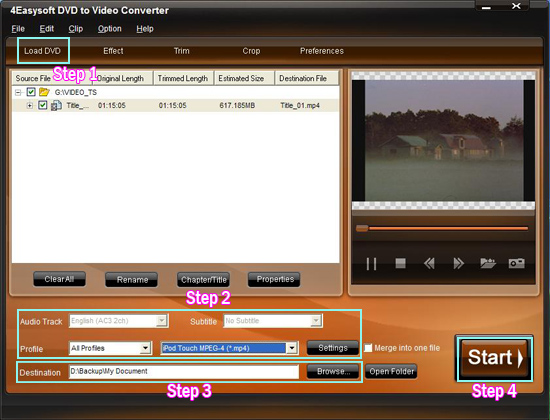
Step 1: Load DVDs.
This converter can support all commercial DVDs, including DVD with the restriction of CSS, Region, RCE, Sony ARccOS. And just“Load DVD” button, you can load your DVD from DVD drive, DVD folder in your PC or IFO file.
Step 2: Select output settings
From the profile drop-down list, you can choose the output video format you need.
And you can click “Settings” button to set the Video Encoder, Resolution, Frame Rate, Video Bitrate, etc.
You can also choose the audio track and subtitle you need.
Step 3: Choose the output folder.
Click “Browse” button, you can select the output path or you can choose the default path of the program.
Step 4: Start the conversion.
Completely supporting dual core CPU, the conversion can be finished with fastest conversion speed and highest output quality.
Editing tips:
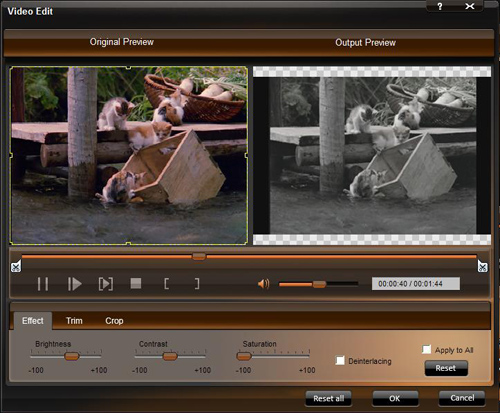
1.Effect
Click “Effect” button, and a dialogue pops up. You can drag each effect adjustment slider to set the video brightness, contrast, saturation and check deinterlacing for better video quality.
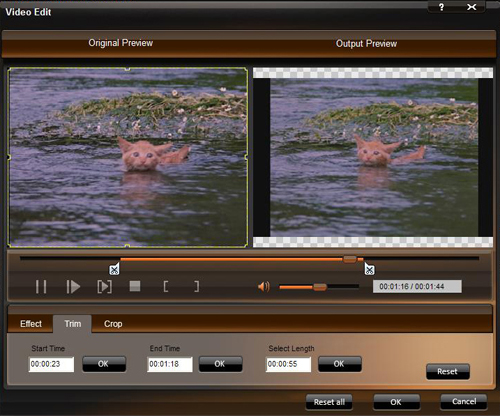
2.Trim
Click the “Trim” button, you can set the Start Time and End Time or just drag the slide bar to the position you want and then click “OK” to get any clip you want.
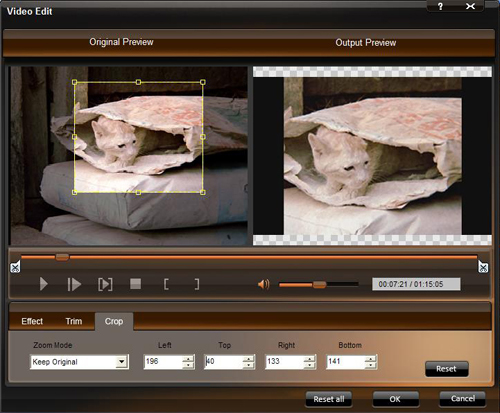
3.Crop
If you want to remove the black edges or just convert an area from your movie video, you can click “Crop” button to crop the video of the current title or chapter. You can specify an area either by dragging the frame around the video; setting the crop values: Top, Button, Left and Right; or selecting a zoom mode from the pull-down menu.
4.Snapshot
This converter gives you access to snapshot you favourite picture when you preview the DVD videos by clicking the "Snapshot " on the right preview window.
And click the button next to Snapshot, you can open the folder where the captured pictures are saved
5.Merge
Just check the “merge into one file” option if you want to merge the selected contents into one file As default the merged file is named after the first selected file (either a title or a chapter) to enjoy one successive videos by checking "Merge into one file".
6.Preferences
Click the “Preference” button you can select the output destination, the Snapshot foler, the format of the snapshot image,etc.
Just try now! It will not let you down!
More useful tools:
4Easysoft DVD to Walkman Converter is specially designed for Sony Walkman users. It can convert DVD to Sony Walkman MP4; rip DVD for any other Sony players; and has more powerful editing functions.
4Easysoft MP4 Converter is a powerful MP4 Video Converter which can convert almost any video formats to MPEG-4 standard formats for Zune, iPod, Apple TV, iPhone, PSP etc; has powerful video editing functions including video cropping, video trimming and video joining; convert other video formats to MP4, AVI, MP3, M4A, AAC,AC3, OGG, WAV, etc.
AVI Converter
5:["$","$4",null,{"fallback":[[["$","link","css:/assets/_layout-BzYdn0f6.css",{"rel":"stylesheet","precedence":"vite-rsc/importer-resources","href":"/assets/_layout-BzYdn0f6.css","data-rsc-css-href":"/assets/_layout-BzYdn0f6.css"}],"$undefined"],["$","div",null,{"className":"flex justify-center items-center p-8","children":["$","div",null,{"className":"animate-spin rounded-full h-8 w-8 border-b-2 border-indigo-600"}]}]],"children":["$","div",null,{"className":"bg-white/95 mt-0.5 py-6 sm:py-12","children":["$","article",null,{"className":"mx-auto w-full max-w-2xl format format-sm sm:format-base lg:format-lg format-blue dark:format-invert","children":[["$","header",null,{"className":"mb-4 lg:mb-6 not-format","children":[["$","h1",null,{"className":"mb-4 text-3xl font-extrabold leading-tight text-gray-900 lg:mb-6 lg:text-4xl dark:text-white","children":"How to rip and edit DVD movies to other video formats"}],["$","address",null,{"className":"flex items-center mb-6 not-italic","children":["$","div",null,{"className":"inline-flex items-center text-sm text-gray-900 dark:text-white","children":[["$","img",null,{"className":"mr-3 w-8 h-8 rounded-full","src":"$7","alt":"ming flank"}],["$","a",null,{"href":"/author/ming_flank_73525410922902","rel":"author","className":"font-bold capitalize hover:underline dark:text-white","children":"ming flank"}],["$","span",null,{"className":"mx-1 text-md text-gray-400 dark:text-gray-500","children":"·"}],["$","span",null,{"className":"inline-flex items-center ml-1 text-gray-500 dark:text-gray-400","children":"3 min read"}],["$","span",null,{"className":"mx-1 text-md text-gray-400 dark:text-gray-500","children":"·"}],["$","time",null,{"dateTime":"Tue Aug 18 2009","className":"text-gray-500 dark:text-gray-400","children":"Aug 18, 2009"}],[["$","span",null,{"className":"mx-1 text-md text-gray-400 dark:text-gray-500","children":"·"}],["$","a","software-applications",{"href":"/t/software-applications","className":"capitalize text-sm text-gray-500 dark:text-gray-400 hover:text-gray-600","children":"software applications"}]]]}]}]]}],["$","div",null,{"className":"lead prose mt-4 text-lg leading-8 text-gray-600","children":["$","div",null,{"dangerouslySetInnerHTML":{"__html":"$8"}}]}],"$L9","$La"]}]}]}]
b:T63b,M12.315 2c2.43 0 2.784.013 3.808.06 1.064.049 1.791.218 2.427.465a4.902 4.902 0 011.772 1.153 4.902 4.902 0 011.153 1.772c.247.636.416 1.363.465 2.427.048 1.067.06 1.407.06 4.123v.08c0 2.643-.012 2.987-.06 4.043-.049 1.064-.218 1.791-.465 2.427a4.902 4.902 0 01-1.153 1.772 4.902 4.902 0 01-1.772 1.153c-.636.247-1.363.416-2.427.465-1.067.048-1.407.06-4.123.06h-.08c-2.643 0-2.987-.012-4.043-.06-1.064-.049-1.791-.218-2.427-.465a4.902 4.902 0 01-1.772-1.153 4.902 4.902 0 01-1.153-1.772c-.247-.636-.416-1.363-.465-2.427-.047-1.024-.06-1.379-.06-3.808v-.63c0-2.43.013-2.784.06-3.808.049-1.064.218-1.791.465-2.427a4.902 4.902 0 011.153-1.772A4.902 4.902 0 015.45 2.525c.636-.247 1.363-.416 2.427-.465C8.901 2.013 9.256 2 11.685 2h.63zm-.081 1.802h-.468c-2.456 0-2.784.011-3.807.058-.975.045-1.504.207-1.857.344-.467.182-.8.398-1.15.748-.35.35-.566.683-.748 1.15-.137.353-.3.882-.344 1.857-.047 1.023-.058 1.351-.058 3.807v.468c0 2.456.011 2.784.058 3.807.045.975.207 1.504.344 1.857.182.466.399.8.748 1.15.35.35.683.566 1.15.748.353.137.882.3 1.857.344 1.054.048 1.37.058 4.041.058h.08c2.597 0 2.917-.01 3.96-.058.976-.045 1.505-.207 1.858-.344.466-.182.8-.398 1.15-.748.35-.35.566-.683.748-1.15.137-.353.3-.882.344-1.857.048-1.055.058-1.37.058-4.041v-.08c0-2.597-.01-2.917-.058-3.96-.045-.976-.207-1.505-.344-1.858a3.097 3.097 0 00-.748-1.15 3.098 3.098 0 00-1.15-.748c-.353-.137-.882-.3-1.857-.344-1.023-.047-1.351-.058-3.807-.058zM12 6.865a5.135 5.135 0 110 10.27 5.135 5.135 0 010-10.27zm0 1.802a3.333 3.333 0 100 6.666 3.333 3.333 0 000-6.666zm5.338-3.205a1.2 1.2 0 110 2.4 1.2 1.2 0 010-2.4z6:["$","footer",null,{"className":"bg-gray-900 dark:bg-gray-900","children":["$","div",null,{"className":"mx-auto max-w-7xl px-6 py-4.5 md:flex md:items-center md:justify-between lg:px-8","children":[["$","div",null,{"className":"flex justify-center space-x-6 md:order-2","children":[["$","a","Facebook",{"href":"https://facebook.com/gleeztech","target":"_blank","rel":"noopener noreferrer","className":"text-gray-400 hover:text-gray-500","children":[["$","span",null,{"className":"sr-only","children":"Facebook"}],["$","svg",null,{"className":"h-6 w-6","fill":"currentColor","viewBox":"0 0 24 24","aria-hidden":"true","children":["$","path",null,{"fillRule":"evenodd","d":"M22 12c0-5.523-4.477-10-10-10S2 6.477 2 12c0 4.991 3.657 9.128 8.438 9.878v-6.987h-2.54V12h2.54V9.797c0-2.506 1.492-3.89 3.777-3.89 1.094 0 2.238.195 2.238.195v2.46h-1.26c-1.243 0-1.63.771-1.63 1.562V12h2.773l-.443 2.89h-2.33v6.988C18.343 21.128 22 16.991 22 12z","clipRule":"evenodd"}]}]]}],["$","a","Instagram",{"href":"https://instagram.com/gleeztech","target":"_blank","rel":"noopener noreferrer","className":"text-gray-400 hover:text-gray-500","children":[["$","span",null,{"className":"sr-only","children":"Instagram"}],["$","svg",null,{"className":"h-6 w-6","fill":"currentColor","viewBox":"0 0 24 24","aria-hidden":"true","children":["$","path",null,{"fillRule":"evenodd","d":"$b","clipRule":"evenodd"}]}]]}],["$","a","X",{"href":"https://x.com/gleeztech","target":"_blank","rel":"noopener noreferrer","className":"text-gray-400 hover:text-gray-500","children":[["$","span",null,{"className":"sr-only","children":"X"}],["$","svg",null,{"className":"h-6 w-6","fill":"currentColor","viewBox":"0 0 24 24","aria-hidden":"true","children":["$","path",null,{"d":"M13.6823 10.6218L20.2391 3H18.6854L12.9921 9.61788L8.44486 3H3.2002L10.0765 13.0074L3.2002 21H4.75404L10.7663 14.0113L15.5685 21H20.8131L13.6819 10.6218H13.6823ZM11.5541 13.0956L10.8574 12.0991L5.31391 4.16971H7.70053L12.1742 10.5689L12.8709 11.5655L18.6861 19.8835H16.2995L11.5541 13.096V13.0956Z"}]}]]}],"$Lc"]}],"$Ld"]}]}]
9:null
a:["$","$4",null,{"fallback":["$","div",null,{"className":"comments-skeleton","children":[["$","div",null,{"className":"h-6 bg-gray-200 rounded w-32 mb-4 animate-pulse"}],["$","div",null,{"className":"space-y-3","children":[["$","div","1",{"className":"h-16 bg-gray-100 rounded animate-pulse"}],["$","div","2",{"className":"h-16 bg-gray-100 rounded animate-pulse"}],["$","div","3",{"className":"h-16 bg-gray-100 rounded animate-pulse"}]]}]]}],"children":"$Le"}]
c:["$","a","GitHub",{"href":"https://github.com/gleez","target":"_blank","rel":"noopener noreferrer","className":"text-gray-400 hover:text-gray-500","children":[["$","span",null,{"className":"sr-only","children":"GitHub"}],["$","svg",null,{"className":"h-6 w-6","fill":"currentColor","viewBox":"0 0 24 24","aria-hidden":"true","children":["$","path",null,{"fillRule":"evenodd","d":"M12 2C6.477 2 2 6.484 2 12.017c0 4.425 2.865 8.18 6.839 9.504.5.092.682-.217.682-.483 0-.237-.008-.868-.013-1.703-2.782.605-3.369-1.343-3.369-1.343-.454-1.158-1.11-1.466-1.11-1.466-.908-.62.069-.608.069-.608 1.003.07 1.531 1.032 1.531 1.032.892 1.53 2.341 1.088 2.91.832.092-.647.35-1.088.636-1.338-2.22-.253-4.555-1.113-4.555-4.951 0-1.093.39-1.988 1.029-2.688-.103-.253-.446-1.272.098-2.65 0 0 .84-.27 2.75 1.026A9.564 9.564 0 0112 6.844c.85.004 1.705.115 2.504.337 1.909-1.296 2.747-1.027 2.747-1.027.546 1.379.202 2.398.1 2.651.64.7 1.028 1.595 1.028 2.688 0 3.848-2.339 4.695-4.566 4.943.359.309.678.92.678 1.855 0 1.338-.012 2.419-.012 2.747 0 .268.18.58.688.482A10.019 10.019 0 0022 12.017C22 6.484 17.522 2 12 2z","clipRule":"evenodd"}]}]]}]
d:["$","div",null,{"className":"mt-8 md:order-1 md:mt-0","children":["$","p",null,{"className":"text-sm leading-5 text-gray-400","children":["© 2005 - ",2026," Gleez Inc. All rights reserved."]}]}]
f:T40d,data:image/svg+xml;utf8,%3Csvg%20width%3D%2232%22%20height%3D%2232%22%20viewBox%3D%220%200%2032%2032%22%20%0A%20%20%20%20%20%20%20%20%20xmlns%3D%22http%3A%2F%2Fwww.w3.org%2F2000%2Fsvg%22%20role%3D%22img%22%20aria-label%3D%22Avatar%20for%20nov%22%3E%0A%20%20%20%20%20%20%3Crect%20width%3D%22100%25%22%20height%3D%22100%25%22%20fill%3D%22hsl(189%2C%2079%25%2C%2059%25)%22%20rx%3D%223.2%22%20%2F%3E%0A%20%20%20%20%20%20%3Ctext%20x%3D%2250%25%22%20y%3D%2250%25%22%20%0A%20%20%20%20%20%20%20%20%20%20%20%20font-family%3D%22sans-serif%22%20%0A%20%20%20%20%20%20%20%20%20%20%20%20font-size%3D%2212.8%22%20%0A%20%20%20%20%20%20%20%20%20%20%20%20font-weight%3D%22bold%22%20%0A%20%20%20%20%20%20%20%20%20%20%20%20fill%3D%22%23FFFFFF%22%20%0A%20%20%20%20%20%20%20%20%20%20%20%20text-anchor%3D%22middle%22%20%0A%20%20%20%20%20%20%20%20%20%20%20%20dominant-baseline%3D%22central%22%0A%20%20%20%20%20%20%20%20%20%20%20%20style%3D%22user-select%3A%20none%3B%22%3E%0A%20%20%20%20%20%20%20%20N%0A%20%20%20%20%20%20%3C%2Ftext%3E%0A%20%20%20%20%3C%2Fsvg%3E10:T936,RMVB Video Converter, convert rmvb to avi, wmv, asf, mpg, mp4, 3: [RMVB Video Converter](http://www.rmvbvideoconverter.com/) is the easiest way to convert RMVB files to AVI, MPG, MPEG, MP4, WMV, MOV, 3GP, FLV, SWF, MP3, WAV, WMA, M4A, MP2, AAC, AC3, etc. You can even put the RMVB files to iPod, iPhone 3G S, Apple TV, Zune, PSP, Blackberry, Creative Zen, iRiver, etc.
RMVB (RealMedia Variable Bitrate) is a variable bitrate extension of the RealMedia multimedia container format developed by RealNetworks. RealMedia multimedia container format holds streaming media encoded at a constant bit rate, RMVB is typically used for multimedia content stored locally. Files using this format have the file extension ".rmvb". [RMVB Video Converter](http://www.rmvbvideoconverter.com/) can merge several RMVB files into one file, trim the video clips, crop areas around the video, add special effects to video, adjust video brightness, contrast, and saturation.
Key features:
• Import supported RMVB, RM, RA.
• Convert RMVB to AVI, MPG, MPEG, MP4, WMV, MOV, 3GP, FLV, SWF.
• Extract MP3, WAV, WMA, M4A, MP2, AAC, AC3 from RMVB, RM videos.
• 100% support iPod, iPhone, Apple TV, Zune, PSP, Blackberry, Gphone, Creative Zen, iRiver and other MP3/MP4 players.
• Merge several RMVB, RM files into one file.
• Trim the video clips, crop areas around the video.
• Add special effects to video, adjust video brightness, contrast, and saturation.
How to convert [rmvb to avi, asf, wmv, mpg format videos](http://www.rmvbvideoconverter.com/)?
Step1. Download [RMVB Video Converter](http://www.rmvbvideoconverter.com/) trial version. Instal [RMVB Converter](http://www.rmvbvideoconverter.com/) on your PC.
Step2. Load rmvb format movies.

Step3. Advanced video & audio settings.

Step4. Crop video clips to remove black edge.

Step5. Trim video clips to set start time and end tims.

Tags: [RMVB Video Converter](http://www.rmvbvideoconverter.com/), [RMVB to Video](http://www.rmvbvideoconverter.com/), [RMVB Converter](http://www.rmvbvideoconverter.com/).e:["$","div",null,{"className":"mt-8","children":[["$","h3",null,{"className":"text-xl font-semibold mb-4","children":["Voices (",2,")"]}],["$","div",null,{"className":"space-y-6","children":[[["$","div","78891519574422",{"className":"border-l-4 border-gray-200 pl-4","children":[["$","div",null,{"className":"flex items-center gap-2 mb-2","children":["$","address",null,{"className":"flex items-center mb-6 not-italic","children":["$","div",null,{"className":"inline-flex items-center text-sm text-gray-900 dark:text-white","children":[["$","img",null,{"className":"mr-3 w-8 h-8 rounded-full","src":"$f","alt":"nov"}],["$","a",null,{"href":"/author/nov_73542741787030","rel":"author","className":"font-bold capitalize hover:underline dark:text-white","children":"nov"}],["$","span",null,{"className":"mx-1 text-md text-gray-400 dark:text-gray-500","children":"·"}],"$undefined",["$","span",null,{"className":"mx-1 text-md text-gray-400 dark:text-gray-500","children":"·"}],["$","time",null,{"dateTime":"Thu Nov 12 2009","className":"text-gray-500 dark:text-gray-400","children":"Nov 12, 2009"}],"$undefined"]}]}]}],["$","p",null,{"className":"text-gray-700","children":"$10"}],"$L11"]}],"$L12"],false]}]]}]
11:["$","div",null,{"className":"flex items-center mt-4 space-x-4","children":["$","button",null,{"type":"button","className":"flex items-center font-medium text-sm text-gray-500 hover:underline dark:text-gray-400","children":[["$","svg",null,{"className":"mr-1.5 w-3 h-3","aria-hidden":"true","xmlns":"http://www.w3.org/2000/svg","fill":"currentColor","viewBox":"0 0 20 18","children":["$","path",null,{"d":"M18 0H2a2 2 0 0 0-2 2v9a2 2 0 0 0 2 2h2v4a1 1 0 0 0 1.707.707L10.414 13H18a2 2 0 0 0 2-2V2a2 2 0 0 0-2-2Zm-5 4h2a1 1 0 1 1 0 2h-2a1 1 0 1 1 0-2ZM5 4h5a1 1 0 1 1 0 2H5a1 1 0 0 1 0-2Zm2 5H5a1 1 0 0 1 0-2h2a1 1 0 0 1 0 2Zm9 0h-6a1 1 0 0 1 0-2h6a1 1 0 1 1 0 2Z"}]}],"Reply"]}]}]
13:T40f,data:image/svg+xml;utf8,%3Csvg%20width%3D%2232%22%20height%3D%2232%22%20viewBox%3D%220%200%2032%2032%22%20%0A%20%20%20%20%20%20%20%20%20xmlns%3D%22http%3A%2F%2Fwww.w3.org%2F2000%2Fsvg%22%20role%3D%22img%22%20aria-label%3D%22Avatar%20for%20Guest%22%3E%0A%20%20%20%20%20%20%3Crect%20width%3D%22100%25%22%20height%3D%22100%25%22%20fill%3D%22hsl(280%2C%2080%25%2C%2050%25)%22%20rx%3D%223.2%22%20%2F%3E%0A%20%20%20%20%20%20%3Ctext%20x%3D%2250%25%22%20y%3D%2250%25%22%20%0A%20%20%20%20%20%20%20%20%20%20%20%20font-family%3D%22sans-serif%22%20%0A%20%20%20%20%20%20%20%20%20%20%20%20font-size%3D%2212.8%22%20%0A%20%20%20%20%20%20%20%20%20%20%20%20font-weight%3D%22bold%22%20%0A%20%20%20%20%20%20%20%20%20%20%20%20fill%3D%22%23FFFFFF%22%20%0A%20%20%20%20%20%20%20%20%20%20%20%20text-anchor%3D%22middle%22%20%0A%20%20%20%20%20%20%20%20%20%20%20%20dominant-baseline%3D%22central%22%0A%20%20%20%20%20%20%20%20%20%20%20%20style%3D%22user-select%3A%20none%3B%22%3E%0A%20%20%20%20%20%20%20%20G%0A%20%20%20%20%20%20%3C%2Ftext%3E%0A%20%20%20%20%3C%2Fsvg%3E14:T554,iPod Manager for Mac is the: [iPod Manager for Mac](http://www.4easysoft.com/ipod-manager-for-mac.html) is the special-designed Mac iPod Manager to manage iPod files. It is actually both the Mac to iPod Manager and iPod to Mac Manager. For it can import video/audio files to iPod directly without iTunes and transfer iPod video/audio to Mac without any loss.[Mac iPod nano Video Converter](http://www.4easysoft.com/mac-ipod-nano-video-converter.html) is the best iPod nano Video Converter for Mac that supports converting various video and audio formats to iPod nano with just a few clicks, including TS, MTS, M2TS, MPEG, WMV, MOV, MP4, RM, ASF, VOB, 3GP, AVI, etc to iPod nano MP4, MP3, AAC, M4A, WAV etc, even to iPhone MOV, MP4...You can watch your favriout movies on iPod nano at any time.[Mac iPod touch Video Converter](http://www.4easysoft.com/mac-ipod-touch-video-converter.html) Mac iPod touch Video Converter is what you need to convert video to iPod touch on Mac. As one of the best iPod touch Video Converter Mac, it allows you to perfectly convert mainstream video like AVI, MPEG, WMV, MP4, RM, DivX etc to proper iPod touch formats including MPEG-4, H.264/MPEG-4 AVC, M4V. It is also possible to extract audio from your videos to AAC, MP3, WAV, AIFF, M4A. So you can upload them to your Apple iPod touch and watch them whenever and wherever you want!12:["$","div","78890462609814",{"className":"border-l-4 border-gray-200 pl-4","children":[["$","div",null,{"className":"flex items-center gap-2 mb-2","children":["$","address",null,{"className":"flex items-center mb-6 not-italic","children":["$","div",null,{"className":"inline-flex items-center text-sm text-gray-900 dark:text-white","children":[["$","img",null,{"className":"mr-3 w-8 h-8 rounded-full","src":"$13","alt":"Guest"}],["$","a",null,{"href":"/author/guest_73325980156310","rel":"author","className":"font-bold capitalize hover:underline dark:text-white","children":"Guest"}],["$","span",null,{"className":"mx-1 text-md text-gray-400 dark:text-gray-500","children":"·"}],"$undefined",["$","span",null,{"className":"mx-1 text-md text-gray-400 dark:text-gray-500","children":"·"}],["$","time",null,{"dateTime":"Wed Nov 11 2009","className":"text-gray-500 dark:text-gray-400","children":"Nov 11, 2009"}],"$undefined"]}]}]}],["$","p",null,{"className":"text-gray-700","children":"$14"}],["$","div",null,{"className":"flex items-center mt-4 space-x-4","children":["$","button",null,{"type":"button","className":"flex items-center font-medium text-sm text-gray-500 hover:underline dark:text-gray-400","children":["$L15","Reply"]}]}]]}]
15:["$","svg",null,{"className":"mr-1.5 w-3 h-3","aria-hidden":"true","xmlns":"http://www.w3.org/2000/svg","fill":"currentColor","viewBox":"0 0 20 18","children":["$","path",null,{"d":"M18 0H2a2 2 0 0 0-2 2v9a2 2 0 0 0 2 2h2v4a1 1 0 0 0 1.707.707L10.414 13H18a2 2 0 0 0 2-2V2a2 2 0 0 0-2-2Zm-5 4h2a1 1 0 1 1 0 2h-2a1 1 0 1 1 0-2ZM5 4h5a1 1 0 1 1 0 2H5a1 1 0 0 1 0-2Zm2 5H5a1 1 0 0 1 0-2h2a1 1 0 0 1 0 2Zm9 0h-6a1 1 0 0 1 0-2h6a1 1 0 1 1 0 2Z"}]}]